Meet the new trip Hub
Trips now open on a map-first Hub, with Preflight, standalone expenses, Pitch In, clearer checklists, voting in one place, and inspiration you can send to a sealed ballot.
In Limbo 2.3.0
Version 2.3.0 gives every trip a new home. The map, your plans, your prep, the money, the shared checklists, and every decision now work as one connected Hub.
Note
On Home, Add trip is a floating button in the bottom-right corner. If you already have an invite code, open New Trip and choose Have an invite code? → Join a trip at the top. When you are offline, syncing, or need to review a saved change, the compact cloud sits beside Add trip. Tap once to expand its status, then again to sync or open the recovery panel. Conflicts now say they need review instead of looking fully synced.
A map-first Hub
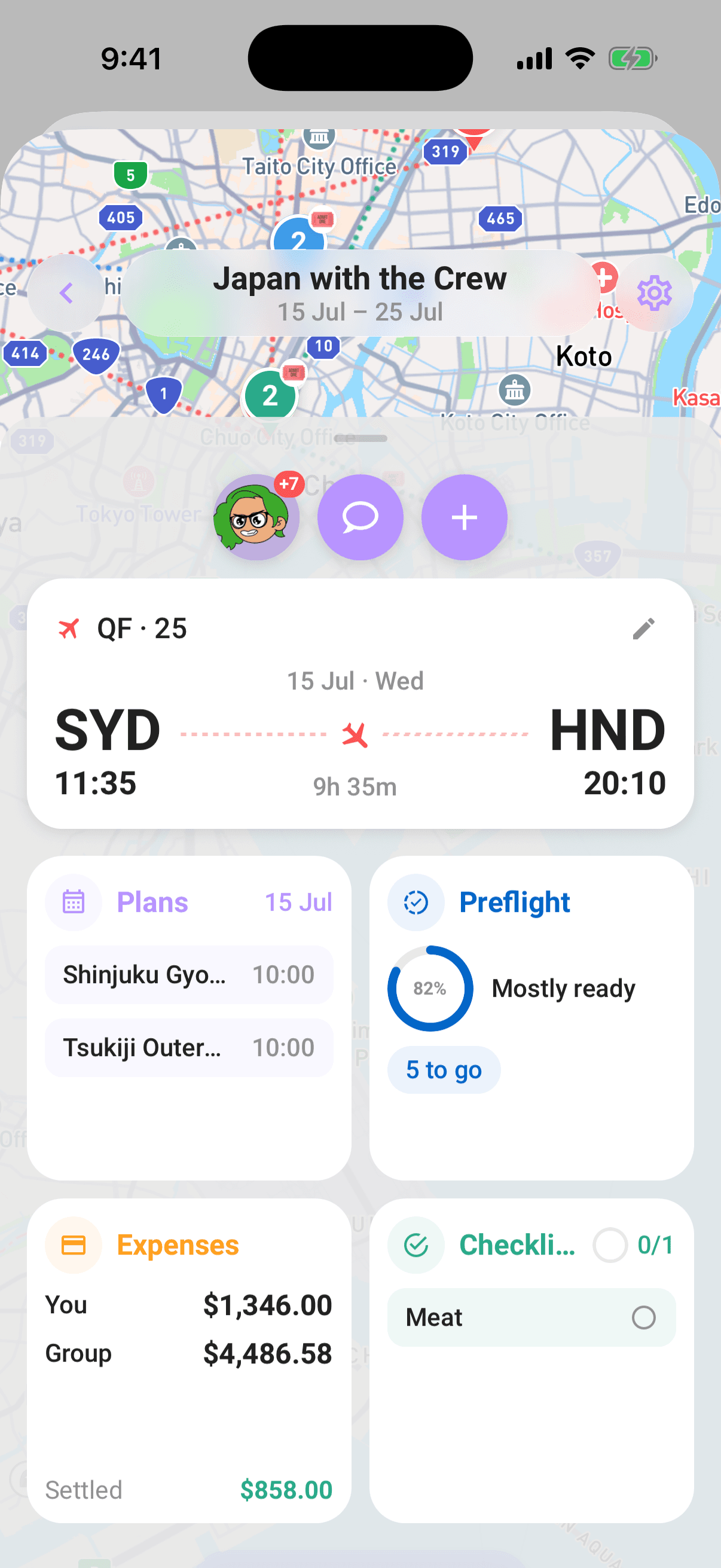
Tap a trip card and you now land on the map. A draggable Hub sheet sits above it with the controls and live summaries you use most:
- Crew, chat, Pitch In, and add plan stay pinned at the top, even when the Hub is pulled down to its smallest position.
- Plans, Preflight, Expenses, and Checklist tiles show useful information before you open them.
- Pull the Hub down to see the full map, use the date strip to focus on a day, or tap a map pin for that plan's details.
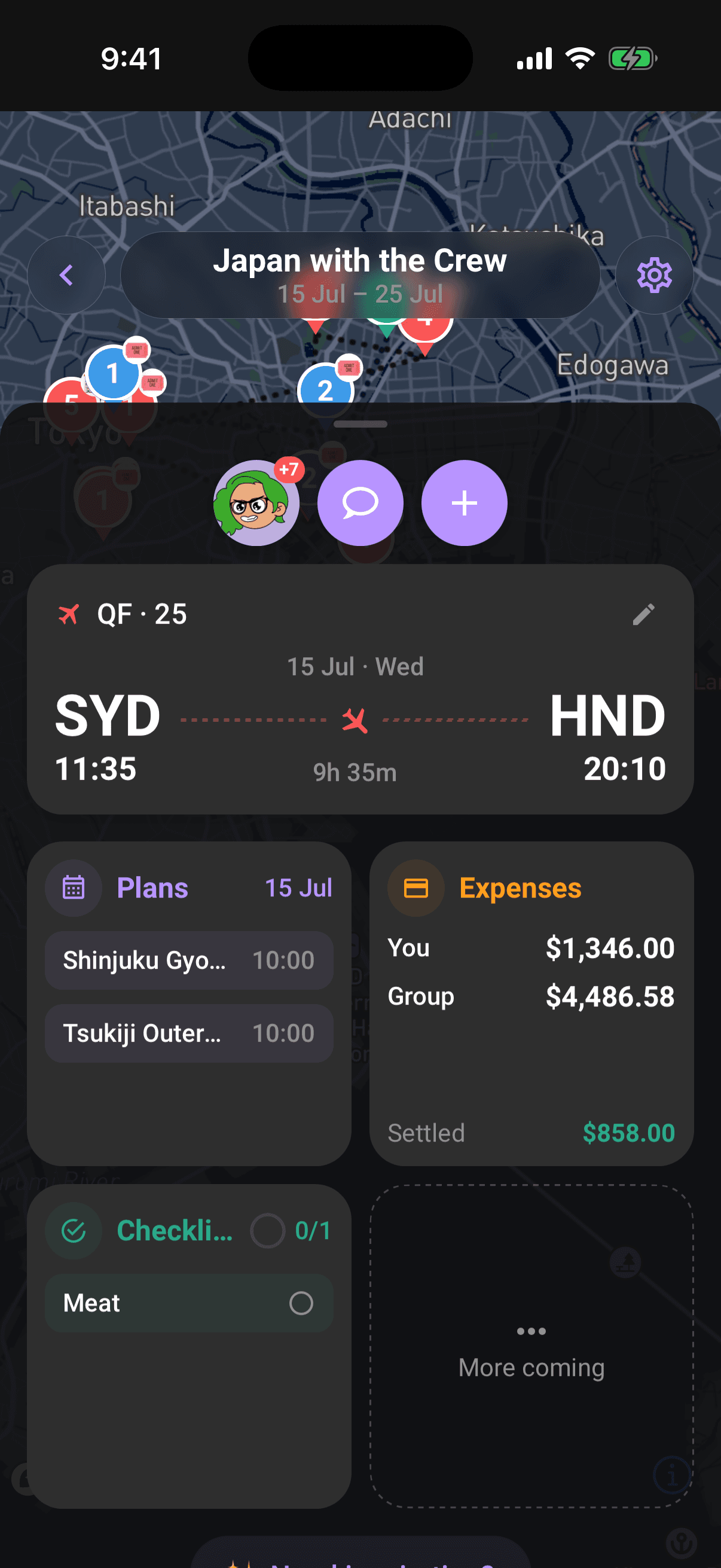
Open any tile and the full section sheet appears. Its horizontal pills keep Plans, Preflight, Voting, Expenses, Balances, and Checklist within a tap of one another.
Undated plans still sit under Anytime, but supported plan details now include a dedicated Add date shortcut. Pick the timing and save without reopening the full form. The change also works offline and syncs when you reconnect.
Preflight: know what's left before takeoff
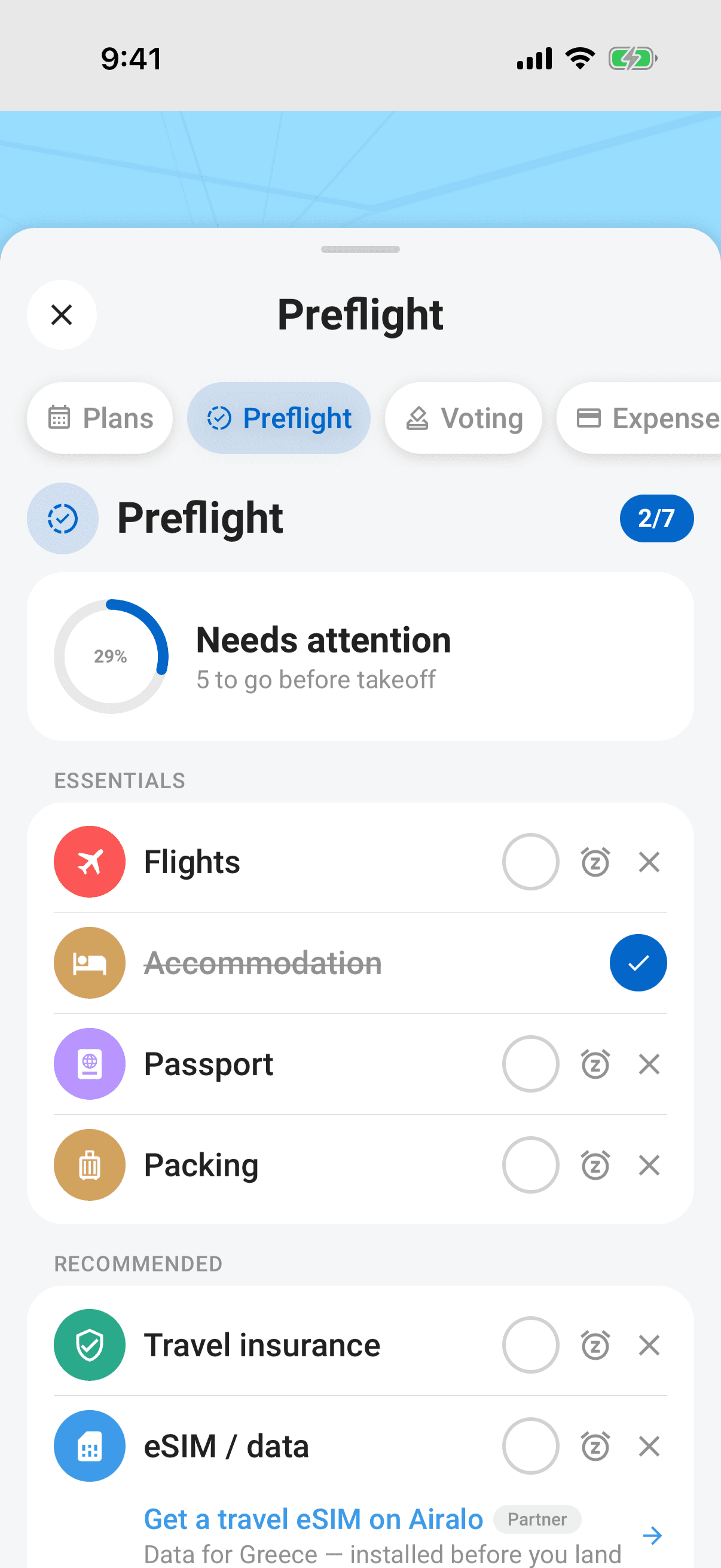
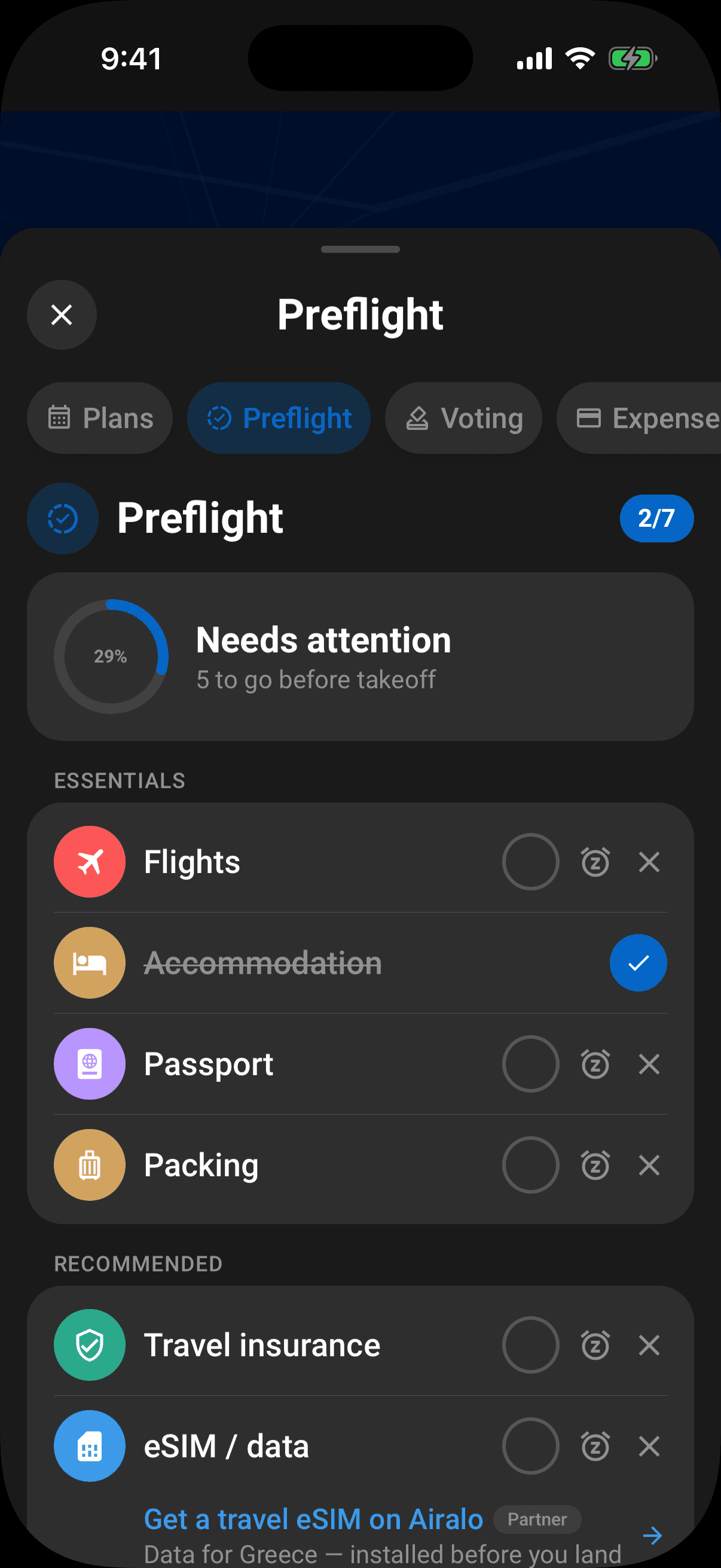
Preflight turns the details already on your trip into a personal readiness list. Its percentage ring appears on upcoming trip cards and in the Hub, so you can spot the trips that still need attention from Home. Each crew member has their own score and progress.
Inside Preflight, related items are grouped together with a clear N to go count. Mark something done, snooze it for seven days, remove an item that doesn't apply, or add a removed item back later. As dates and plans are added, the list keeps up.
Expenses and Balances, separated clearly
The old budget view is now two focused sections:
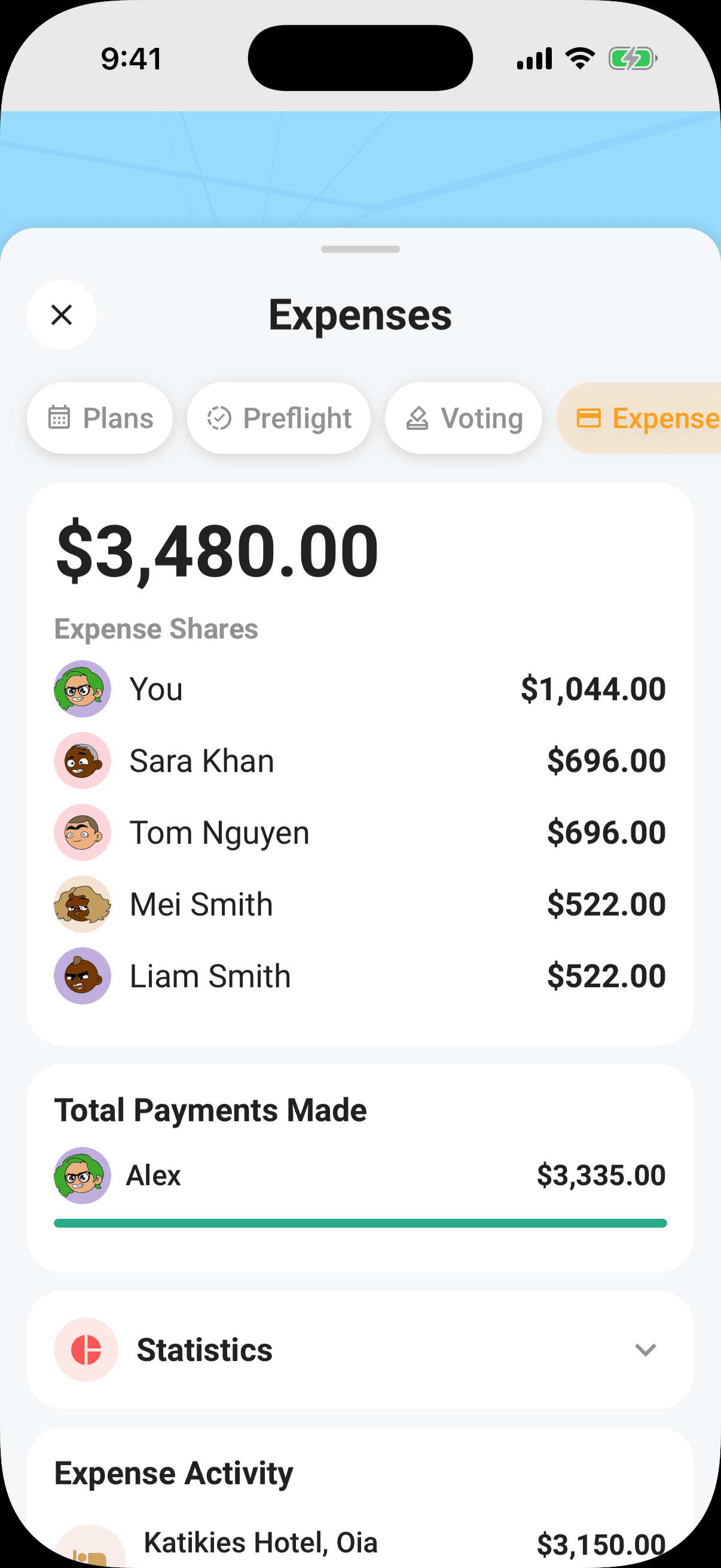
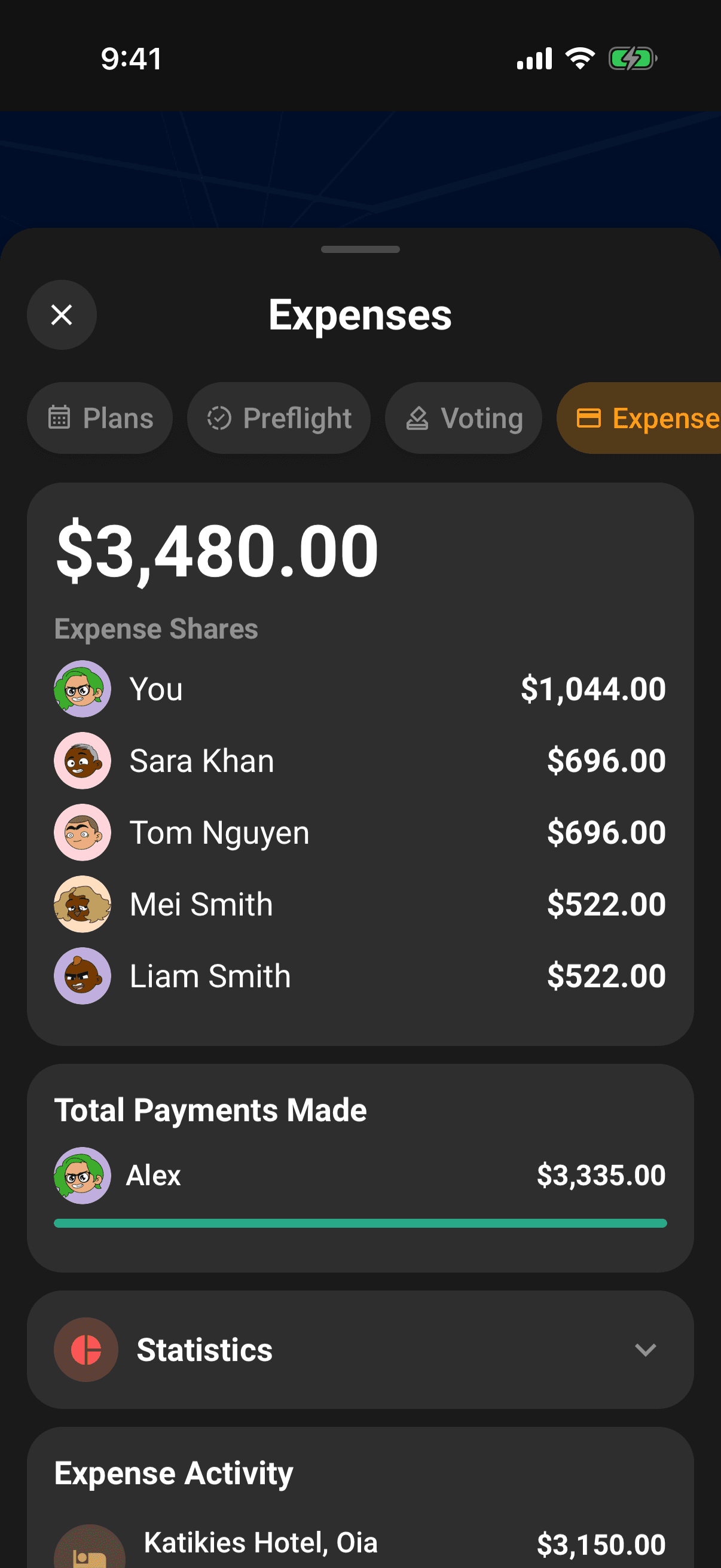
- Expenses shows the group total, each person's share, who paid, useful statistics, and the full expense activity. Foreign-currency items show a converted total when a rate is available.
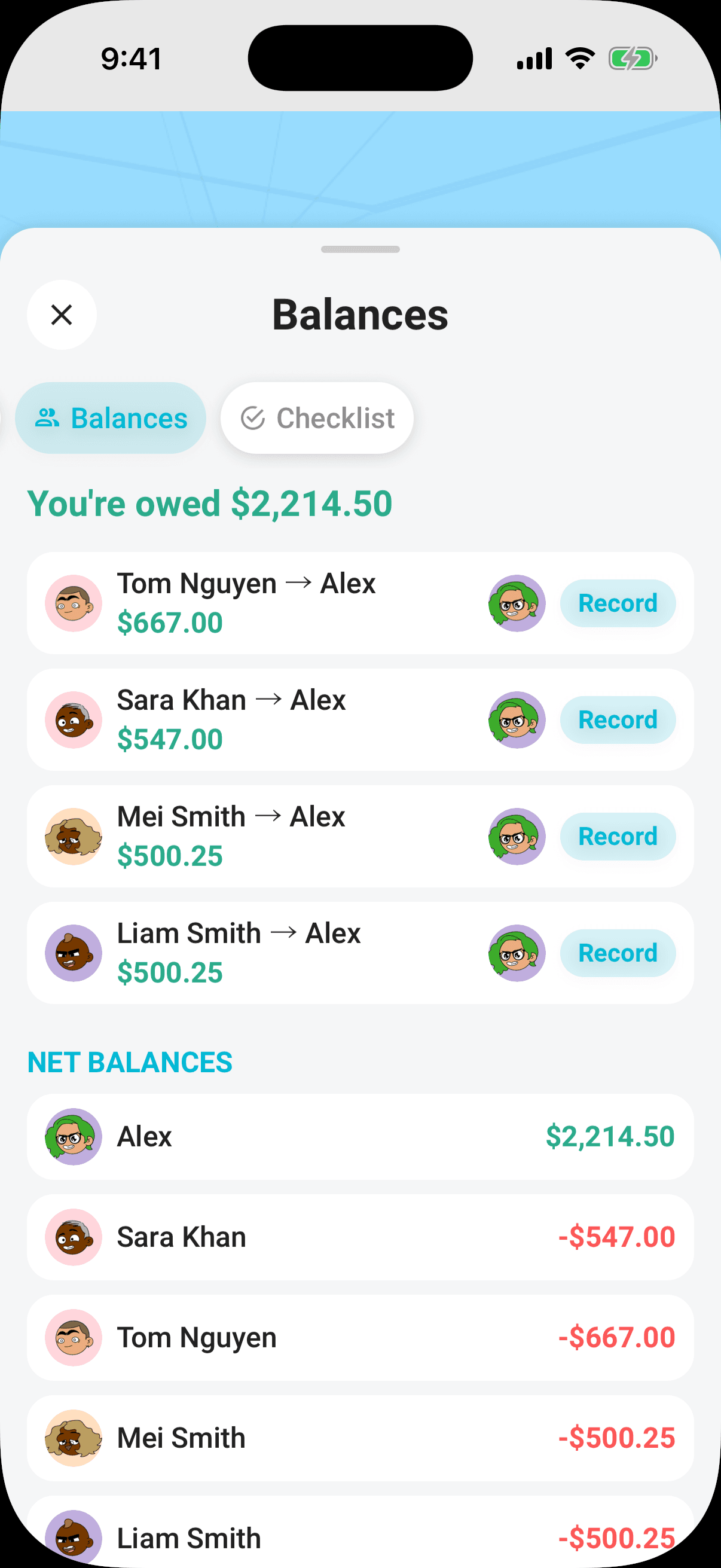
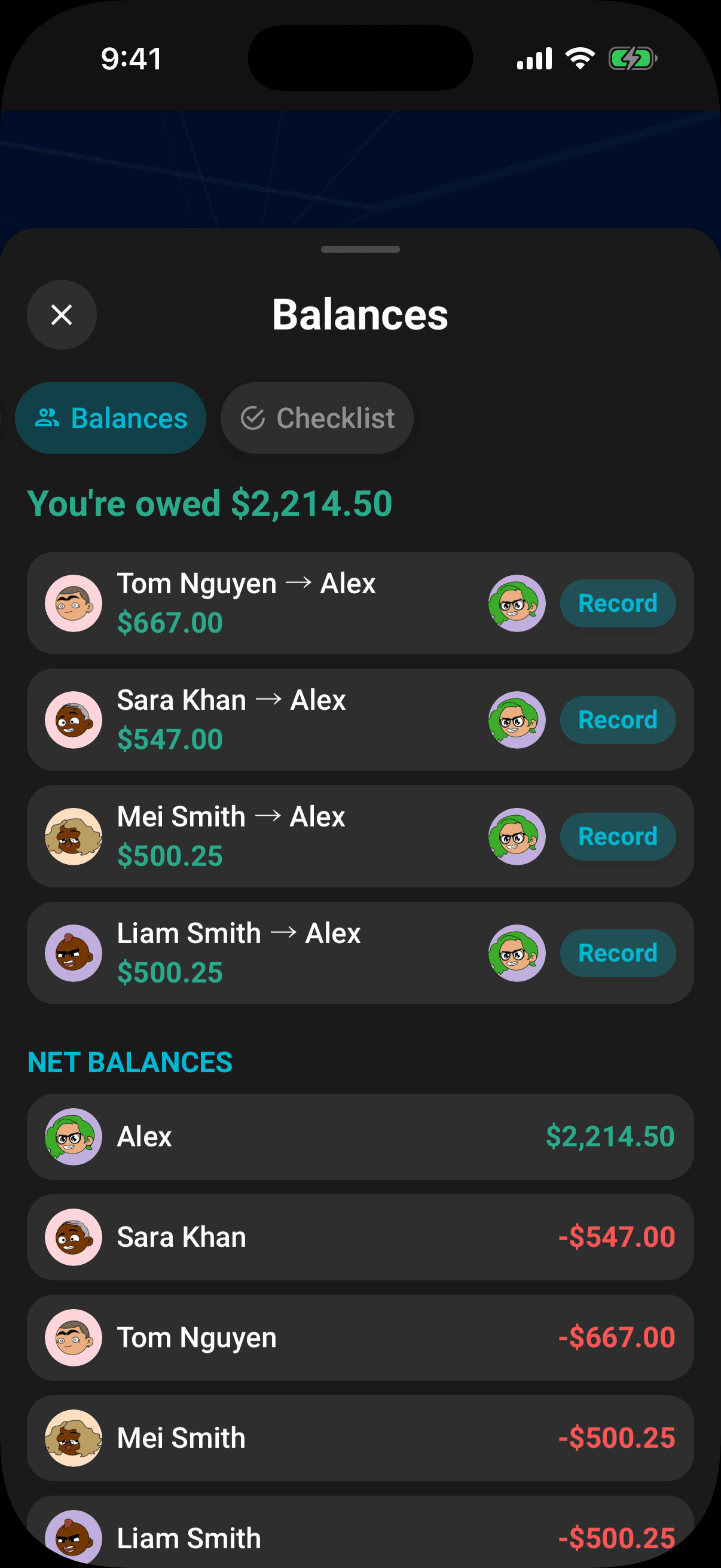
- Balances answers the question that matters at the end: who owes whom. It shows your position, simplifies the paybacks, lets the people involved record a settlement, and keeps the settlement history below.
The Hub's Expenses tile gives you the quick version first: You, Group, and Settled. Editors can now tap Add expense inside the panel to record a standalone amount, category, and daily recurrence without creating a full itinerary entry. A recurring expense can use its own start and end dates; Limbo shows the inclusive day count, per-day amount, and projected total throughout Expenses.
Changing Paid by now follows the plan form's save-and-cancel behavior: save applies the new payer, while cancel leaves the expense unchanged.
Pitch In from every trip
Tap the Pitch In hand beside Chat at the top of the trip Hub to see the shared planning jobs. It remains available from the trip gear menu too. Every joined crew member can claim an open task and complete or reopen work assigned to them. Organizers and crew with edit access keep the management controls for adding, assigning, reassigning, and removing tasks.
Allowed Pitch In changes still save offline and sync when you reconnect. If two people try to claim the same task, Limbo refreshes the row and shows who claimed it first.
Checklists that read like checklists
Shared lists now use collapsible group cards instead of a stack of thin rows. Each card shows who added it, its subitem count, and completed progress. Open it to see assignees, check items with a large tap target, and see who ticked something off.
Everyone on the trip can read and expand the lists. Organizers and crew with edit access can create lists, add or assign items, check them off, and delete them. Checklist changes still work offline and enter the sync queue; the banner lets you retry anything still waiting when you reconnect.
Voting has its own place
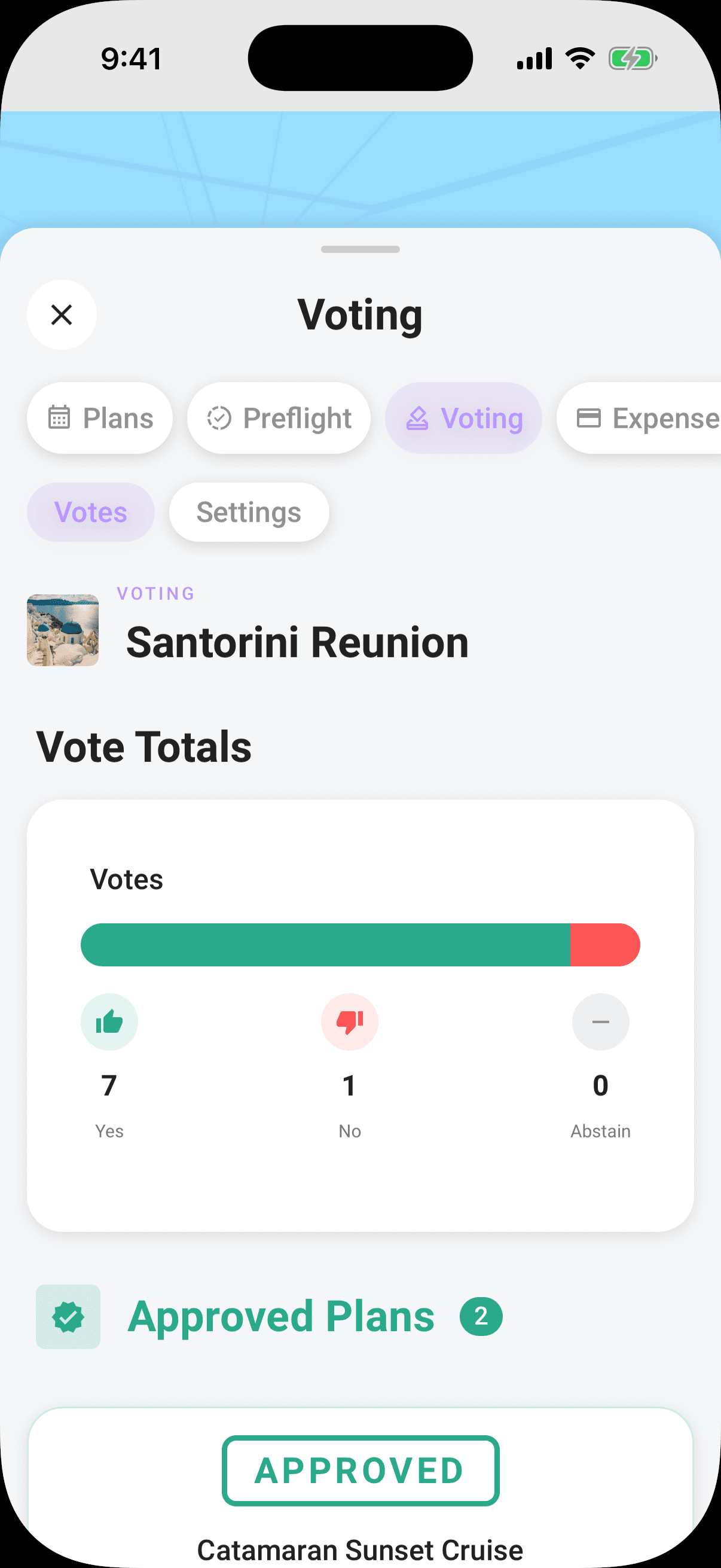
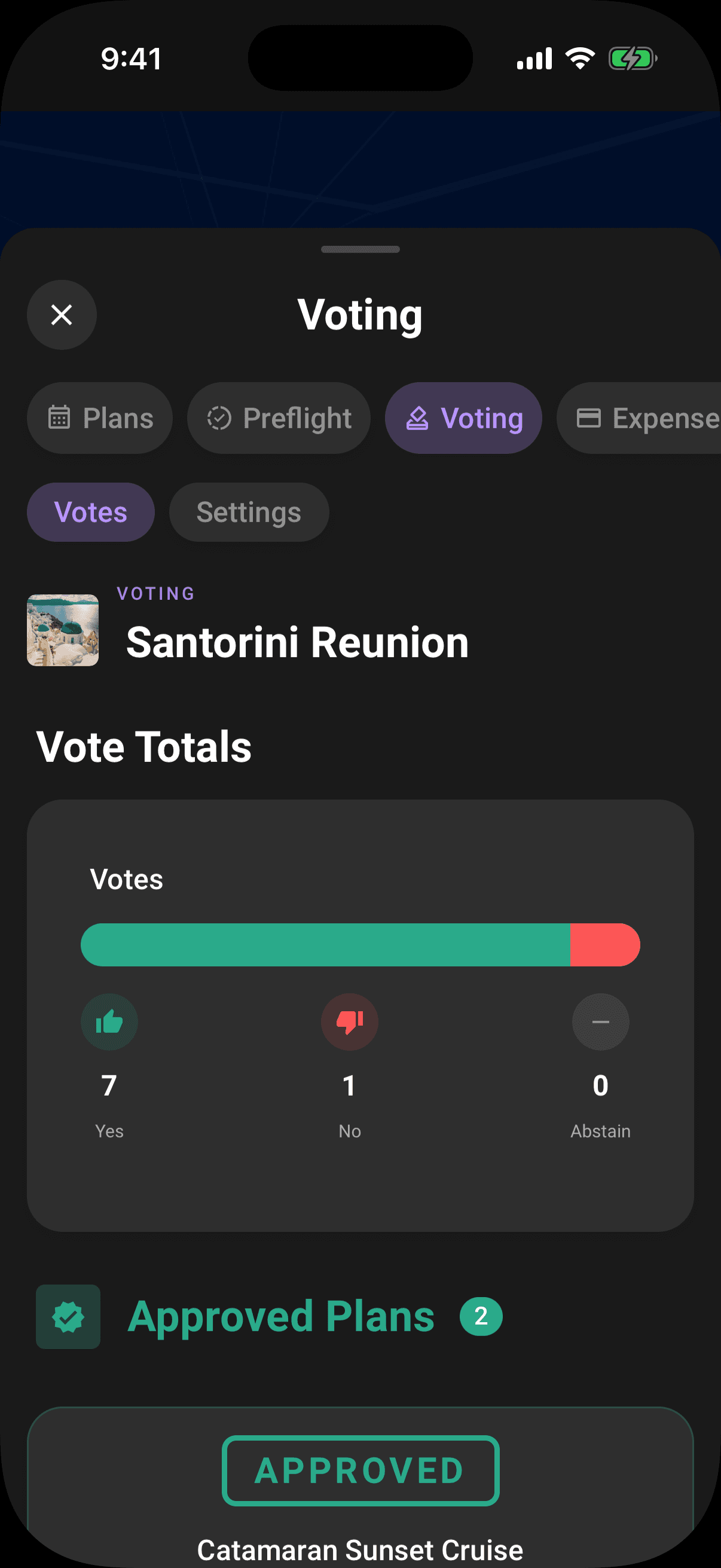
Voting is now a first-class trip section. Open the Voting pill and use Votes to see active proposals, approved plans, and rejected plans together. A red dot on the pill lets you know when ballots need attention.
Flights now keep the same airport-to-airport ticket wherever they appear: in the trip Hub, in Incoming Plans from forwarded emails, and on active or resolved ballots. The dotted route and centred plane make the journey readable at a glance.
Trip owners also see Settings beside Votes. It summarizes the saved rules and opens the full controls for deadlines, thresholds, participation, sealed votes, and anonymity. Other crew members never see the Settings segment.
The Decisions inbox on Home is still the quickest way to vote: choose Yes, No, or Abstain on the card and it clears once your vote is saved.
Turn inspiration into sealed proposals
Need inspiration? now uses a short guided flow for trip style, budget, crew, kids, and vibes. Pick the suggestions you want to keep and add them straight to Plans.
When voting is enabled, switch on Propose to crew instead. You can send up to five selected ideas at once; each becomes its own sealed ballot and lands in the crew's Decisions inbox. The suggestion list is the review step, so there is no second approval sheet afterwards.
Past trips now fail honestly when they have not been loaded on the device: offline, Limbo shows Not available offline instead of an empty itinerary. Open a past trip while connected to cache its plan content for later.
Cruise details stay intact
Cruise plans now keep their embarkation and disembarkation timezones, calculate the night count directly from the saved dates, and retain each port stop's duration after reopening. Per-person pricing also clears when the last passenger is removed. A cruise needs a name plus both sailing ports before it can be saved. The details sheet now shows the saved booking, cabin, passenger, special-needs, and pricing information without requiring you to open Edit.
Clearer plan entry and details
Plan forms now keep their visible default subtype when saved, show higher-contrast subtype choices, round selected times up to the next available interval, and use the right train, car, bus, or ferry icon for transport plans. Adding a date refreshes the open details sheet immediately, while shorter labels and stacked date and time values keep the selection readable on smaller screens.
Price fields now follow the number you type: enter whole units first, then type a decimal point only when you want cents. Saved costs reopen with both decimal places visible.
Flight lookup failures now explain the switch to manual entry instead of changing the form silently. Flight details also show the local calendar date alongside each departure and arrival time. Trip-card durations now use elapsed 24-hour periods rounded up, so a same-day trip is one day.
Trips without a destination now use Limbo's default cover instead of searching for the words “No destination.” Real destinations still get their city photo, including the synthetic Sydney test trips. Crew edit controls and saved checklist-template names are easier to read, and notification explanations now wrap in full.
Joined crew now see the correct Crew role in the trip roster, with the trip owner clearly marked Organizer. Organizer-only edit, invite, removal, and cost-splitting controls stay out of the read-only joined-member view.
Offline trip cleanup
Archiving a trip now keeps it available in Settings → Archived Trips even without a connection. Organizers can permanently delete it there while offline too; Limbo applies the change immediately and syncs the ordered archive and delete actions when the connection returns. Reactivating an archived trip still needs a connection.
Safer account recovery
Forgot Password now sends a short-lived, one-time sign-in code instead of replacing your password in the background. The acknowledgement is deliberately the same for every email address, your current password stays valid, and the code expires after 10 minutes. Limbo opens the recovery-code screen for you; after signing in, choose a new password promptly from Account → Password.
Email changes now wait for you to verify the new inbox. Your current address remains the login until that proof is complete, and you can cancel a pending change from Account.
Note
This article documents Limbo 2.3.0. Check the version shown on the App Store or in your installed build to confirm availability.
Learn more
The trip screen
A tour of the map-first trip screen: the draggable hub, day-coloured map, quick actions, tiles, workspaces, and trip settings.
Preflight
See your personal trip-readiness score, check off essential and recommended tasks, and restore anything you removed.
Expenses and balances
Read the Expenses total, shares, payments, statistics, and activity, then open Balances to see who owes whom.
Understand who owes whom
Use Balances to see your position, a simplified repayment list, every person's net balance, and recorded settlements.
Divvy up the work
Checklist is your trip's shared to-do list, add the big jobs, sort them into groups or start from a template, and watch every task move from up-for-grabs to done.
The voting dashboard
Find every ballot in the trip's Voting section, switch between Votes and owner-only Settings, or jump in from the Decisions inbox.
How group voting works
Turn plans into proposals, vote yes, no, or abstain, and see the reveal when the ballot closes.
Create your account and log in
Sign up with email, Apple, or Google, sign in with a one-time email code, verify your email, plus password resets, logging out, and deleting your account.
Archive, reactivate, and delete a trip
Put a finished trip away, bring it back, or remove it for good, and what happens to its plans and ballots along the way.
Cruises
Plan a sailing with ports, dates, cabin details, port stops, passengers, and an automatic per-person price.