Create your account and log in
Sign up with email, Apple, or Google, sign in with a one-time email code, verify your email, plus password resets, logging out, and deleting your account.
You need an account to create or join a crew trip, add plans, or vote on ballots. You can sign up with an email and password, or skip the form with Apple or Google. All of this applies to your own account only, no trip role required.
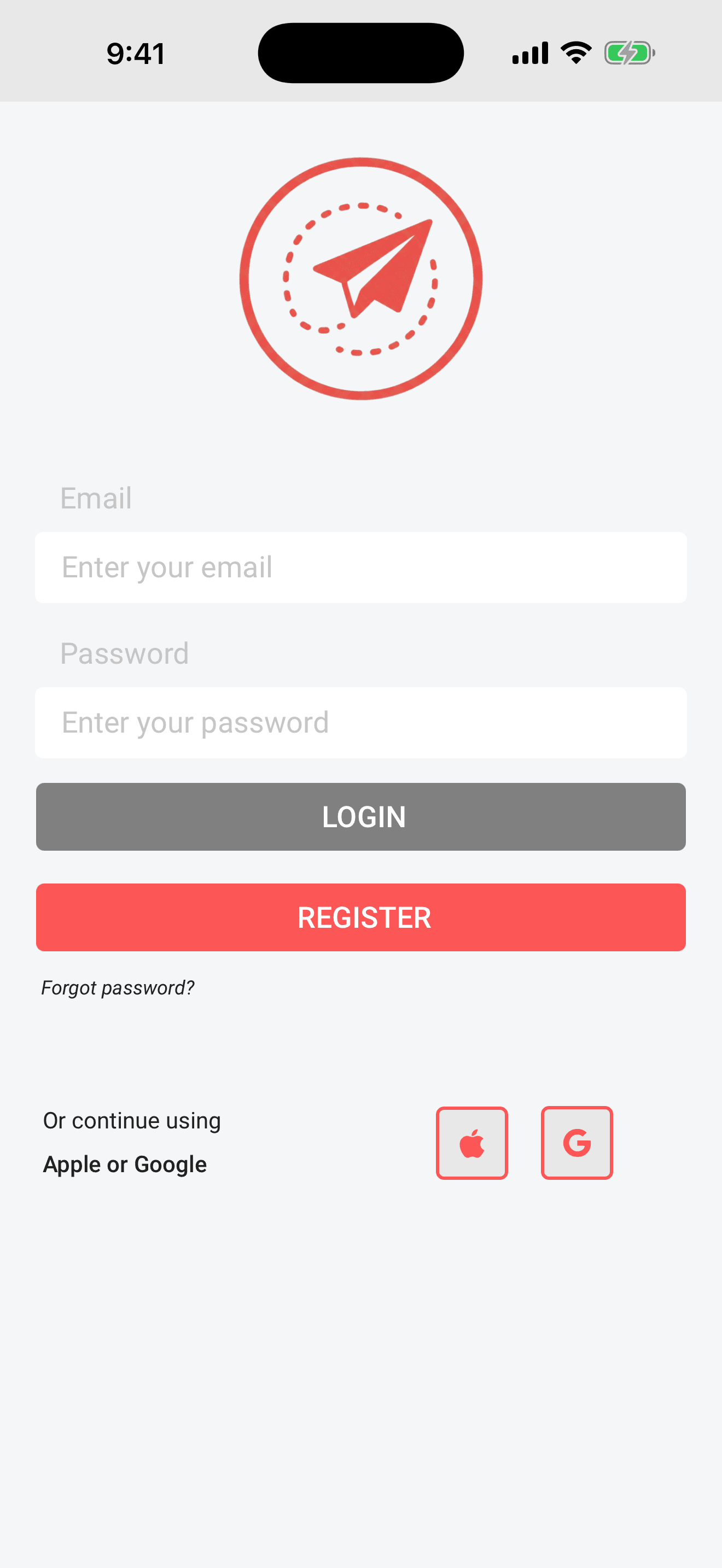
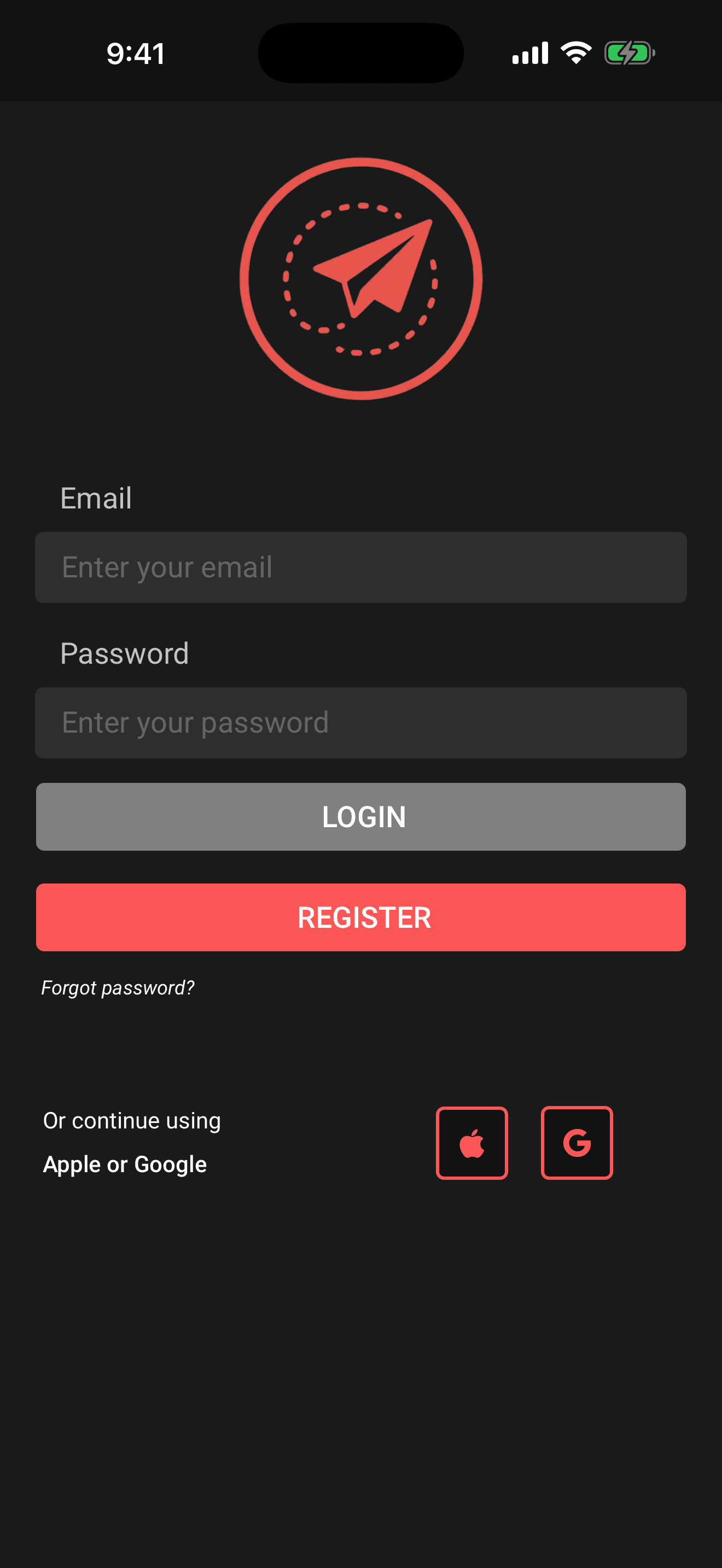
Create an account with email
- 1Open Limbo. On the login screen, tap Continue with more options, then Sign up.
- 2Enter your first name, last name, and email address.
- 3Choose a password and type it again to confirm.
- 4Tap the submit button in the top-right corner. Tap Cancel in the top-left at any time to go back to the login screen.
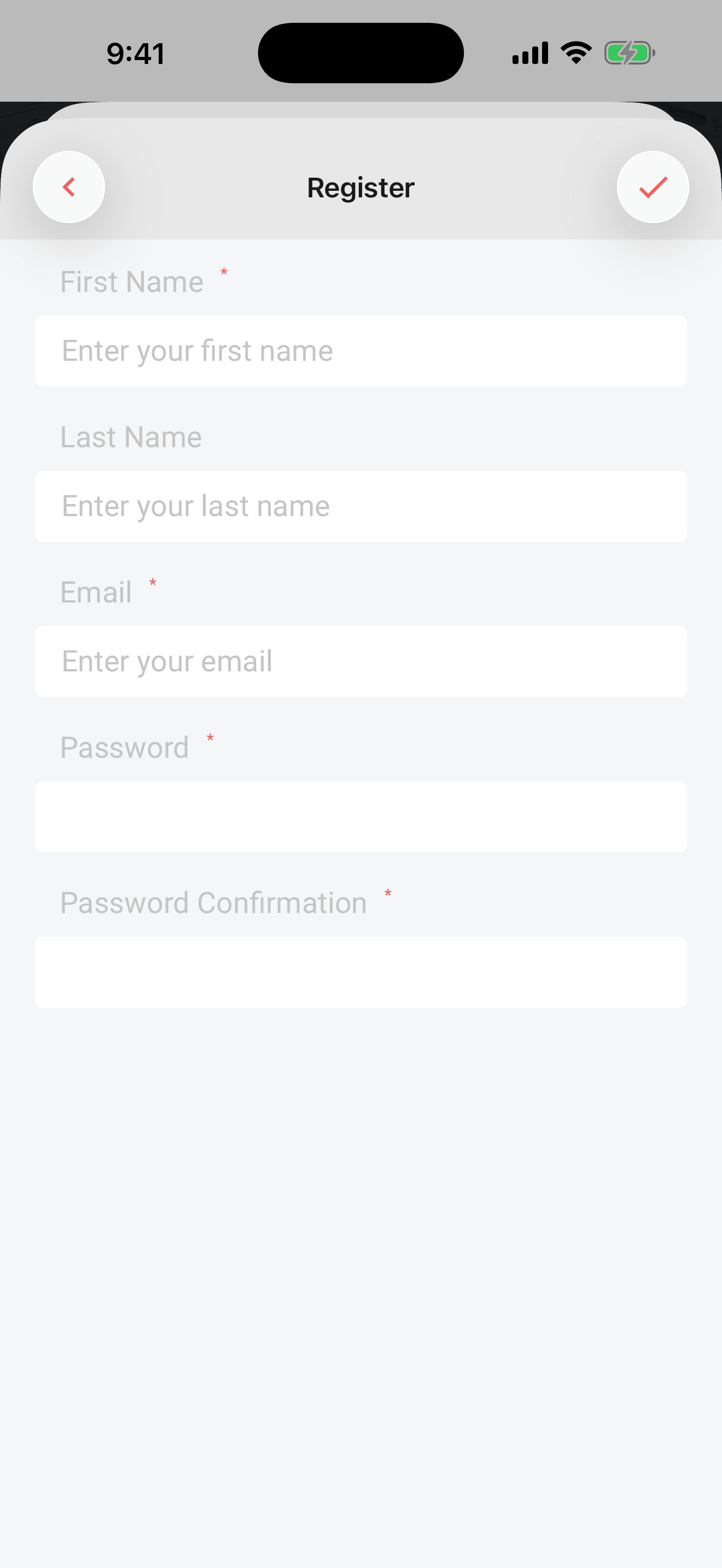
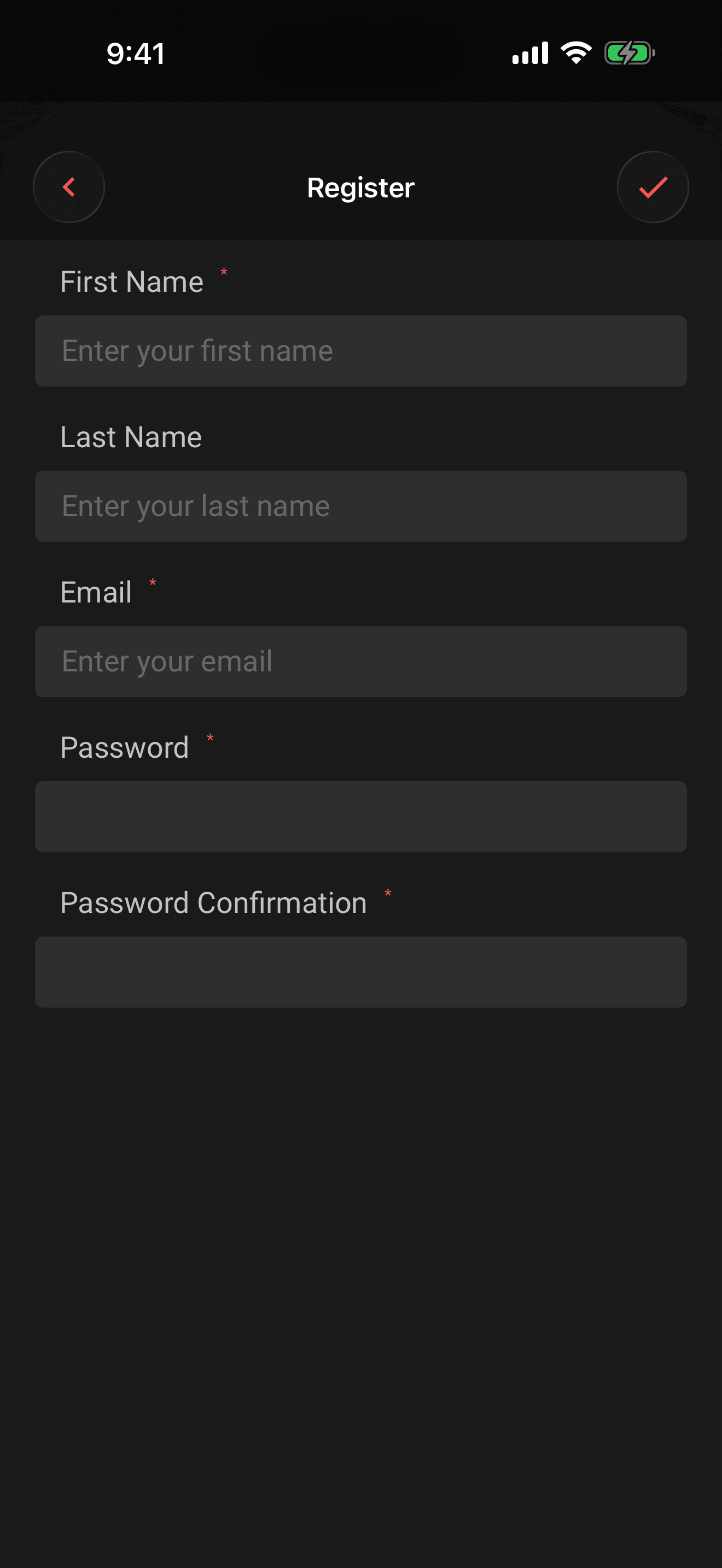
Passwords must be at least 8 characters and no more than 72 UTF-8 bytes. They do not need a particular mix of letters, numbers, or symbols. Emoji and some accented or non-Latin characters use more than one byte, so shorten the password if Limbo says it is too long.
Tip
Sign in with Apple or Google
- 1On the login screen, tap Continue with Apple or Continue with Google.
- 2Follow the system prompts to confirm with your Apple or Google account.
- 3You're signed in. First-time sign-ins create your Limbo account automatically.
Use the same method every time so you land in the same account.
In a browser, Continue with Apple opens Apple's sign-in window when available. Keep Limbo open until the window finishes. Closing it cancels the attempt; tap the button again when you're ready. If Apple couldn't load, choose Try again. If Apple sign-in is unavailable, use another sign-in option with the email address already associated with your Limbo account to avoid creating a separate account. Signing in elsewhere while Apple's window is open cancels the older attempt.
Google’s browser button may display one of your Google accounts. The sign-in window lets you choose a different account; select the one associated with your existing Limbo account to keep using the same trips. While Limbo finishes, Signing in with Google… appears below the button.
If Google couldn’t load appears in the browser, reconnect and choose Try again, or continue with email. Keep the login screen open while completing Google sign-in. If you leave that screen or sign in elsewhere, start Google sign-in again from the current login screen; an older attempt will not replace your newer session.
Log in
If you're signed out, tap Continue with more options, enter your email and password, and tap Login. You can also use the Apple or Google button if that's how you signed up.
Note
If a Limbo link asked you to sign in first, a successful email, email-code, Apple, or Google sign-in returns you to that link. When you opened Limbo normally, sign-in takes you to Home.
Sign in with an email code
Forgot your password, or just prefer not to type one? You can sign in with a one-time code sent to your email, no password needed.
- 1On the login screen, tap Continue with email code.
- 2Enter your email and tap Send me a code.
- 3Check your inbox for a 6-digit code. It arrives in seconds and expires in 10 minutes.
- 4Type the code and tap Verify & sign in.
Tip
Verify your email
When you sign up with an email and password, we send a verification link to your inbox. Tap it to confirm your address, one tap and you're done. (Signing in with Apple, Google, or an email code verifies you automatically, so there's nothing extra to do.)
New accounts have 7 days to verify. Until then, a banner sits at the top of the app with Resend and I've verified buttons. If 7 days pass without verifying, you can still log in and browse everything, but creating or editing trips, proposing plans, voting, and inviting crew pause until you verify. Verifying instantly restores full access, nothing is lost.
Connect to the internet before using either button. If resending fails, Limbo shows a retry message instead of saying an email was sent. I've verified checks your latest status; if your address is still unverified, open the link in your email and check again.
Tip
Forgot your password?
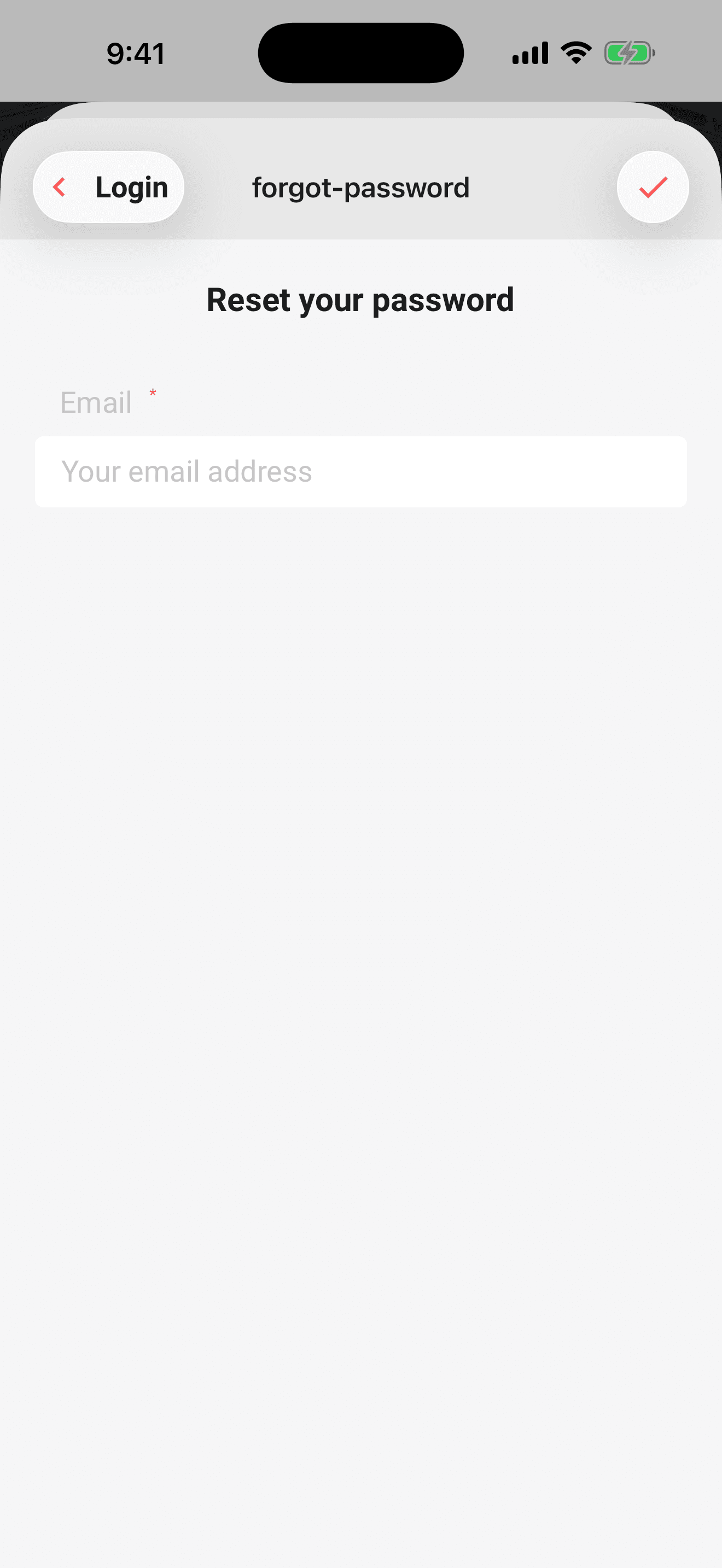
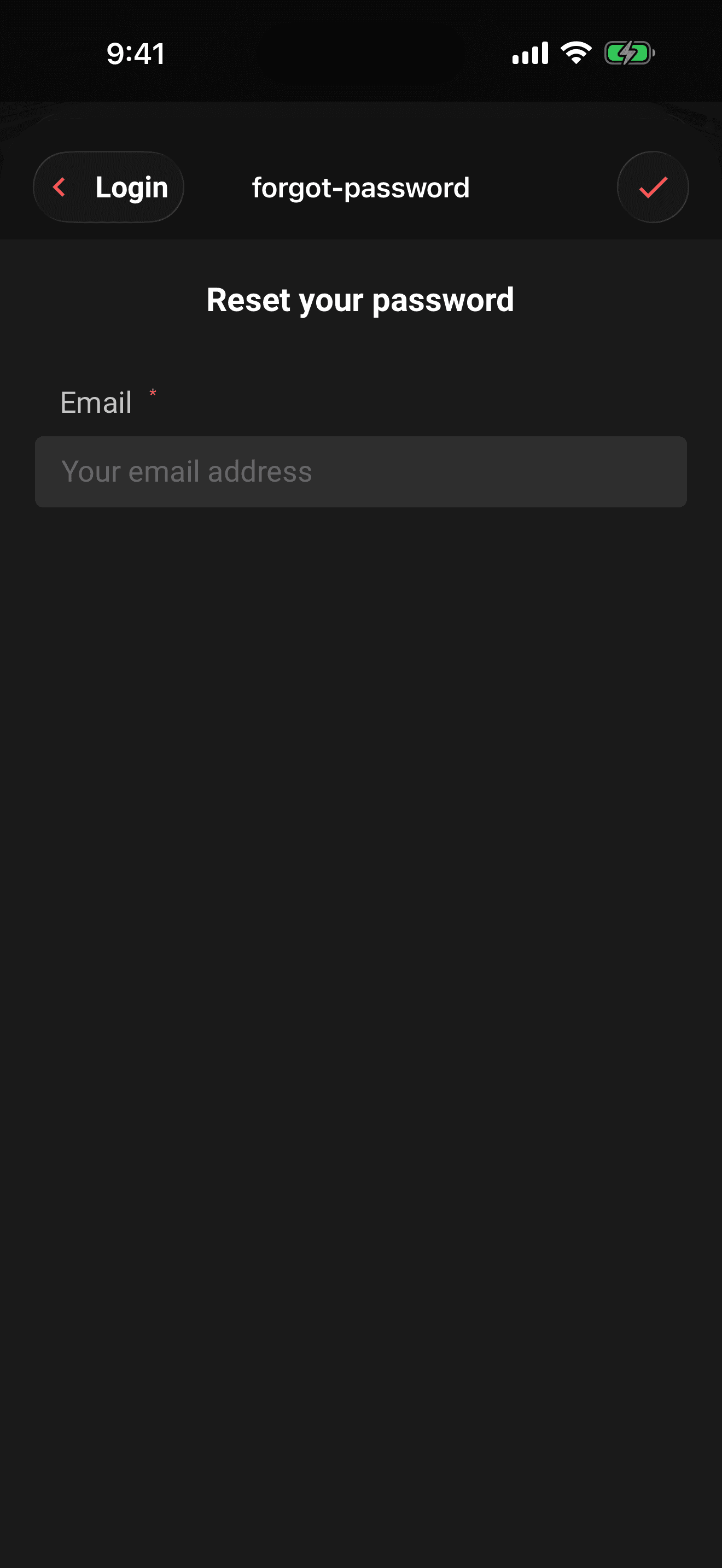
- 1On the login screen, tap Continue with more options, then Forgot password?.
- 2Enter the email address on your account.
- 3Tap the submit button in the top-right corner. Limbo always shows the same acknowledgement, so nobody can use this screen to check whether an email has an account.
- 4If the address belongs to an account, check your inbox for a 6-digit sign-in code. Your existing password is not changed.
- 5Limbo opens Enter your recovery code automatically. Enter the emailed code, then tap Verify & sign in. The code expires after 10 minutes and works once.
- 6After signing in, tap your avatar to open Account, then open Password and choose a new password promptly. The recovery authorization also expires 10 minutes after you verify the code; if it expires, repeat these steps.
Already logged in and know your current password? Tap your avatar in the top-right of Home to open Account, then open Password.
Log out
- 1On the Home screen, tap your avatar in the top-right corner to open Account.
- 2Scroll down and tap Logout.
There’s no confirmation prompt when you tap Logout. Once sign-out completes, locally stored account data is cleared. Nothing is deleted from your account: your trips, plans, votes, and Preflight progress are there when you sign back in. In a browser, your other open Limbo tabs return to sign-in too.
Logging out also cancels sign-in attempts that are still waiting for a response. A delayed response from an earlier attempt won’t sign you back in or replace an account you’ve since signed into. Start again from the current login screen when you’re ready.
Delete your account
Deleting is different from logging out: it permanently removes your account and cannot be undone. Tap your avatar to open Account, scroll to Delete Account, and follow the confirmation prompt. Once Limbo accepts the online request, account access is disabled and you're logged out. See Delete your account for what happens to private and shared trips and how pending Apple or subscription-processor cleanup is handled.
Permissions
member Everything on this page is available to anyone: these actions affect only your own account, never your crew's trips.
Related articles
Plan your first group trip
The full walkthrough: create your account, set up a trip, invite your crew, propose plans, and run your first sealed vote.
The Home screen explained
A tour of Home: the decisions inbox, trip cards with Preflight progress and chat, plans waiting for review, notifications, and the buttons that start everything.
Delete your account
The exact deletion flow, what happens to your trips, votes, and messages, and why it can't be undone.