The Home screen explained
A tour of Home: the decisions inbox, trip cards with Preflight progress and chat, plans waiting for review, notifications, and the buttons that start everything.
Home is Limbo's front door: your trips, the decisions waiting on you, and everything that arrived while you were away. Every signed-in member sees the same layout; some pieces only appear when there's something for them to show.
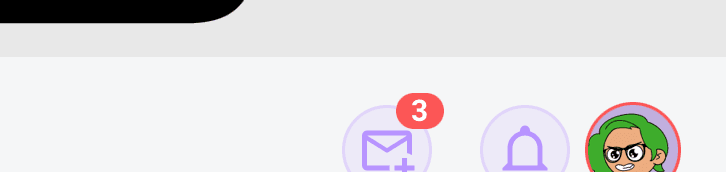
The header, left to right
- Plans waiting for review, a circular envelope button. It pulses when new plans are waiting, and a red badge shows how many you haven't seen yet (capped at 99+). These are bookings Limbo parsed from confirmation emails you forwarded to addthis@getlimbo.app, and, from a Google account you connected to the Automatic Gmail booking inbox. Tap it to review each card, choose its trip, decide whether to keep the original email and files, then Confirm & Add or Delete it. The Incoming Plans sheet also has a cog in its header that opens the Email import screen, where you choose how confirmations reach this queue.
- Offline cloud, appears when you're offline, syncing saved work, or need to review a failed change or conflict. Tap once to expand the status, then again to sync or open Offline sync. You can keep working in cached trips while offline. Queued changes stay saved until they reach the server.
- Notifications bell, opens your notifications inbox. A badge shows your unread count, and tapping any notification jumps straight to the trip, plan, or ballot it's about.
- Your avatar, opens Account directly: your recap, identity, crew, trip tools, preferences, privacy controls, and archived trips.
The decisions inbox
When any trip has a ballot waiting on your vote, a horizontal row of decision cards appears above your trips, one card per pending ballot, sorted so the tightest deadline comes first. Cards only show while the ballot is still open; once a deadline passes, the card goes away.
The row also acts as your lightweight Decision Center: if decisions are waiting across more than one trip, Home shows how many trips need attention; each card names the trip, shows whether more decisions are grouped with it, and tells you whether the crew is still waiting on votes. Tight deadlines get a small nudge like Due today or Vote now.
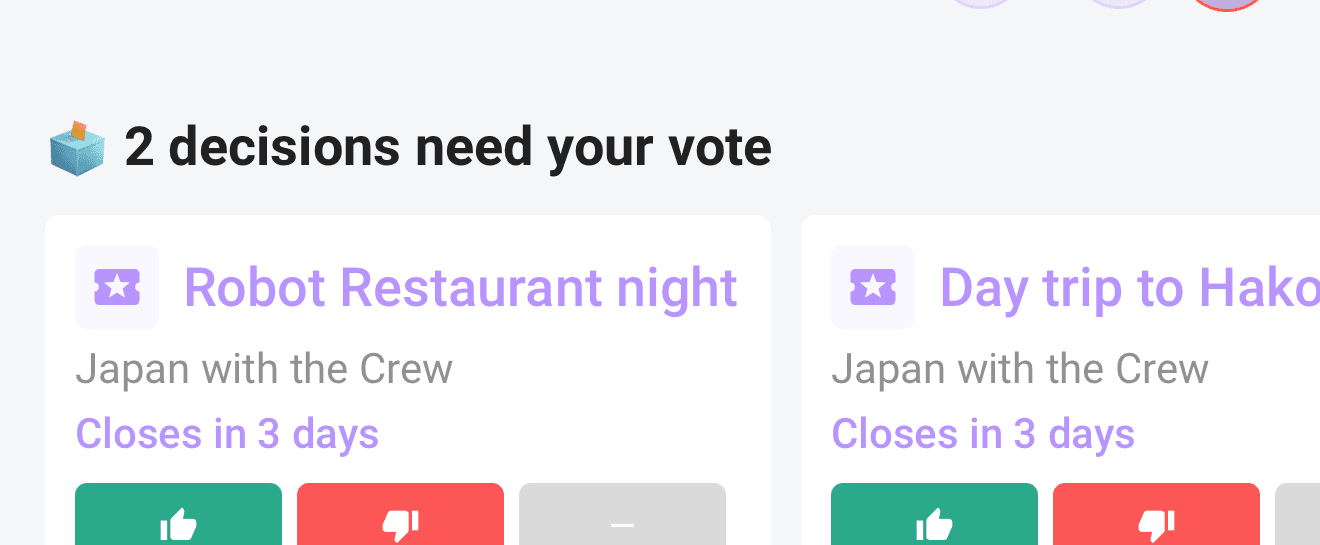
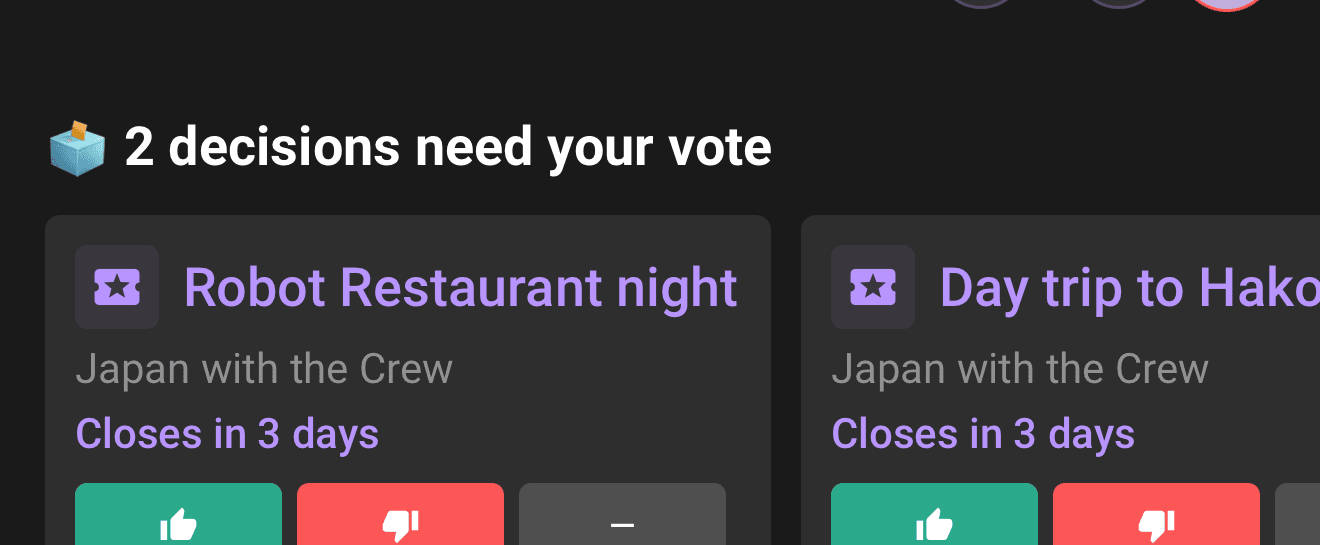
- 1Tap Yes, No, or Abstain directly on the card. Once your vote is saved, the card clears from your inbox.
- 2Or tap the card itself to open that trip's voting dashboard for the full ballot, deadline, and details.
Every eligible adult who has joined the trip can vote on their own pending ballots. To change or remove your vote while the ballot is still open, open the trip, raise any section, then go to Voting → Votes. If you remove it, the ballot returns to the Decisions inbox because it needs your choice again.
Travel guides and sponsored cards
Travel guides are not available in the browser app. Old guide links return to Home.
When Limbo has creator itineraries ready to browse, a Travel guides entry appears on Home. It opens free itineraries made by approved Limbo creators. While online, you can review a guide, report it, block its creator, or copy it into your own private, editable Limbo trip. Limbo can hide this entry while the guide collection is unavailable; your trips and the rest of Home are unchanged.
When you are offline and the current downloaded travel pack contains linked guides, the same entry appears with Read guides saved with this downloaded trip. You can browse and read those saved itineraries; copy, booking, report, block, and sponsored actions stay hidden until you reconnect.
All accounts are ad-free. See Ads, partner offers, and Travel guides for optional booking links.
Add Decisions to your iPhone Home Screen
On iPhone, Limbo also has a Decisions widget. It shows how many ballots need your vote; the medium size also previews the next two. Tap the widget to open Limbo.
- 1Touch and hold an empty area of your iPhone Home Screen, then tap Edit → Add Widget.
- 2Search for Limbo and choose the small or medium Limbo Decisions widget.
- 3Tap Add Widget, place it where you want, then tap Done.
The count refreshes when Limbo checks your Decisions inbox. Android members can see the same pending ballots inside Limbo on Home.
Trip cards
Each upcoming trip gets a card. On it:
- Tap the card to open the trip's map-first Hub. The map shows where your plans are, while a draggable Hub sheet keeps your crew, chat, Checklist, add-plan button, and trip sections close by.
- Preflight ring, a small percentage ring in the top-left of upcoming trips, shows how close you are to being ready. It appears once Limbo has enough trip details to build your Preflight list; past trips don't show it.
- Avatar stack, the faces of your crew, shown once the trip has at least two members.
- Chat bubble, appears alongside the crew avatars and opens that trip's chat directly. A red badge on the bubble counts messages you haven't read.
If you have no upcoming trips yet, Home shows a hint box pointing you at Add trip instead.
Start or join a trip
Tap the floating + in the bottom-right corner to open the manual New Trip form. When the offline cloud is visible, it sits immediately beside the add button and expands only when you tap it.
The standalone itinerary planner and previous Need inspiration wizard are retired, so Home does not show a Build it myself or Create for me chooser. Create the trip manually first.
The New Trip form starts with Have an invite code? → Join a trip. Tap that row to enter a six-character code, preview the trip, and join instead of creating one. Anyone with a valid code can join; no special role is needed.
Pull to refresh
Drag the screen down to refresh everything at once: your trips, pending ballots, plans waiting for review, and chat unread counts.
Permissions
member Everything on Home is available to every signed-in member. What varies is visibility: the decisions inbox needs a pending ballot, online Travel guides needs the guide collection to be enabled, offline Travel guides needs saved guides in the current authorized pack, the trip-card chat shortcut needs two or more crew members, and the chat unread badge needs unread messages.
Related articles
Plan your first group trip
The full walkthrough: create your account, set up a trip, invite your crew, propose plans, and run your first sealed vote.
Join a trip with an invite link or code
Tap an invite link or enter a 6-character code to preview a trip and join the crew.
Plans from your email
Forward booking confirmations to Limbo, review the parsed plans, and add them to the right trip in one tap.
Automatic Gmail booking inbox
Connect a Google account so booking confirmations are found for you, review every match in Incoming Plans, and disconnect whenever you like.
Trip Passes have been retired
Trip Passes are no longer sold or required, while historical purchase records remain preserved.
Ads, partner offers, and Travel guides
Where sponsored cards can appear, how booking commissions work, and how to use or report creator guides.
Working offline
Use saved trip content in airplane mode, understand how maps behave without a connection, and see how queued changes sync after reconnecting.