Automatic Gmail booking inbox
Connect a Google account with Limbo Pro so booking confirmations are found for you, review every match in Incoming Plans, and disconnect whenever you like.
Forwarding every confirmation works, but it is one more thing to remember at the gate. With Limbo Pro you can connect a Google account instead, and Limbo looks for booking confirmations in that mailbox for you. Matches wait in Incoming Plans until you review them, exactly like a forwarded email. Nothing is added to a trip automatically.
Forwarding is unchanged and still free. You can keep sending confirmations to addthis@getlimbo.app and never connect a mailbox at all. See Plans from your email for how the review queue itself works.
The connection is personal to your account. Limbo reads your mailbox, files nothing on its own, and never touches a crew member's email. member
Note
Automatic scanning is a server-controlled Pro capability. If Automatic Gmail booking inbox is absent from Account, the capability is disabled for that build or account. If it appears grey with a Pro lock, tap it to review Limbo Pro.
Connect a Google account
There are two ways in, and both land on the same controls:
- Tap your Home avatar to open Account and scroll to the Automatic Gmail booking inbox card.
- Or open Incoming Plans from the envelope on Home and tap the cog in its header. That opens a screen called Email import.
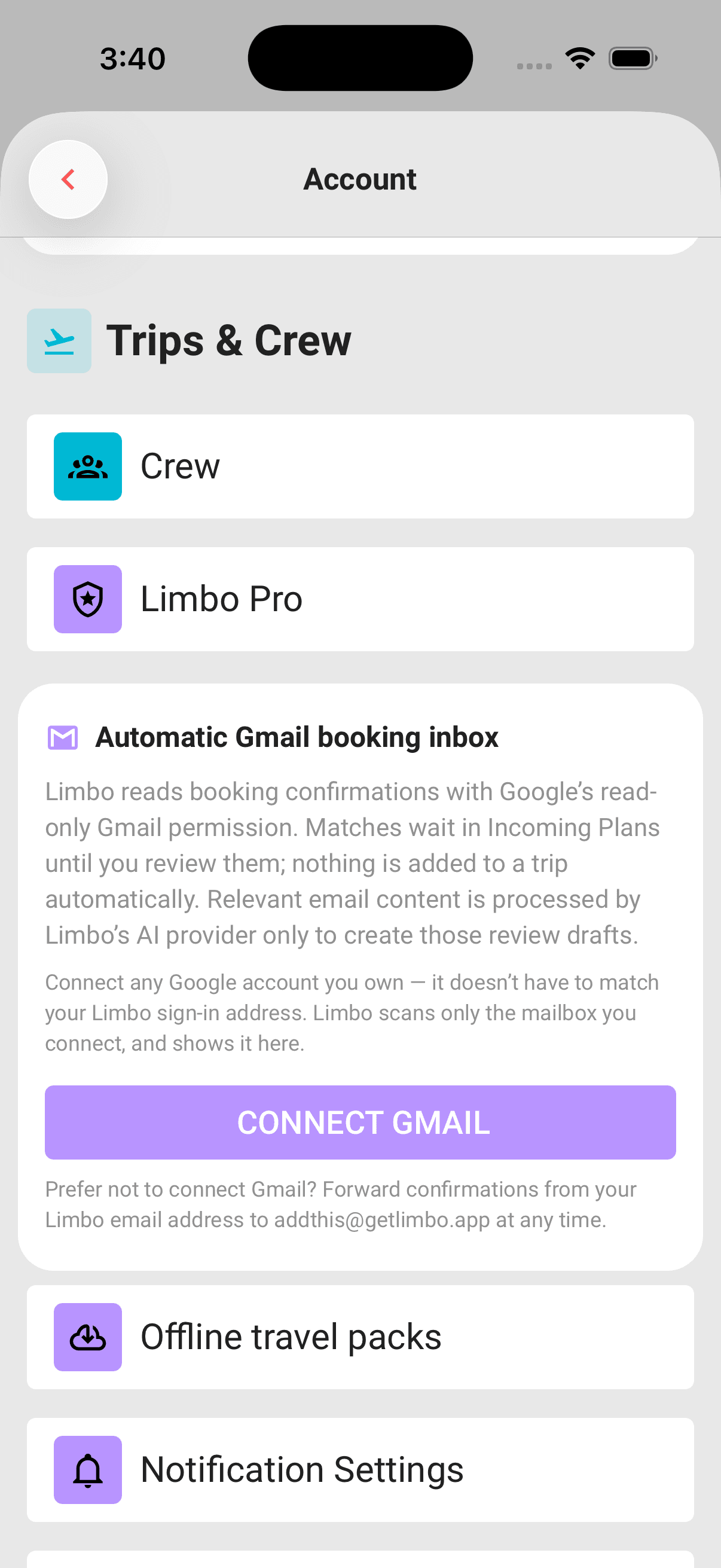
- 1Tap Connect Gmail. Limbo hands you to Google's own consent screen.
- 2Choose the Google account you want Limbo to read. It does not have to match the email address on your Limbo account, so a work sign-in and a personal booking mailbox are fine together.
- 3Grant the read-only Gmail permission. If that permission is declined, Limbo cannot connect.
- 4Google returns you to Limbo, which runs one scan straight away and tells you how many bookings it found.
Google has to vouch for the mailbox before Limbo will store the connection, so the address needs to be a verified Google account. If it isn't, Limbo asks you to connect a verified account rather than saving an alias it cannot confirm you own.
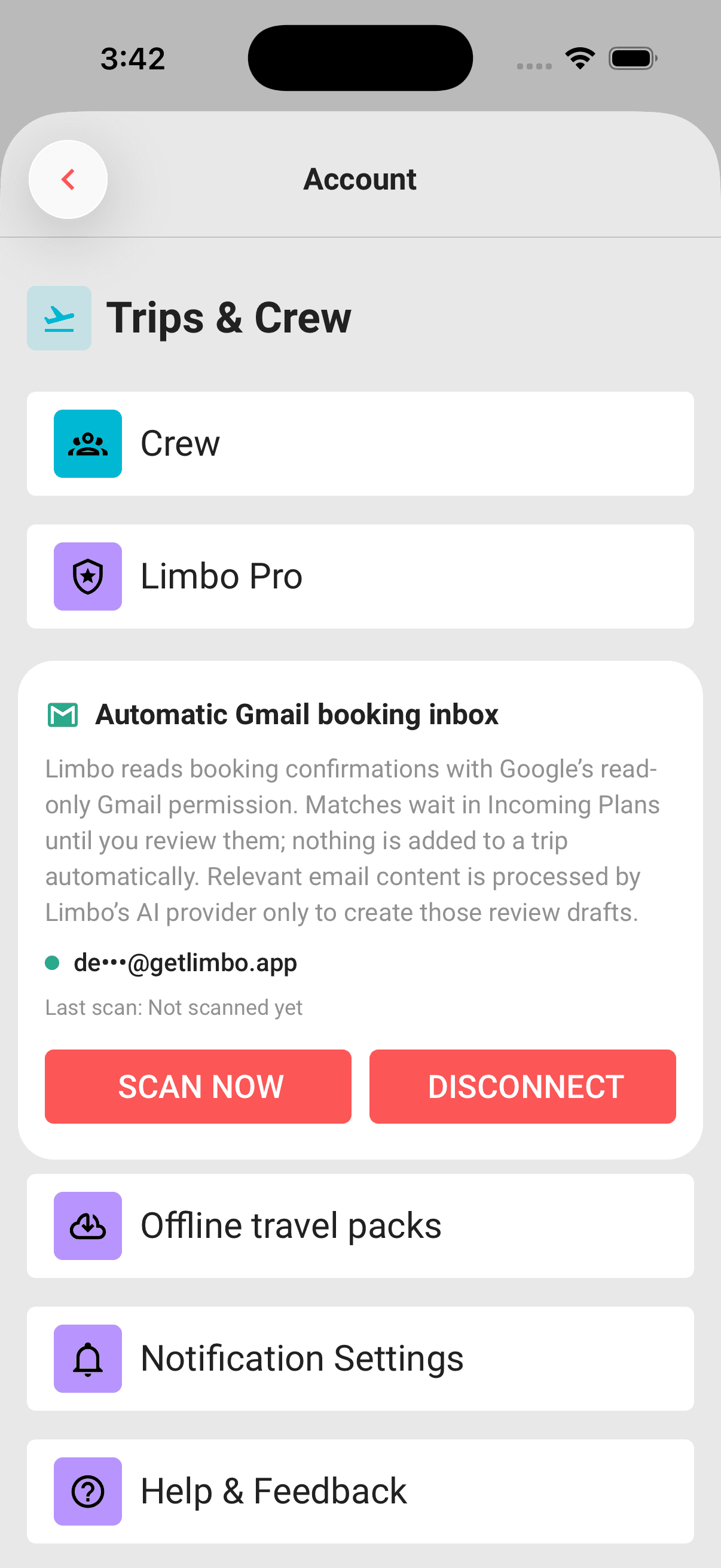
Once connected, the card shows the mailbox in masked form, only the first couple of characters and the domain, so you can always tell which mailbox Limbo is reading without the full address sitting on your screen.
Connecting from a browser
Google opens in the same tab and returns you to Email import. Stay signed in to the same Limbo account while connecting. If you sign out, switch accounts, or leave the request open too long, return to Email import and choose Connect Gmail again. Cancelling Google's consent leaves you free to try again without connecting a mailbox.
What Limbo reads, and what it doesn't
Each scan asks Gmail for messages from the last 30 days that mention confirmation, reservation, itinerary, booking, or ticket. Spam and Trash are excluded, and a single scan looks at up to 100 matching messages. Anything outside that window or without one of those words is never requested.
Limbo holds Google's read-only Gmail permission. That is all it asks for and all it gets. Limbo cannot send mail, cannot reply, cannot delete or archive anything, and cannot change a label. Relevant content from a matching message is processed by Limbo's AI providers to check for confirmed bookings and create the review draft you see in Incoming Plans. Travel offers and other messages without a confirmed booking are skipped. See the Privacy Policy for the providers and how this content is handled.
Limbo scans only the one mailbox you connected. Other accounts on the same phone, other Google accounts you own, and your crew's inboxes are all outside it.
Review matches in Incoming Plans
A match becomes a card in the same Incoming Plans sheet that forwarded emails land in, with the same confidence chip and the same File this plan step. You still pick the trip, still decide about Keep original email & files, and still tap Confirm & Add before anything reaches a trip. A card you don't want is removed with Delete.
Because nothing is filed for you, a wrong guess costs you a tap rather than a plan on the wrong trip. The full review flow, including what the confidence chip means, is in Plans from your email.
When several trips overlap, Limbo compares their destinations with the booking before suggesting one. It also checks extracted details against the available email text. A card that still needs checking can show Low confidence; an unclear trip match is left for you to choose. Gmail attachments are not downloaded by this scan, so an attachment-only confirmation may need to be forwarded instead.
Automatic scans, Scan now, and Last scan
Once a mailbox is connected, Limbo checks it for you in the background, so a confirmation that lands while you are asleep is usually waiting in Incoming Plans when you next look. You never have to ask, and how quickly a new booking appears depends on how busy the queue is.
When you have just booked something and do not want to wait, open the card and tap Scan now. Limbo runs a scan straight away, refreshes Incoming Plans, and tells you how many bookings it added, or that it found nothing new.
Last scan under the mailbox address shows when that most recently happened. Before your first scan finishes it reads Not scanned yet.
Tip
A confirmation that arrived weeks ago is still in range while it falls inside the 30-day window. If a booking is older than that, forward it to addthis@getlimbo.app instead.
If a scan cannot process an email, Limbo tells you how many failed and keeps any successful booking drafts in Incoming Plans. Your Gmail stays connected; use Scan now to retry. Messages without a confirmed booking are skipped, not added to a trip.
If Gmail needs to be reconnected
Sometimes Google stops honouring the permission Limbo holds. That happens when you remove Limbo from your Google account's connected apps, when you change your Google password, or when the stored credential expires. The card then shows a red dot and the message that Gmail needs to be reconnected, and Scan now is replaced by Reconnect.
Tap Reconnect and go through Google's consent screen again. Your existing Incoming Plans and every plan already filed into a trip are untouched by this; only scanning is paused.
If the card instead says Limbo couldn't load Gmail scanning, that is a connection problem on this phone. Tap Try again once you are back online.
Disconnect
Tap Disconnect and confirm. Limbo deletes its stored Gmail credential and its scan receipts, then asks Google to revoke Limbo's access. Local deletion happens either way, so a Google outage cannot leave the credential sitting on Limbo's side. If Limbo says Gmail is still disconnecting, wait briefly and try again before reconnecting.
What stays: cards already waiting in Incoming Plans, and every plan you already confirmed into a trip, along with anything you chose to keep with it. Disconnecting is about future scans, not about undoing work you have already reviewed.
Disconnecting stays available even when Pro is not active. If your subscription lapses, the card shows Remove Gmail access so you can revoke the connection without resubscribing first.
Permissions
- Connect a Google account and run scans: active Limbo Pro while the Automatic Gmail booking inbox capability is enabled. member
- Review your matches and confirm them into a trip: you must be on that trip (owner or crew). member
- Disconnect and revoke Gmail access: anyone who has connected a mailbox, with or without active Pro. member
- Forward bookings to addthis@getlimbo.app: anyone, free, no connection to Google required. member
Related articles
Plans from your email
Forward booking confirmations to Limbo, review the parsed plans, and add them to the right trip in one tap.
Limbo Pro
See ChatGPT and Claude trip imports, route, Maps, offline, attachment, Gmail booking inbox, live flight alerts, and ad-free benefits included with Limbo Pro.
Attach tickets and documents
Use Limbo Pro to keep tickets, confirmations, and documents on a trip or plan, and download them in an encrypted offline travel pack.
Add a plan
Create activities, food stops, stays, flights, transport, tours, cruises, and notes from the map-first trip hub.