Plans timeline and trip map
Use the Plans timeline and trip map, build a day's Driving, Walking, or Shortest path order with Smart Route, or open the saved route in Apple Maps or Google Maps.
The map-first trip screen gives you two connected ways to understand the itinerary: the map shows where each located plan sits, and the Plans workspace shows every plan in its saved day order.
Google Maps supplies the basemap. Limbo adds the day-coloured pins and route lines while keeping Google Maps attribution visible.
Every crew member can browse both views. Adding or changing plans needs edit permission. member
Explore a day on the map
- 1Open the trip.
- 2Drag the hub down by its handle to reveal the map.
- 3Tap a day chip below the trip name.
Each chip shows the weekday, date, a day-coloured dot, and the number of plans on that day. Tapping it fits the camera around that day's located stops. Pins use the same colour and are numbered in the day's saved order. A day with an applied Smart Route follows roads, walking paths, or joined public-transport legs; otherwise, a dotted line directly joins two or more stops.
Tap a pin to open the plan's details. The fit all button on the right brings every located plan back into view.
Note
A plan needs usable location coordinates to appear on the map. Plans without a location still remain in the Plans timeline. With saved offline content, the timeline and saved plan details also remain available offline; the live basemap may show Map unavailable offline until you reconnect.
Read the Plans timeline
Tap the Plans tile in the hub. If a workspace is already open, tap the Plans pill.
- Each dated section is headed Today, Tomorrow, or the weekday, followed by the full date.
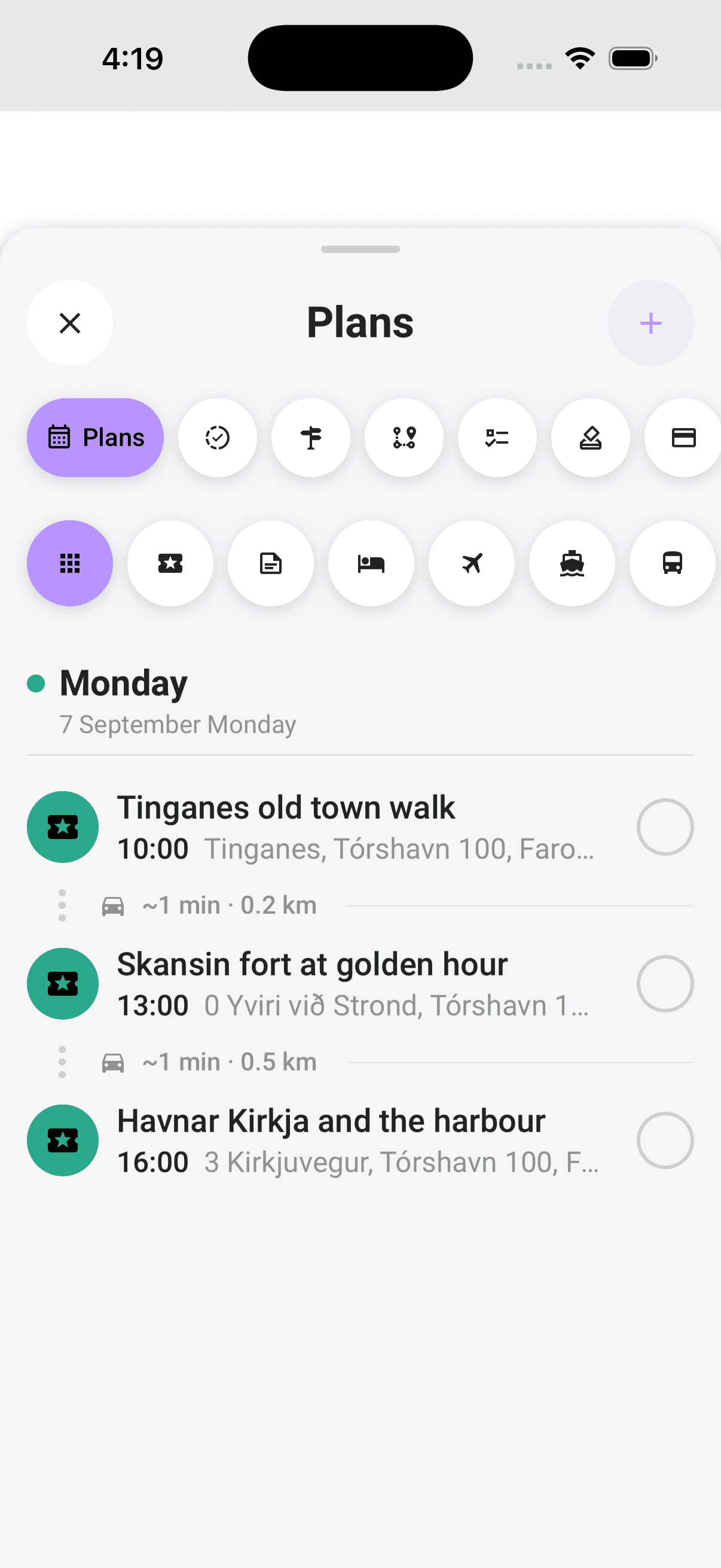
- Plans normally sort by time inside each day. After you apply Smart Route, that day keeps the accepted route order so the timeline, numbered map pins, route line, and Maps handoff stay together. Editing a stop's time updates its time label without moving it out of that saved route order. Tap any row to open its details sheet.
- When two consecutive plans both have locations, Limbo shows an approximate travel time and distance between them. It is a planning estimate, not live directions.
- Plans without dates appear together under Anytime at the end.
- The icon filters above the timeline can show all plans, activities, notes, stays, flights, cruises, transport, or tours.
Reorder a day with Smart Route
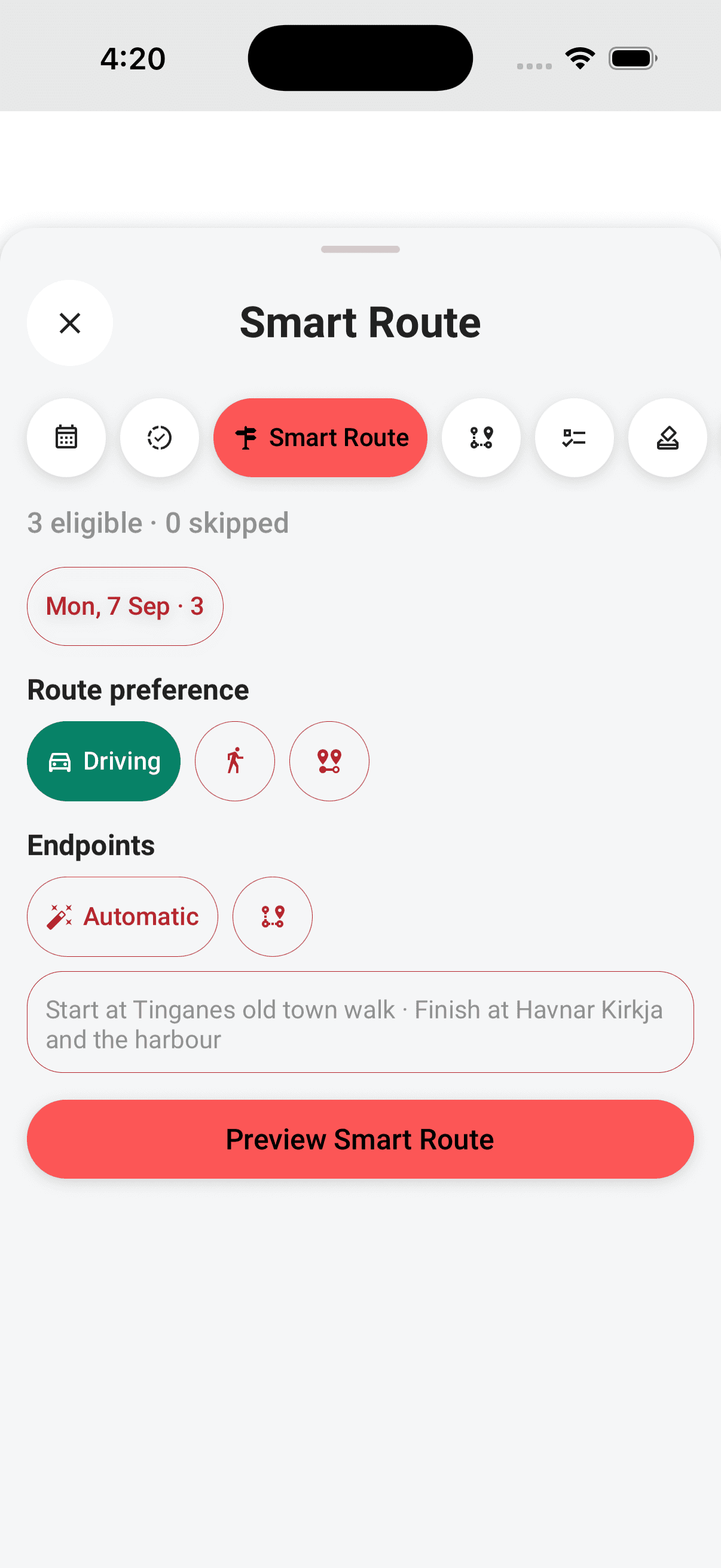
When Smart Route is enabled for your build, its pill appears in the trip workspace's top row beside Plans, Preflight, and the other available sections. With trip edit permission, use it to reorganize one day's confirmed stops:
Note
Smart Route and Open in Maps are free for everyone when the service is available. If a pill is absent, that service is currently unavailable.
- 1Open the trip workspace, then tap the Smart Route pill.
- 2Choose a day. Limbo needs 3–25 eligible stops after exclusions.
- 3Keep Automatic endpoints to start at the day's first eligible stop and finish at its last, or choose a fixed start and finish from that day's eligible stops.
- 4Choose Driving, Walking, or Shortest path, then tap Preview Smart Route.
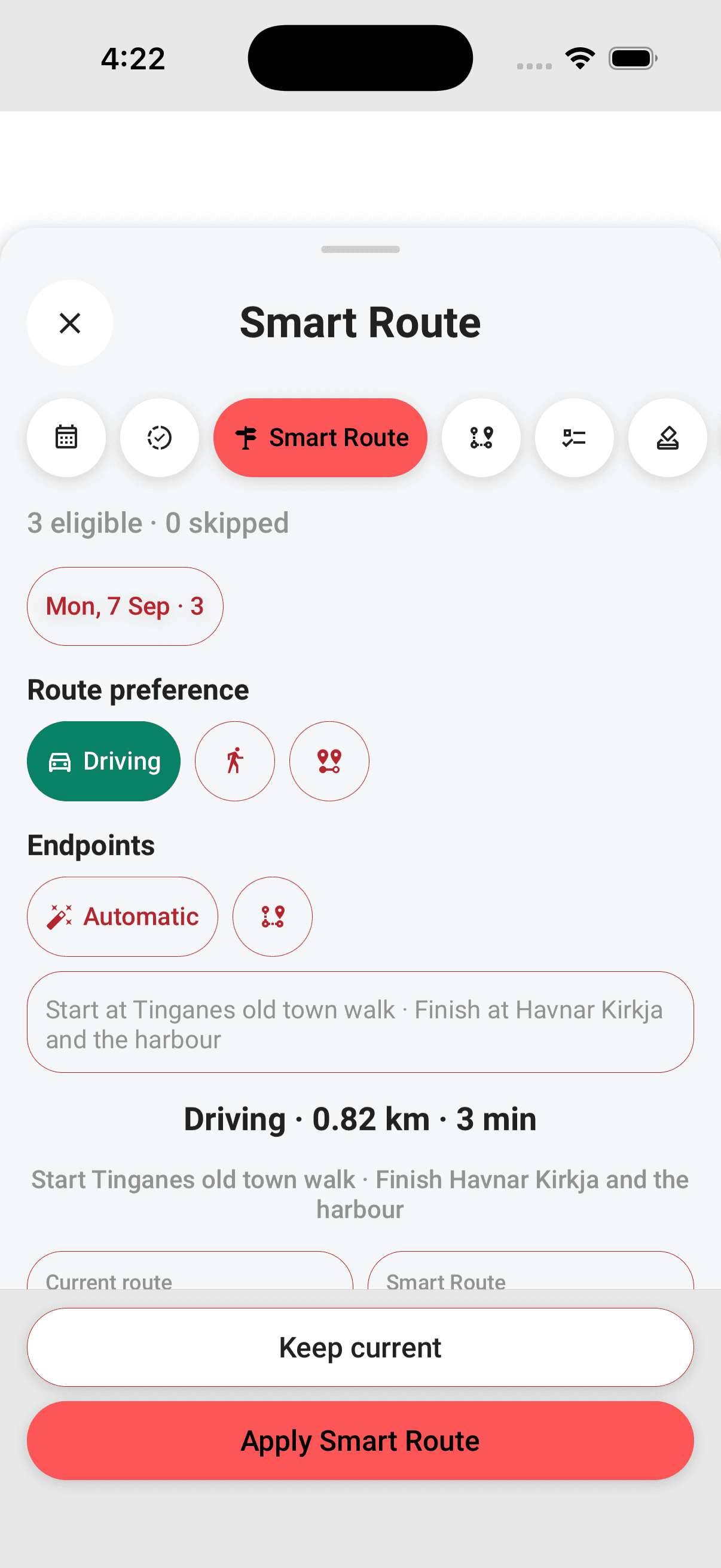
- 5Compare the current and suggested order, distance, travel time, and exact distance/time differences.
- 6Tap Apply Smart Route, or keep the current order.
Travel choices use transparent, red-outline controls and stay as compact icons until you select one. The selected choice expands to show its name, so the route controls take up less space without hiding the active preference.
An eligible stop is confirmed, live, not already used by another trip, not a budget-only item, approved when voting is enabled, dated on the selected day, and backed by a current map location. The preview lists excluded stops with a safe reason such as Not confirmed, Deleted, Archived, Already used in another trip, Budget item, Waiting for vote approval, No date, Different day, or No map location. Excluded plans stay in the itinerary; Smart Route simply does not move them.
Changing the day, travel mode, route preference, or endpoint choice clears the old preview. Nothing in the saved itinerary changes until you tap Apply Smart Route. Applying then updates the trip overview's Plans summary, full Plans timeline, numbered map pins, and in-app route line together. It does not open another maps app.
Both sides of the preview are measured by Google: the current saved order and the suggested Smart Route show total distance and travel time, followed by exact shorter/longer and faster/slower differences.
Shortest path truthfully compares complete Driving, Walking, and Public transport results, but Google does not optimize a multi-stop public-transport order. Limbo first asks Google for optimized Driving and Walking candidates, takes the shorter of those two stop orders, then evaluates Public transport one leg at a time in that Google-derived order. The preview says whether that order came from Driving or Walking.
If every public-transport leg is available, Limbo compares its combined total with the complete Driving and Walking candidates. If Public transport wins, Limbo also measures the current saved order leg by leg, joins Google's leg shapes into one in-app route line, and labels the result Public transport. If any required transit leg is unavailable—in the suggested route or its current-order baseline—Limbo excludes Public transport rather than presenting a partial journey and falls back to the complete Driving or Walking result.
Heads up
Walking routes may not include clear sidewalks or pedestrian paths. This warning also applies when Shortest path selects Walking. Review the route and local conditions before relying on it.
The route line needs its saved Google route shape. If that shape is no longer available, Limbo keeps your accepted stop order and shows dotted direct connectors instead. Limbo tries a temporarily unavailable saved route again after you reconnect or return to the app. Creating a fresh Smart Route preview needs an internet connection.
When the capability is enabled, every account can create up to 20 new Smart Route previews per UTC day. Every review-and-apply preview expires after 15 minutes, so create a fresh one if the app says it is no longer current.
Open the saved order in Maps
When Open in Maps is enabled, Smart Route and Open in Maps sit together in the trip workspace's top pill row alongside Plans, Preflight, and the other available sections. Inactive sections stay icon-only; selecting one smoothly expands it to show its name and opens its controls inside the same workspace. The row remains available for switching sections.
Tap Open in Maps, choose a day, then choose Drive, Walk, Bike, or Transit. The travel choices stay as compact icons until selected, then expand to show the active mode.
The sheet's bottom action says Open with Maps. On iOS 18.4 or later, tap it to open a drawer and choose Apple Maps or Google Maps. On older iOS versions, the drawer shows Google Maps as the only choice. On Android, the action opens Google Maps directly.
In a browser, choose Google Maps to open the saved route in a new tab. If the browser blocks the tab, Limbo keeps the map options open and explains what happened. Allow pop-ups for Limbo, then choose the map or numbered leg again. Your saved plans are not changed by opening or retrying a route.
A Driving handoff to Apple Maps can remain a multi-stop route. For Walk, Bike, or Transit, Limbo may instead offer continuous point-to-point legs so Apple Maps does not drop intermediate stops. Open each leg in order; the last stop of one leg is repeated as the first stop of the next. Google Maps may also divide a longer day into continuous numbered legs to stay within its mobile waypoint limits.
The handoff is a snapshot of the currently saved order. Changes made later in Limbo do not update a route that is already open. The selected maps app calculates its own roads, so its route and distance can differ from Limbo even when the same stops and order are shown. Smart Route remains independent: it changes Limbo's itinerary and in-app map, while Open in Maps hands the saved order to the selected maps app for navigation. Choosing a travel mode in one does not silently change the other.
Add a plan
With edit permission, use either add control:
- 1Tap the round + in the hub, or open Plans and tap + in its header.
- 2Pick a plan type.
- 3Enter its details and optional date, time, location, and cost.
- 4Tap the checkmark in the form header to save.
The saved plan appears in its dated section, or under Anytime if you leave the date blank. Adding needs edit access. organizer
Give an Anytime plan a date
Open the plan under Anytime. For an undated activity or food plan, accommodation, note, tour, or transport, tap Add date beside the date area, choose the date and time, then tap the checkmark. The plan moves into the matching day section and, when it has a location, joins that day's map pins.
You can use this shortcut without a connection: the plan moves on the device straight away and Limbo queues the update until reconnecting. Flights, cruises, and any plan without Add date use the pencil and full edit form. Both paths require trip edit access; read-only crew do not see the shortcut.
Your phone's calendar
With Calendar sync off, Limbo does not sync the whole trip, but you can still export one dated plan: open its details and tap the calendar button. With Calendar sync on, Limbo keeps the trip's confirmed upcoming dated plans current in a dedicated calendar, including later plan edits and deletions. See Calendar sync for both flows.
Permissions
- Browse the map and Plans timeline: every crew member on the trip. member
- Add plans or change their dates: trip organizers and crew with edit permission. organizer
- Change the trip's start and end dates: organizers and crew with edit permission, from the header gear → Edit. organizer
Related articles
The trip screen
A tour of the map-first trip screen: the draggable hub, day-coloured map, quick actions, tiles, workspaces, and trip settings.
All features are free
Every Limbo account gets all available features without a subscription or upgrade.
Plan details
Open a plan from the timeline or map to review its details and files, reveal the trip map, export it to your calendar, or edit it.
Manage your plans
Edit every plan type, manage plan attachments, mark plans as booked, filter the timeline, or act on several plans at once.
Add a plan
Create activities, food stops, stays, flights, transport, tours, cruises, and notes from the map-first trip hub.
Working offline
Use saved trip content in airplane mode, understand how maps behave without a connection, and see how queued changes sync after reconnecting.