Calendar sync
Keep confirmed trip plans updated in your phone's calendar or a browser calendar subscription, or add one plan at a time.
Calendar sync puts your confirmed trip plans into your phone's own calendar, so a dinner booking or a departure sits next to the rest of your week. Limbo normally keeps them in a calendar of its own, which you can switch off whenever you like.
This is a personal setting on your device. It changes nothing on the trip and does not share anything through Limbo. If iPhone has to use your default calendar, anyone you already share that calendar with may also see those entries. member
Turn calendar sync on
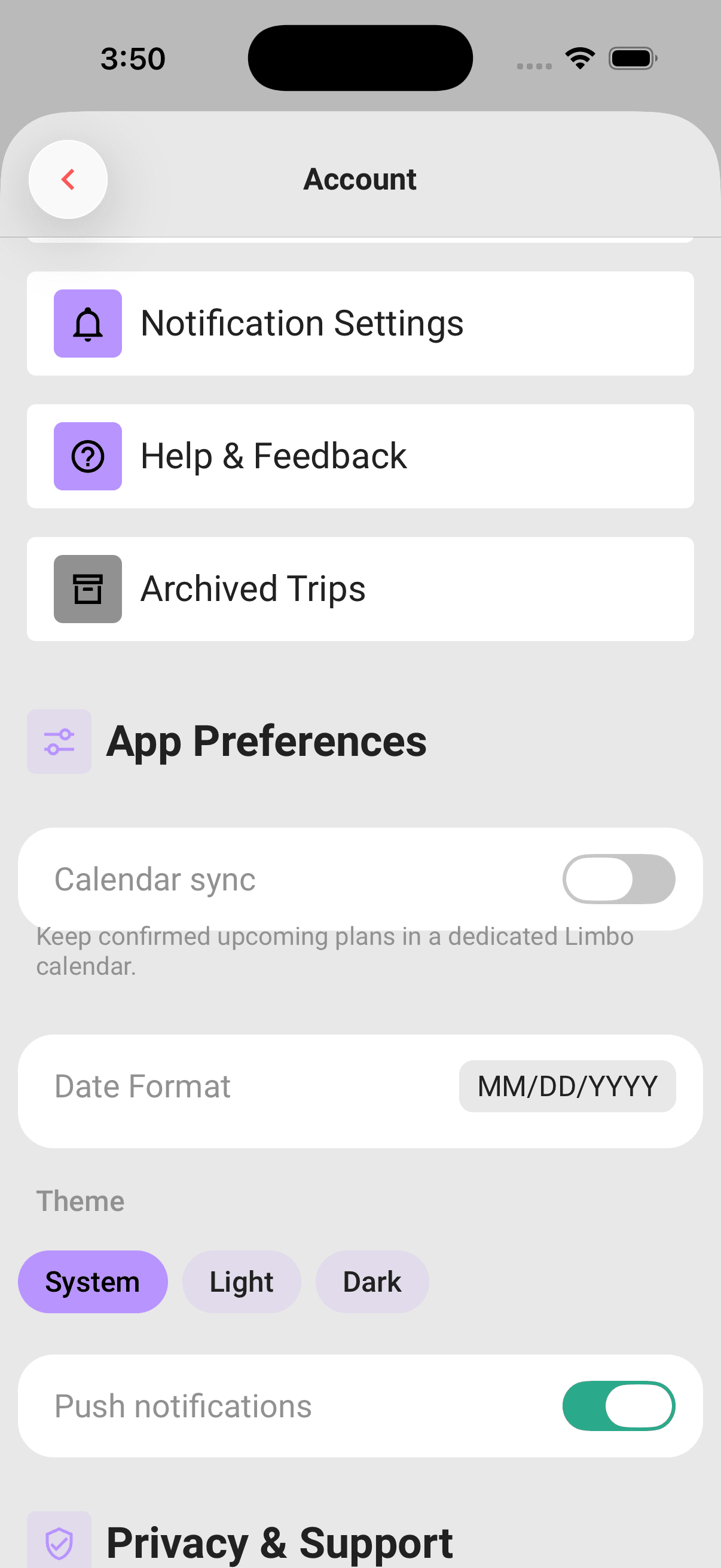
- 1On the Home screen, tap your avatar in the top-right corner to open your account screen.
- 2Scroll down to App Preferences.
- 3Tap the Calendar sync switch.
- 4Allow calendar access when your phone asks. On iPhone, choose Full Access.
The row explains itself: "Keep confirmed upcoming plans in a dedicated Limbo calendar." Once it settles, Limbo confirms with Calendar sync is on and writes your plans across straight away.
Turning it on needs a connection, because Limbo fetches a fresh list of your plans first. Offline you get Calendar sync needs internet and nothing changes. If your phone declines calendar access, Limbo tells you so and leaves the switch off; grant access in your phone's settings and try again.
If iPhone shows Couldn't update calendar sync, check that Limbo still has Full Access under Settings → Apps → Limbo → Calendars and that Calendar has at least one account you can add events to. Reconnect to the internet, reopen Limbo, and try the switch again. Limbo 2.4.03 and later can try another writable calendar source when the default one refuses the new calendar.
Where synced events are stored
Limbo normally creates one calendar named Limbo, in Limbo's red, and keeps everything inside it. It appears alongside your other calendars, so you can show or hide it like any of them. If a writable calendar named Limbo already exists, Limbo uses that one.
Some iPhone calendar accounts allow events but refuse to create another calendar. Limbo first tries the other writable calendar sources on the phone. If none will accept a new Limbo calendar, it can use your writable default calendar instead so your confirmed plans can still sync. The events remain marked as Limbo-managed and stay separate for each Limbo account.
Limbo owns the events in there. Every refresh brings the calendar back in line with your trips:
- Plans that should be there get an event.
- Events you renamed or moved by hand are put back to match the plan.
- Events for plans that have gone, or that no longer qualify, are removed.
- Duplicates are cleaned up.
So an edit made in the calendar app does not stick. Change the plan in Limbo instead and the event follows.
A refresh runs when you turn sync on, each time you bring Limbo back to the front, and when you open your account screen. Saving or deleting a confirmed dated plan also updates Calendar straight away while you are online. If you make the change offline, Limbo catches Calendar up after the queued change syncs on reconnect.
Which plans sync
A plan reaches your calendar when it is confirmed, has a date, and sits on a trip you own or have joined.
These stay out:
- Proposals waiting on a vote. An open ballot never appears in your calendar. Once the crew approves it, it joins at the next refresh. A rejected proposal never appears at all.
- Plans with no date, including everything in the Anytime section.
- Budget-only entries, such as recurring expenses without itinerary timing.
- Plans on trips that have already finished, or that are archived.
- Trips that start more than roughly a year ahead, until they come closer.
A synced event carries the plan's name and its timing. A plan with a start but no end becomes a one-hour event. If you want the address on the event too, add that plan with the button below.
Note
Your calendar only ever reflects what you can already see in Limbo. Plans on trips you are not part of are never included.
Add a single plan
You do not need calendar sync on to get one plan across.
- 1Open the plan from the Plans timeline, a map pin, or a linked plan in chat.
- 2Tap the calendar button in the details header.
- 3Allow calendar access the first time.
Limbo confirms with Added to calendar. The event carries the plan's name, its timing, its location, and, where the plan has one, its time zone. A plan with no date cannot be added, so you get No date instead, and a plan with no end time becomes a one-hour event.
Where the event lands depends on the switch:
- Sync off: it goes into your phone's usual calendar as an ordinary entry. It is yours to edit or delete, and Limbo never touches it again.
- Sync on: it goes into the Limbo calendar and is looked after with the rest.
Where the server-controlled Pro offline-access capability is enabled, active Pro with recent verification can add a single cached plan to the device calendar without a connection, because the plan is already stored on the phone.
Heads up
While sync is on, the Limbo calendar only keeps plans that qualify. If you add one that does not, an open proposal for example, the next refresh tidies it away again. Turn sync off first if you want a copy that stays.
Add a plan from the browser
Open a plan's details and choose its calendar button. Limbo prepares an .ics calendar file in your browser's downloads. Open that file with your calendar app and follow its import steps to finish adding the event.
The file includes the plan's title, timing, notes and available location. Your calendar app displays the event in its own timezone, while the plan's timezone is included in the event notes. A plan with no end time becomes a one-hour event. A plan with no date cannot be exported.
This is a one-time copy, not automatic sync. Later edits or deletions in Limbo do not change the imported event. You do not need to grant the browser access to your calendar account. Already-loaded plans can be exported without a connection where offline access is available.
If you see Calendar file ready but no file opens, check your browser's downloads and download settings. The event is not added until you import the file into your calendar app.
Keep a calendar updated from the browser
In Account → App Preferences, turn on Calendar sync, then choose Copy calendar link. Add that link as a calendar subscription in your calendar app—not as a one-time file import. Turning the switch on prepares the link; you still need to subscribe to it.
In Apple Calendar on Mac, choose File → New Calendar Subscription, paste the link, and select Subscribe. Review the calendar's name, storage location, and auto-refresh interval before saving. Choose On My Mac if you only want the subscription on that Mac. View → Refresh Calendars asks Calendar to fetch updates without waiting for the next scheduled refresh.
The subscribed Limbo calendar contains the titles and times of confirmed upcoming plans from trips you can access. It follows the same eligibility rules listed above. Changes made on mobile or the web appear when your calendar app next refreshes its subscription. Refresh timing is controlled by that app, so updates are not necessarily immediate. Offline edits appear only after they have synced back to Limbo.
Keep the link private: anyone who has it can read that calendar. Show private link lets you select and copy it if your browser blocks copying. Replace calendar link stops the old link from working; subscribe again with the new link afterward.
Turning browser Calendar sync off revokes the link. Your calendar app may keep its last saved events, so remove the subscribed Limbo calendar there to clear them. Signing out does not revoke the link. These browser controls do not change calendar sync on your phone; avoid subscribing twice in the same calendar app if your phone already maintains a Limbo calendar there.
You need a connection to manage the subscription. An existing subscription can keep refreshing while Limbo is closed. If availability cannot be checked, choose Try again. When subscriptions are unavailable, individual calendar-file downloads remain available.
Turn calendar sync off on your phone
- 1Open your account screen and scroll to App Preferences.
- 2Tap the Calendar sync switch again.
Limbo removes every event it created for your account and confirms with Calendar sync is off. The Limbo calendar itself stays behind, now empty, so delete it in your phone's calendar app if you want it gone. Events you added one at a time while sync was off are ordinary entries and are left alone.
Switching off does not need a connection, since it only clears events from the phone. It does still need calendar access, so Limbo can remove what it made.
Good to know
- On mobile, the setting belongs to your account on that phone. Turning it on there does not turn it on for your other devices.
- Signing out on mobile leaves the existing calendar entries visible but clears the switch for the signed-out session. The next account starts with sync off and manages only its own entries. To remove an account's entries before switching, turn calendar sync off before signing out.
- Nothing you do here changes a plan, a date, or a ballot. Calendar sync only reads your trips.
Permissions
- Turn calendar sync on or off: anyone, for their own phone. member
- Manage a browser calendar subscription: anyone, for their own account. It only includes eligible plans from trips that account can access. member
- Add a single plan to your calendar: every crew member who can open the plan. member
Related articles
Plan details
Open a plan from the timeline or map to review its details and files, reveal the trip map, export it to your calendar, or edit it.
Plans timeline and trip map
Use the Plans timeline and trip map, build a day's Driving, Walking, or Shortest path order with Smart Route, or open the saved route in Apple Maps or Google Maps.
Manage your plans
Edit every plan type, manage plan attachments, mark plans as booked, filter the timeline, or act on several plans at once.
Working offline
Use Limbo Pro trip content in airplane mode, understand how maps behave without a connection, and see how queued changes sync after reconnecting.