Manage your plans
Edit every plan type, manage plan attachments, mark plans as booked, filter the timeline, or act on several plans at once.
Open the trip and tap Plans to tidy the timeline: fix plan details, mark a reservation as booked, or act on several plans at once. Changing plans requires edit permission; read-only members can still open every row. organizer
Edit a plan
- 1Tap a row in the Plans timeline to open its details.
- 2If you have edit access, tap the pencil.
- 3Make the changes in the plan's type-specific form.
- 4Tap the checkmark in the form header to save.
If a save fails, keep the form open. Your entered details stay in the form so you can correct the problem or tap the checkmark again. Leaving or cancelling the form discards unsaved changes. A permissions error means the organizer needs to restore your edit access before you can save.
Opening an edit link while online refreshes the trip's permissions, including for a previously viewed trip. If your access has changed to view-only, the form explains why editing is unavailable and offers Back to trip.
The fields vary by plan type, but the pencil opens the complete editor rather than a cost-only shortcut. You can update the saved name, description, location or route, start and end timing, timezones, cost, booking status, and type-specific details when they apply. Flights, cruises, tours, and transport use their own tailored fields; other plans use the standard plan form. See Add a plan for the field guide.
When the server-controlled Attachments capability is enabled, you can scroll to Attachments at the bottom of the edit form to add a plan-specific photo or document, or remove a file you are allowed to delete. Attachment uploads and deletions happen immediately and need a connection; changes to the plan fields still need the checkmark. Existing files also appear at the bottom of plan details, where the crew can open them while Attachments is available. See Attach tickets and documents.
You can make most plan-field edits without a connection: the change appears immediately and enters the sync queue. When you reconnect, use the banner to check or retry anything still waiting. Attachment uploads and deletions always need a connection.
Give an undated plan a date
You do not always need to reopen the full edit form. Open an undated activity or food plan, accommodation, note, tour, or transport under Anytime and tap Add date beside its date area. Pick the date and time, then tap the checkmark. The plan moves into the matching day in the Plans timeline.
You can add a date without a connection. Limbo updates the plan on your device immediately, queues the change, and syncs it when you reconnect. Flights, cruises, and any plan that does not show Add date use the pencil and full form when editing is available.
Mark a plan as booked
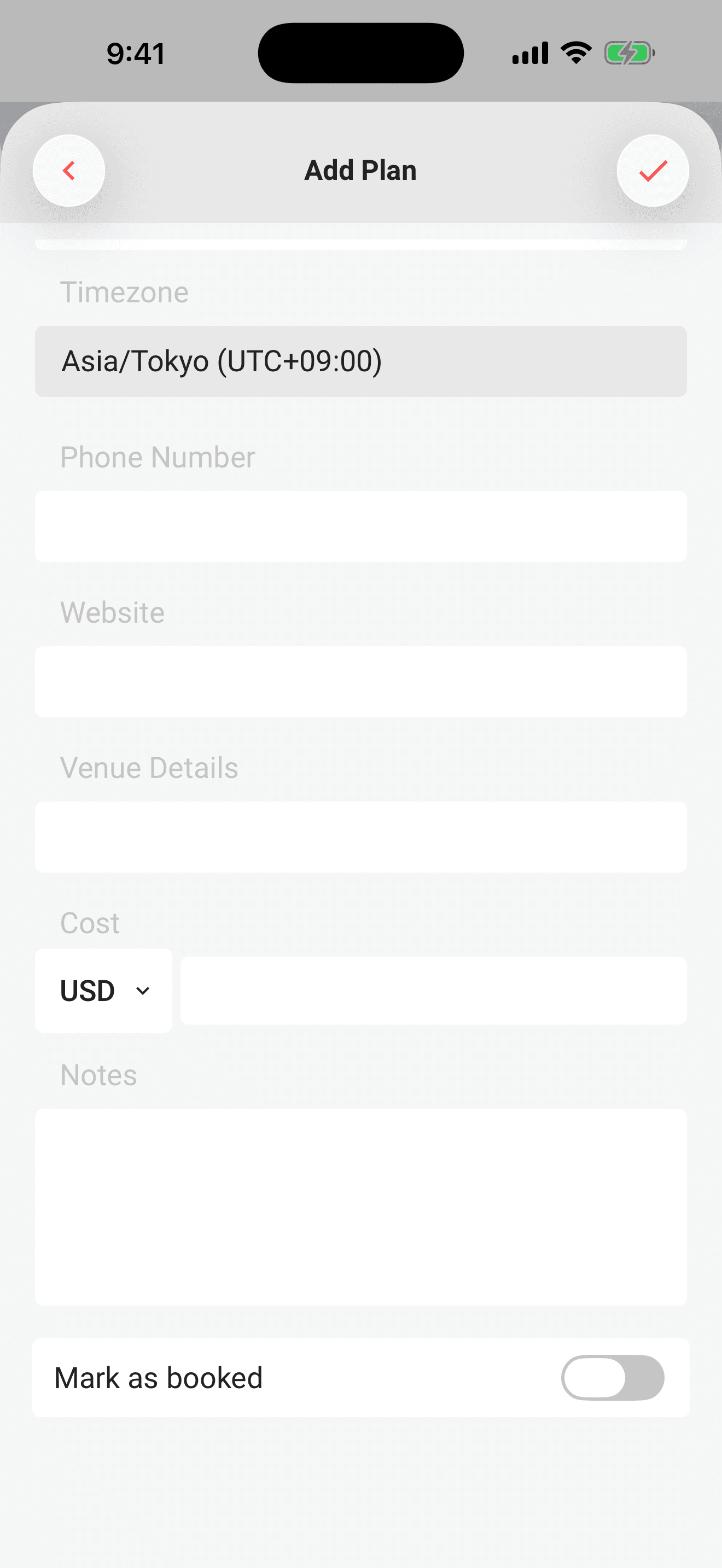
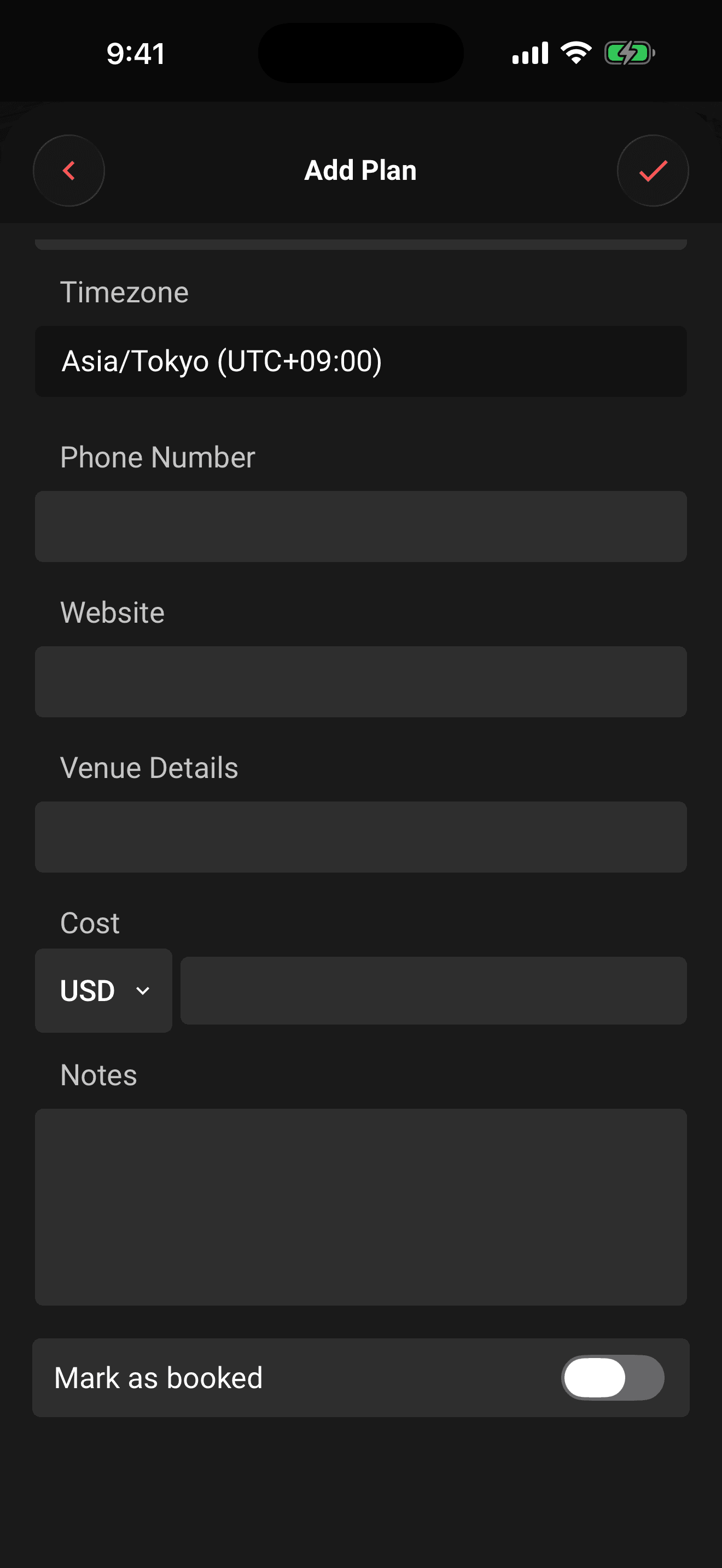
Turn on Mark as booked near the bottom of a supported plan form. The plan gets a green Booked chip in the Plans timeline and Expenses. Plans confirmed from a forwarded email use an envelope chip instead; see Plans from your email.
With a keyboard, focus the Mark as booked row and press Space or Enter to switch it on or off. Save with the header checkmark to keep the change.
Select several plans
Editors see a selection circle on the right of every Plans timeline row. With a keyboard, focus the circle and press Space or Enter to select or deselect that plan.
- 1Tap the circle beside each plan you want to include.
- 2A floating bar shows the number selected.
- 3Choose Copy, Move, or Delete.
- 4For Copy or Move, pick the destination trip and confirm. For Delete, confirm the warning.
- Copy duplicates the selected plans into an available trip you can edit, including the current trip. It copies the itinerary details, not the original crew’s votes, payments, or saved files.
- Move removes them from this trip and adds them to another trip you can edit. Plans must be confirmed, with no active ballot, costs, payments, custom splits, or saved files. If a plan cannot be moved, Limbo explains why and keeps your selection.
- Delete removes them from this trip and cannot be undone.
- Tap ✕ on the floating bar to clear the selection.
Copied and moved plans keep their original dates and times; they do not automatically shift to the destination trip's dates. Check the destination timeline and edit the plan's date if needed.
If you sign out or switch accounts while the destination picker or confirmation is open, reopen the trip and select the plans again. If you see Trip access changed, you need edit permission on both trips before copying or moving; close the picker and check your access with an organizer.
Copying and moving need a connection. You can delete a plan without a connection; the deletion enters the sync queue.
If copying loses its connection, keep the destination picker open and retry the same destination. Limbo checks the earlier attempt so the retry does not add the same copies twice. Closing the picker or changing the selection starts a new copy, so check the destination first if you are unsure whether the earlier attempt finished.
Filter the timeline
The round icon filters under the workspace pills let you show:
- All plans
- Activities
- Notes
- Stays
- Flights
- Cruises
- Transport
- Tours
Tap All plans to clear the filter. Undated plans live under Anytime, so there is no separate unscheduled-only switch in the 2.3 timeline.
Open proposals are managed from the Voting workspace. Rejected proposals do not appear in the Plans timeline; see The voting dashboard.
Permissions
- Edit, mark as booked, copy, move, and delete plans: trip organizers and crew with edit permission. organizer
- Use Add date on an undated plan: trip organizers and crew with edit permission. organizer
- Open plan details and use the filters: every crew member on the trip. member
Related articles
Plan details
Open a plan from the timeline or map to review its details and files, reveal the trip map, export it to your calendar, or edit it.
Add a plan
Create activities, food stops, stays, flights, transport, tours, cruises, and notes from the map-first trip hub.
Attach tickets and documents
Keep tickets, confirmations, and documents on a trip or plan, and download them in an encrypted offline travel pack.
Working offline
Use saved trip content in airplane mode, understand how maps behave without a connection, and see how queued changes sync after reconnecting.
Plans timeline and trip map
Use the Plans timeline and trip map, build a day's Driving, Walking, or Shortest path order with Smart Route, or open the saved route in Apple Maps or Google Maps.