The voting dashboard
Find every ballot in the trip's Voting section, switch between Votes and owner-only Settings, or jump in from the Decisions inbox.
Once proposals start flying, you need one place that answers two questions: what still needs my vote, and what has the crew already decided? The trip's Voting section puts both in one scrollable dashboard. The same dashboard also opens full-screen when you arrive from Home or a notification.
Who can do what: anyone on the trip can open Votes and expand ballot cards. Joined adults can cast or change their own vote; child crew and pending invites are not eligible. The Settings segment is visible to the trip owner only. Decide now and Reopen voting are available to organizers. See Organizer powers.
Open Voting from the trip Hub
- 1Open the trip from Home. It lands on the map-first Hub.
- 2Tap a Hub tile, such as Plans, to raise the section sheet.
- 3Tap the Voting pill in the horizontal section row. A small red dot appears on the pill when proposals are waiting for votes.
- 4Leave Votes selected to see the dashboard.
In a browser, use Tab to focus a trip section or the Votes/Settings controls, then press Enter or Space to open it. Settings remains available only to the trip owner.
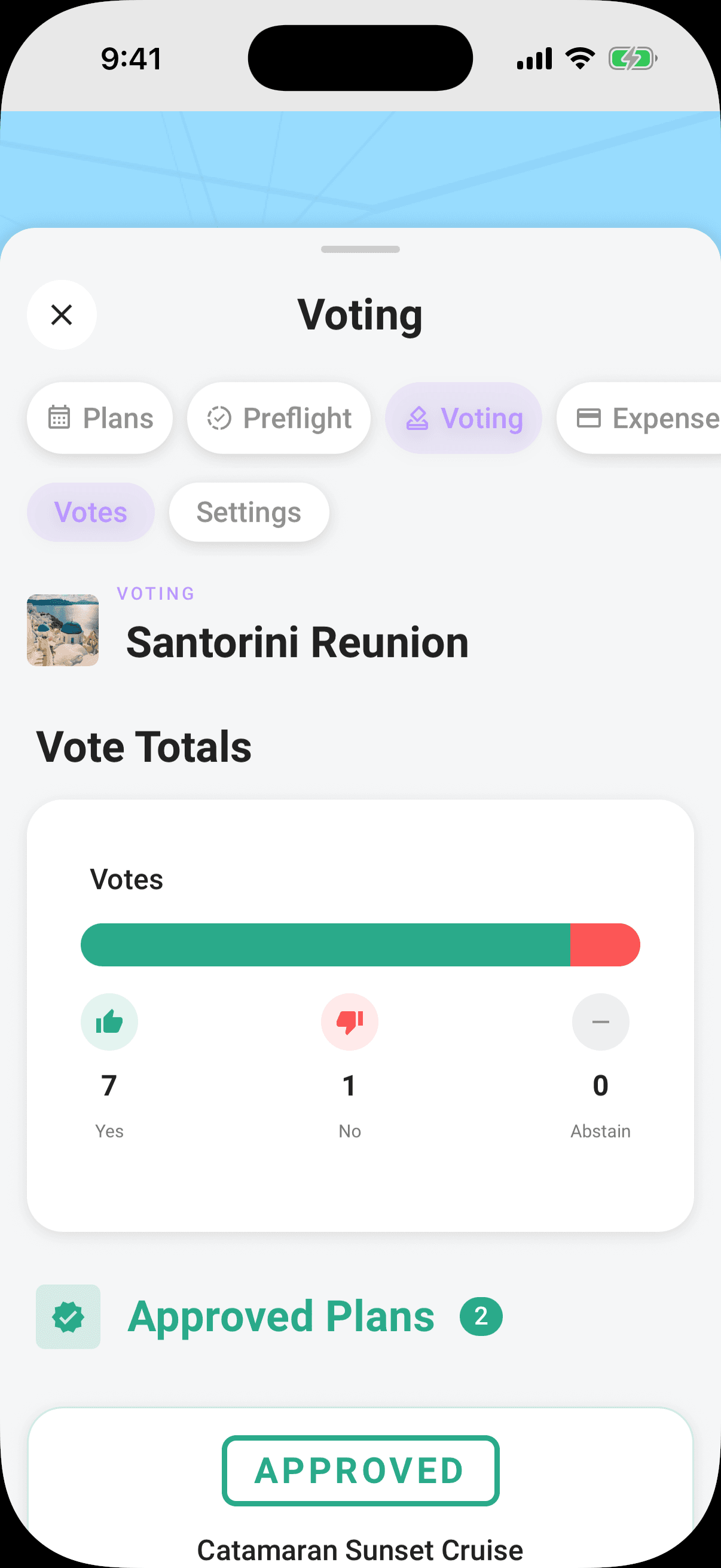
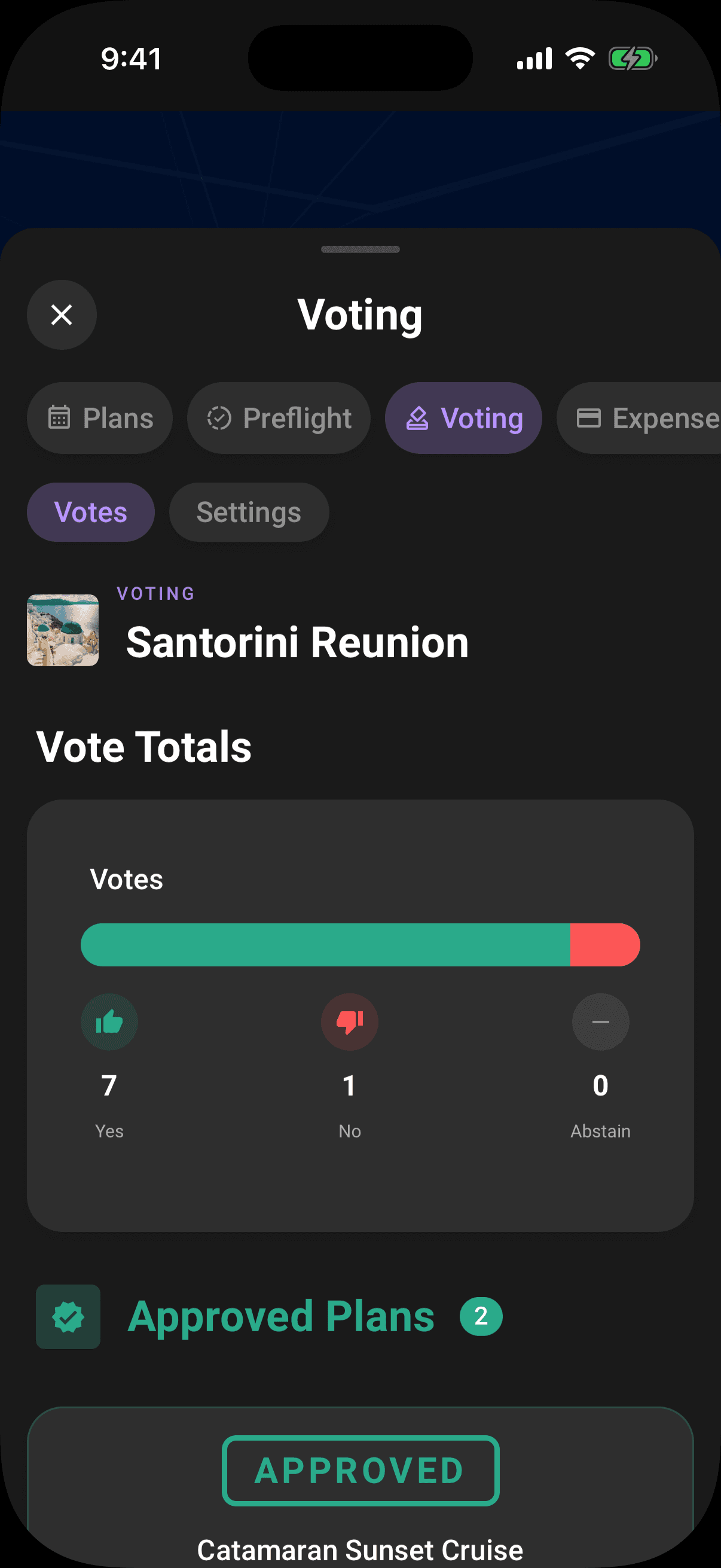
The top of Votes identifies the trip. When data is available, it also shows a Voting Summary and combined Vote Totals. The ballots are then split into:
- Active Voting, open proposals that can still collect votes.
- Approved Plans, resolved proposals the crew accepted.
- Rejected Plans, resolved proposals the crew turned down.
Sealed ballots are excluded from combined totals until their reveal. If all ballots are sealed, no totals are shown. When sealed and visible ballots are mixed, Visible vote totals counts only the ballots whose results can be shown; it is not the whole trip's running score.
Pull down to refresh. The screen also listens for live updates while it's open, so a crewmate's vote or a newly resolved ballot can appear without leaving the section.
Existing ballots stay visible even when voting is off by default for new manual plans. Places added from Discover your trip appear here as sealed proposals, with the proposer's Yes vote already included.
Jump in from Home
You don't have to open the trip first:
- Tap a card in the Decisions inbox on Home to open that trip's voting dashboard full-screen.
- Tap a voting notification to jump straight to the relevant trip's dashboard.
The Decisions inbox is the fastest place to act: each card names the trip, shows deadline urgency, says who the ballot is still waiting on, and lets you vote Yes, No, or Abstain inline. Once your vote is cast, that card clears from your inbox.
Wherever you vote, it is the same ballot. Your choice follows you between Home, the Voting section, the full-screen dashboard, and trip chat.
Reading a ballot card
Scheduled plans show their local time, using the plan's timezone or the trip's timezone when none is set. Stay proposals use check-in time; cruise proposals use embarkation time. Expense proposals show the cost in the expense's currency.
The badge in the corner tells you where the ballot stands:
| Badge | Meaning |
|---|---|
| Voting | Open and collecting votes, with time remaining such as "2d left" or "3h 45m". |
| Threshold Met | Yes votes have reached the approval threshold on a ballot with open tallies. The ballot stays open until everyone votes or the deadline arrives. |
| Awaiting Participants | More of the crew still needs to vote to meet the trip's minimum participation rule. |
| Pending Approval | The deadline passed with the rules met and the verdict is being finalized. |
| Voting Closed | The deadline passed without meeting the rules; an organizer has to decide. |
What the card shows depends on the ballot's privacy:
- Open tallies show approval progress, yes/no/abstain counts, and how many eligible people have voted.
- Sealed ballots show a Votes sealed until the reveal message, participation and voter avatars, plus your own choice. They never expose the running score. See Sealed and anonymous ballots.
Tap Yes, No, or Abstain to vote. Tap a different choice to change your mind while the ballot is still open, or tap your selected choice again to remove it. Removing your vote makes the ballot actionable again, so it returns to the Decisions inbox on Home.
Expand a card for details
Tap a ballot card to expand it; tap the chevron to collapse it again. The expanded view can show:
- The plan's description.
- Who has voted. Open ballots can show names, choices, and comments; sealed ballots show names with choices locked.
- Who proposed the plan and when.
- Why the ballot resolved, once it has been decided.
Voting settings
ownerOnly the trip owner sees Settings beside Votes.
- 1Open the trip's Voting section.
- 2Tap Settings.
- 3Review the saved voting status, deadline, approval threshold, minimum participation, and privacy summary.
- 4Tap Open voting settings to change them, then save.
Owners can enable or disable voting, choose a preset or custom threshold, set minimum participation, choose rolling or fixed deadlines, and control sealed and anonymous ballots. Changes become the defaults for new proposals on this trip.
Tip
You can cast, change, or remove a vote without a connection. Limbo queues it and sends it after you reconnect; check the sync banner and tap Sync now if it is still waiting.
Related articles
How group voting works
Turn plans into proposals, vote yes, no, or abstain, and see the reveal when the ballot closes.
Sealed and anonymous ballots
Hide the running tally until the reveal with sealed votes, or hide who voted for what with anonymous voting.
The reveal
What happens when a ballot resolves: the verdict stamp, the tally bars, who voted for what, who sat it out, and sharing the result.
Organizer powers
Tune the voting rules, decide a ballot early, or reopen a settled vote. What organizers and the trip owner can each do.