Delete your account
The exact deletion flow, what happens to your trips, votes, and messages, and why it can't be undone.
Deleting your account closes it for good. This article walks through the exact flow, spells out what happens to the trips, votes, and messages you leave behind, and what to sort out before you go.
Who can do what: only you can delete your own account. Trip owners and organizers have no power over anyone else's account.
Heads up
Deletion cannot be undone. Once Limbo accepts the request, you cannot sign back in to the deleted account. Registering again later creates a separate, empty account; it does not restore deleted trips or data.
Before you delete
Your account may own trips your crew still uses. Limbo automatically transfers each shared trip you own to an active joined crew member where possible. An owned trip with no other active joined member is treated as private and deleted, so review these items first:
- Tell your crew which shared trips should continue, and make sure the people who need them have joined rather than remaining on a pending invite.
- Share anything only you have, such as a booking reference sitting only in your email, where the surviving crew can access it.
- Cancel Limbo Pro first. Limbo Pro is a store subscription, so deleting your Limbo account does not stop it. Cancel it through the App Store or Google Play account that bought it before you go.
Heads up
Cancelling your subscription and deleting your Limbo account are two separate things. Only the App Store or Google Play can cancel Pro. Limbo cannot cancel it for you.
The deletion flow
- 1On the Home screen, tap your avatar in the top-right corner. Account opens directly.
- 2Scroll to the bottom and tap the red Delete Account button.
- 3A confirmation appears: "Are you sure you want to delete your account? This cannot be undone."
- 4Tap Confirm to send the deletion request, or Cancel to keep your account. You must be online for Limbo to accept the request.
- 5If you use Sign in with Apple, Apple may ask you to confirm the connection again so Limbo can revoke it.
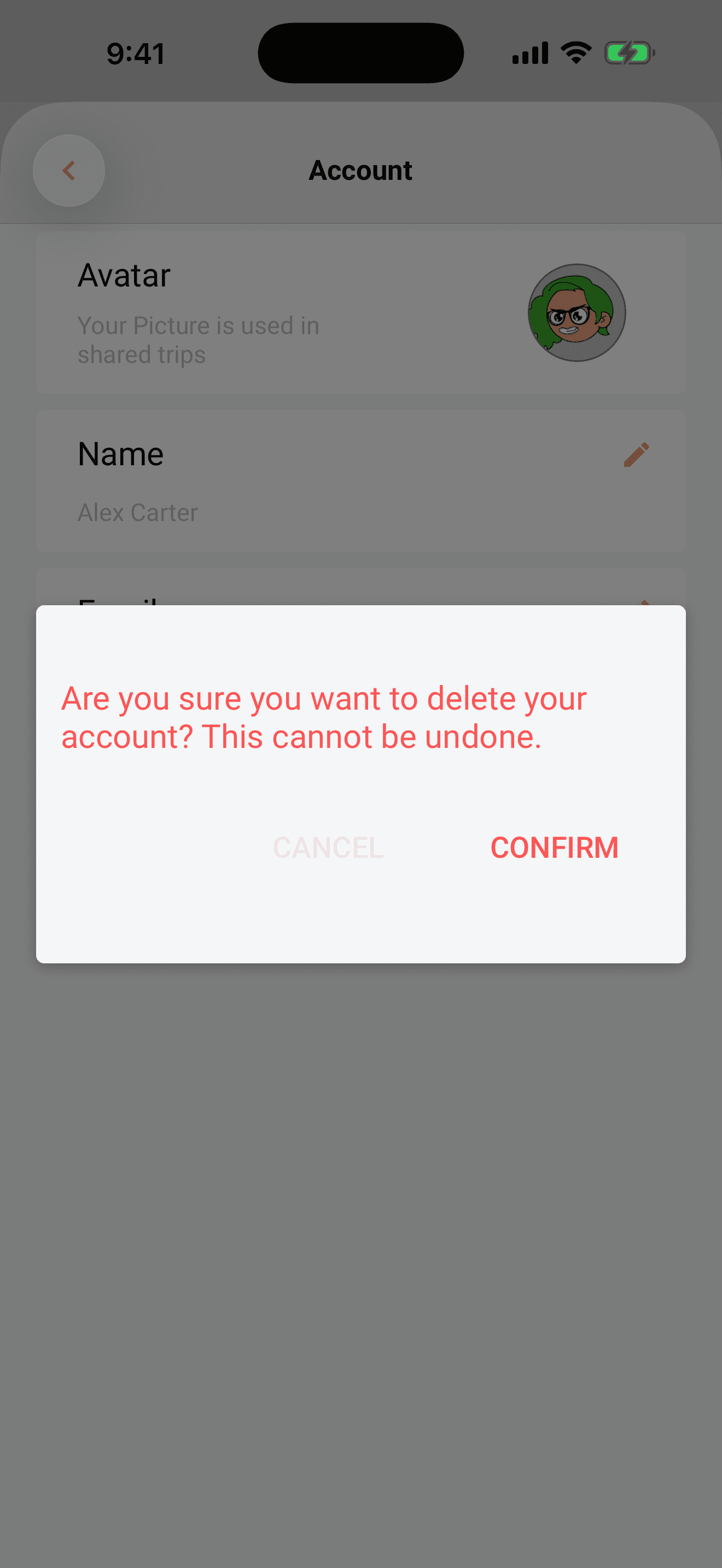
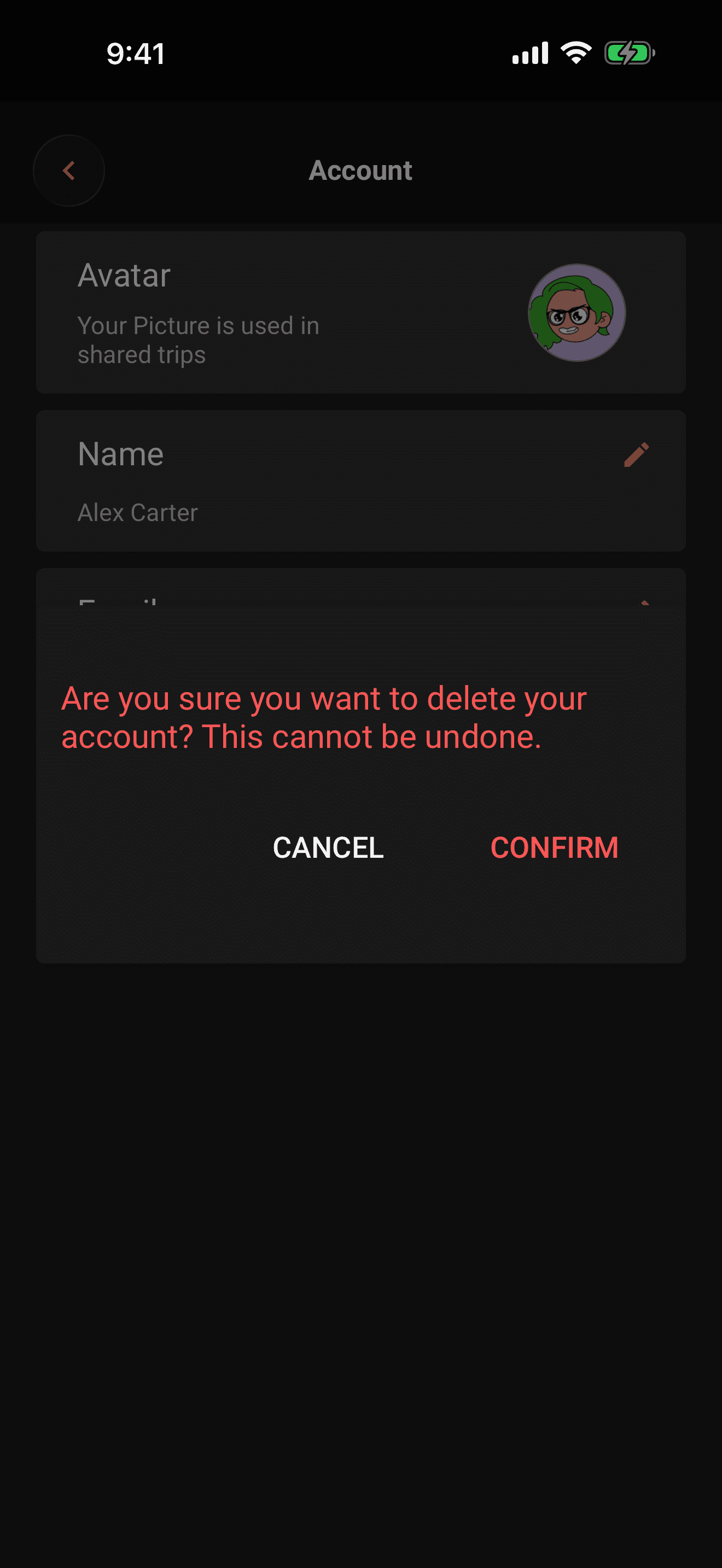
When Limbo accepts the request, account access is disabled and deletion of the data Limbo controls begins. You're signed out on this device and returned to the login screen. Temporary processing failures do not reopen the account: Limbo keeps the deletion pending and retries the remaining work.
What happens to your data
Group trips are shared records, so deleting your account closes the account itself but doesn't rip your contributions out of your crew's trips:
- Private trips: a trip only you could access is deleted with its plans and private planner material.
- Shared trips: trips your crew still uses remain available. Ownership transfers to an eligible surviving crew member where possible, and your membership is removed.
- Votes and shared records: results needed for shared-trip continuity remain, while your identifying comments and links are removed or anonymized.
- Messages and media: your shared messages are replaced with a deleted-account marker and uploads Limbo can attribute to your account are removed. Any remaining cleanup stays pending rather than risking deletion of another crew member's file.
- Historical purchases: internal accounting records may be retained only where needed for refunds, fraud prevention, tax, or other legal obligations. They cannot be used for new trips.
- Limbo Pro: deleting your account does not cancel the store subscription. Cancel it in your App Store or Google Play settings first or it keeps renewing.
- Your identity: Limbo removes or replaces profile, contact, notification, planner, creator, and attribution data it no longer needs. Sign-in is blocked permanently.
Note
Limbo's local deletion does not wait for Apple or the subscription processor to be available. When an external erasure or Sign in with Apple revocation is pending and Limbo has the required authorization, it retries securely. For an older Apple-linked account whose revocation cannot be completed automatically, you can also remove Limbo from Apple Account Settings → Sign in with Apple.
Related articles
Your profile and Account settings
Open Account, update your identity and security details, and find notification, offline, calendar, theme, and privacy controls.
Organizers and your crew
What owners and co-organizers can do, how to promote or demote organizers, and how the crew list in Settings works.
Troubleshooting and FAQ
Quick fixes for sign-in trouble, offline sync, missing notifications, flight refreshes, invite codes, stale badges, and Gmail scanning.
All features are free
Every Limbo account gets all available features without a subscription or upgrade.