Organizers and your crew
What owners and co-organizers can do, how to promote or demote organizers, and how the crew list in Settings works.
A Limbo trip has three levels of crew: the owner, co-organizers, and everyone else. This article covers what each level can do, how to promote or demote organizers, and how your crew list in Settings works.
Owner vs co-organizers
Every trip has exactly one owner, the person who created it. The owner can never be demoted. Owners and co-organizers share the decision powers below; a few controls stay owner-only.
What organizers can do (the owner and every co-organizer) organizer
- Decide now: approve or reject an open ballot immediately, with a two-step confirmation. The vote ends for everyone, the tally is revealed, and the override is recorded in the trip log. This only works while you're online.
- Reopen voting on a settled plan: clears every previous vote and starts a fresh ballot with a new 48-hour deadline.
- Reactivate archived trips: the Reactivate button in Settings → Archived Trips is only shown to organizers, and it restores the trip's plans along with it. Organizers can also permanently delete an archived trip from the same screen.
- Manage crew edit access and cost splitting from the trip crew sheet.
- Promote or demote co-organizers from the Edit Trip crew sheet (see below).
Owner-only owner
- Voting settings: enable voting for the trip and set the approval threshold, minimum participation, sealed and anonymous ballots, deadlines, and presets.
- Invite by link: create, share, and revoke the trip's join code.
Promote or demote an organizer
Organizer changes happen from the Edit Trip crew sheet.
From Edit Trip, owners and co-organizers organizer
- 1Open the trip, tap the gear beside the trip name, and choose Edit.
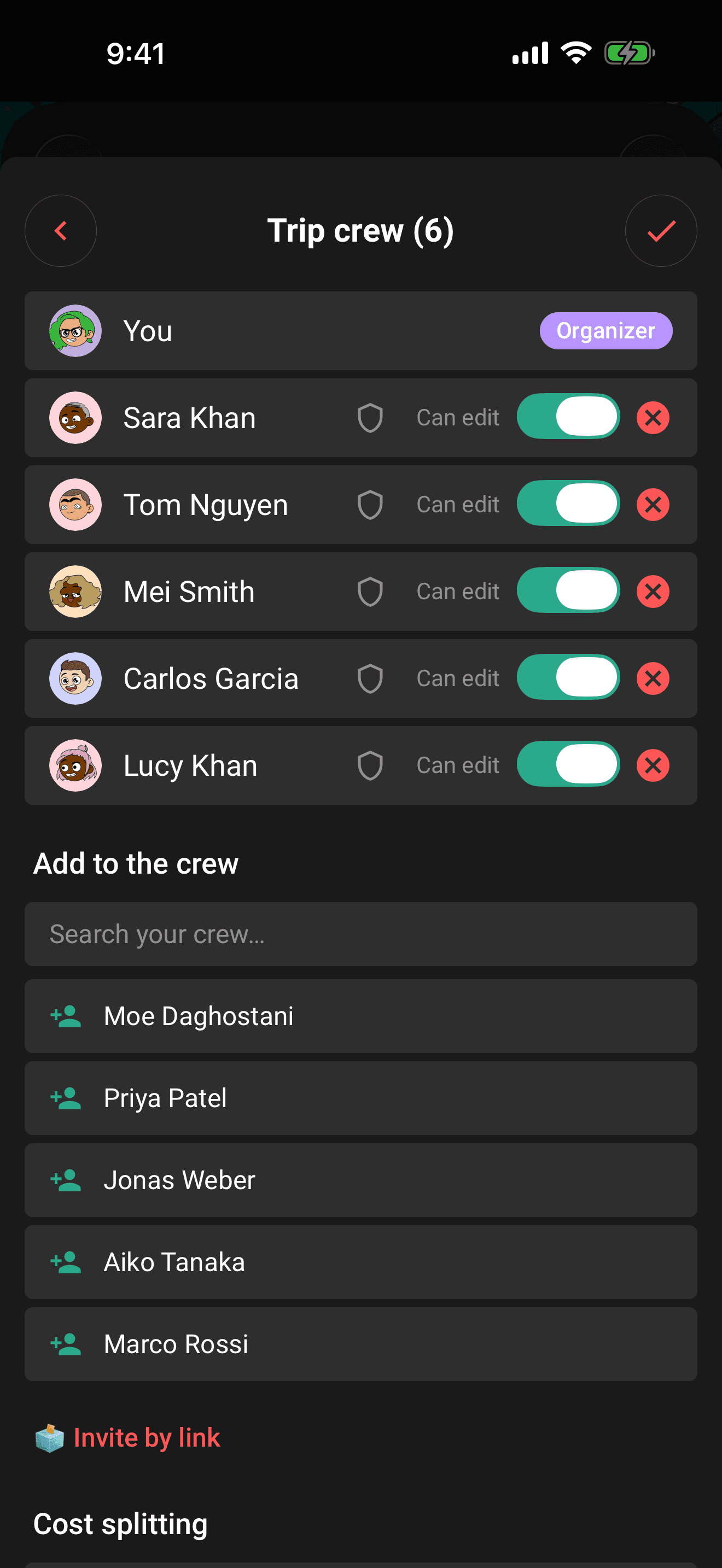
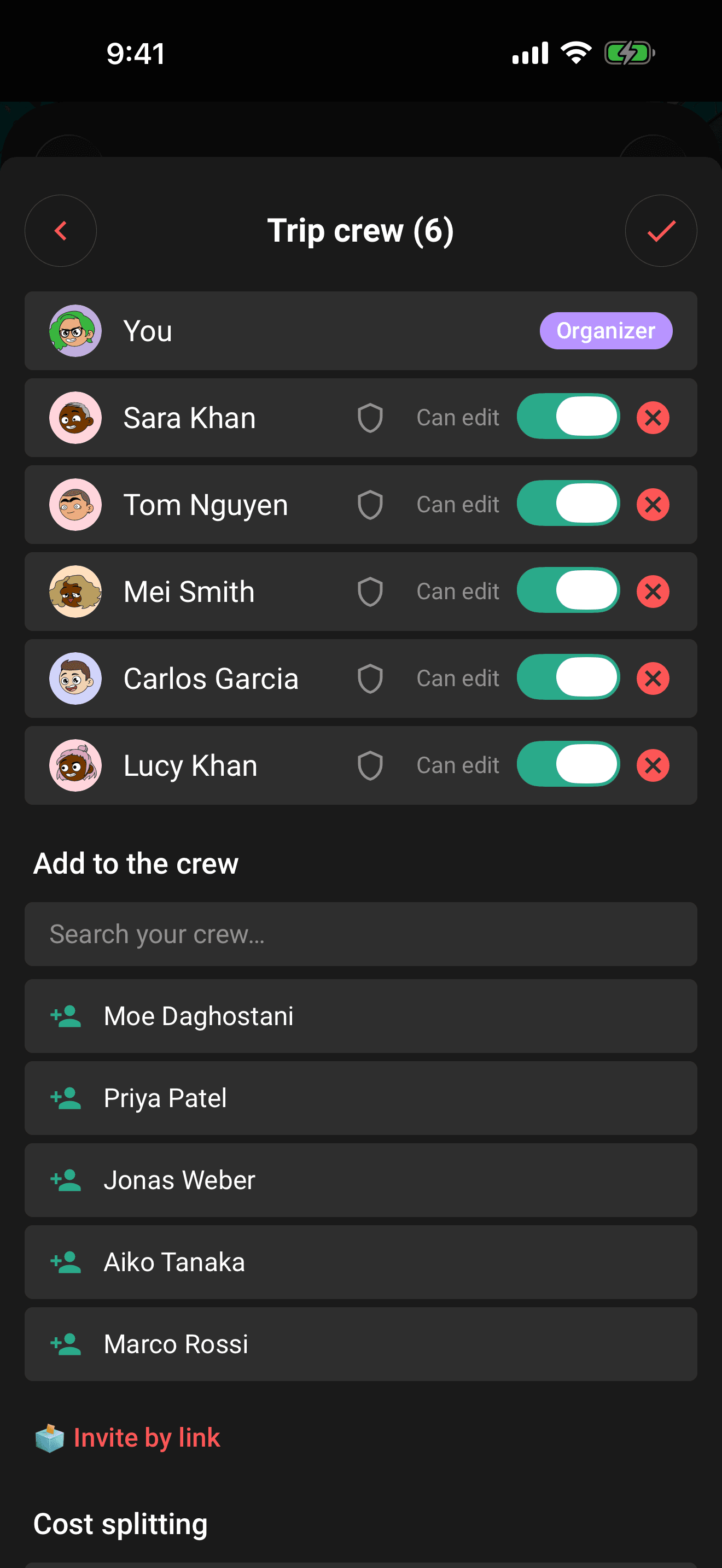
- 2Tap the Participants row to open the crew sheet.
- 3Tap the shield icon next to a crew member to make them an organizer.
- 4Tap the shield again to demote them, and confirm. The alert reminds you they'll no longer be able to resolve ballots.
Note
When a joined crew member opens the crew sheet from the trip Hub, Limbo labels them Crew and labels the actual trip owner Organizer. That view is read-only: organizer, invite, edit-access, removal, and cost-splitting controls only appear in the owner or organizer editing workflow where they are allowed.
Your crew list in Settings
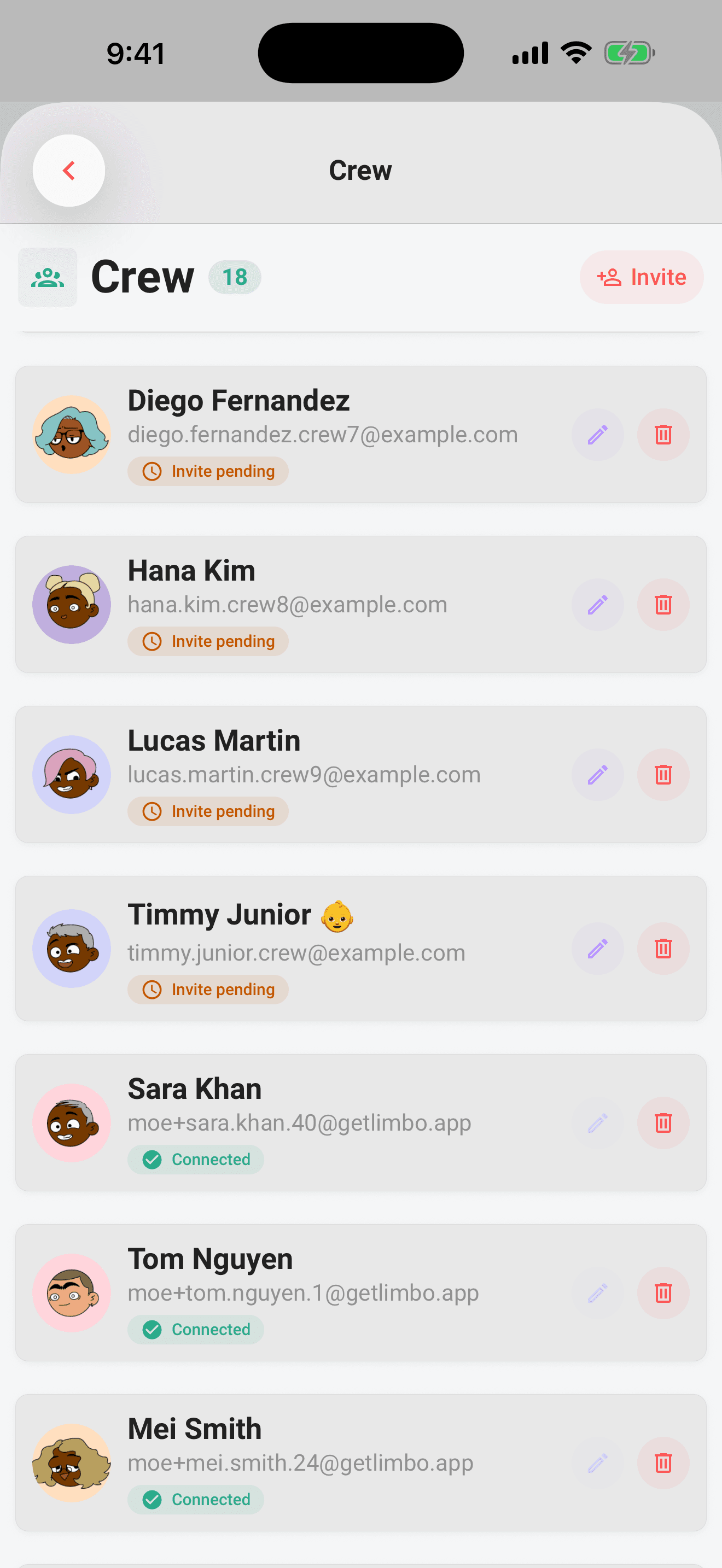
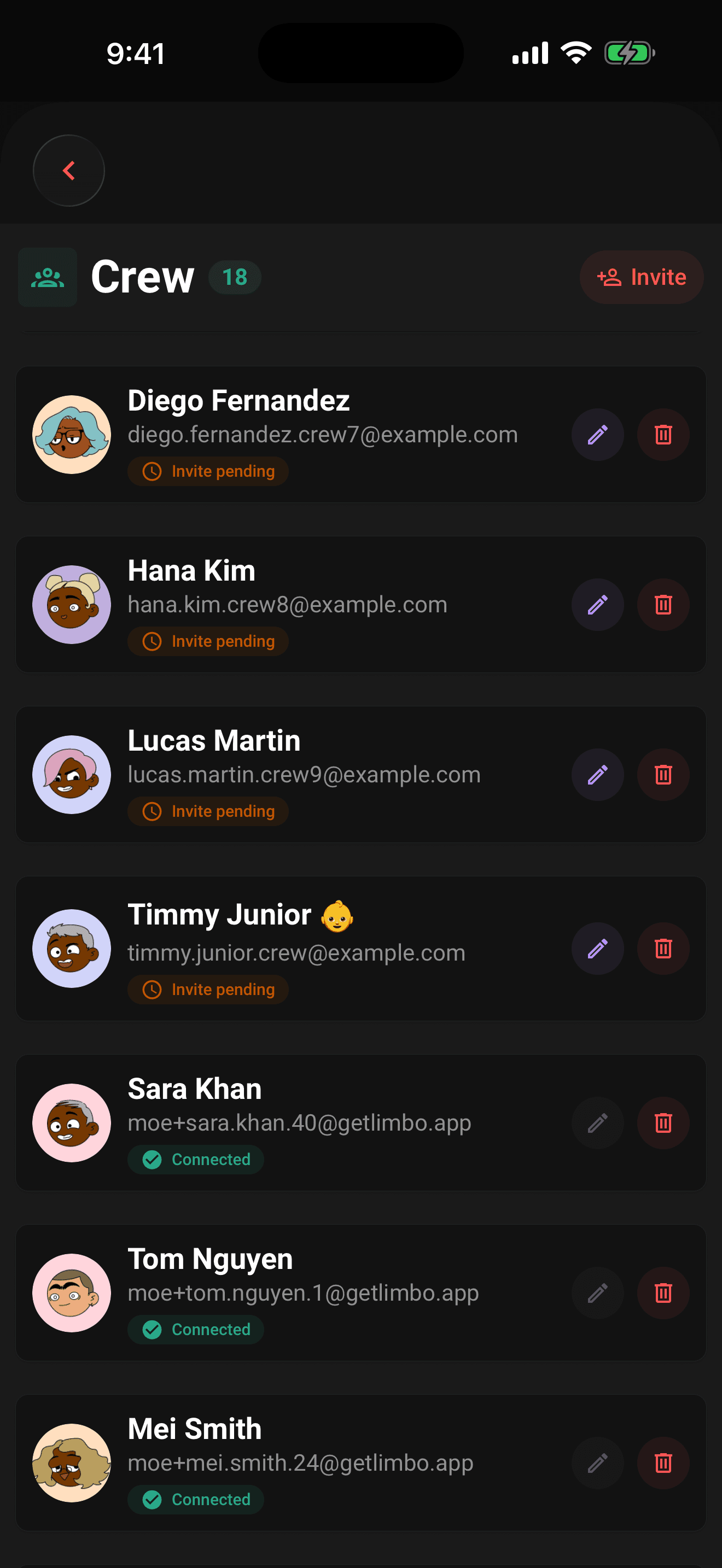
Settings → Crew is your address book of crew across all trips, with a count of everyone in it. Any member can use this screen.
- Invite someone: tap the invite button, enter their name (required) and email (optional), and save. If you add an email, Limbo sends them an invite, and their row shows an Invite pending pill until they accept.
- Accept an invite: when someone adds you as a crew member, their row shows an Accept invite button, tap it and confirm to link up.
- Pending privacy: people who haven't accepted yet appear with a neutral placeholder circle instead of a profile photo. Their real photo only shows once the invite is accepted.
- Children: open a crew member and turn on Is child, then pick an age. You can edit a crew member if you created them or the record is you. Children don't count toward chat eligibility: a trip needs at least two non-child crew members before its chat switches on.
What edit access means
In the trip's crew sheet, an owner or co-organizer can tick the small Edit checkbox on each non-organizer member. When it's on, that member can edit the trip's details and add, edit, or delete its plans. When the server-controlled Attachments capability is enabled, edit access also reveals its upload controls and lets the member remove files they uploaded. Opening an existing attachment does not require edit access, but it does require trip membership and the available service. Ticking the Edit box shows a short confirmation ("… can now edit this trip's plans") so it's clear what changed. Organizers always have edit access, so their Edit checkbox is checked and locked; tapping it shows a short note explaining why.
Heads up
Opening an Edit Trip link does not grant edit access. Members without it see a message and Back to trip instead of the editor. If Limbo receives an access change while the editor is open, the fields are hidden and Save is disabled until editing is allowed again.
Related articles
Trip chat basics
Message your crew, react, run polls, turn chat ideas into plans, share photos, and vote on ballots without leaving the conversation.
Notifications: the bell, the inbox, and your settings
Where notifications land, where tapping one takes you, and how to control push, email, and in-app alerts per type.
Delete your account
The exact deletion flow, what happens to your trips, votes, and messages, and why it can't be undone.