Notifications: the bell, the inbox, and your settings
Where notifications land, where tapping one takes you, and how to control push, email, and in-app alerts per type.
Limbo keeps you posted when plans change, ballots open, tasks are assigned, and the chat lights up. This article covers the bell on Home, the inbox behind it, and the settings matrix that decides what reaches you on which channel.
Notifications are personal: every crew member controls their own. Nothing here is organizer-gated.
The bell and its badge
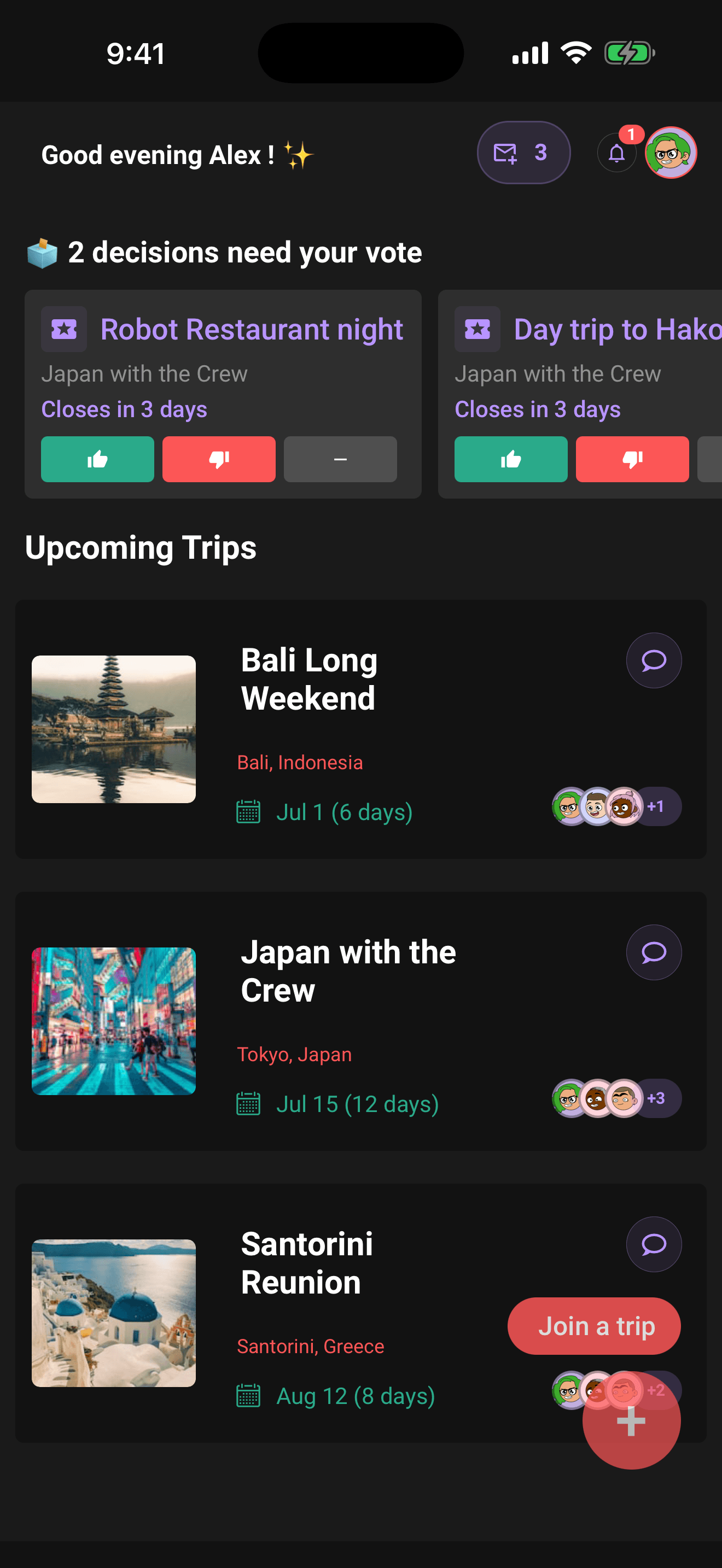
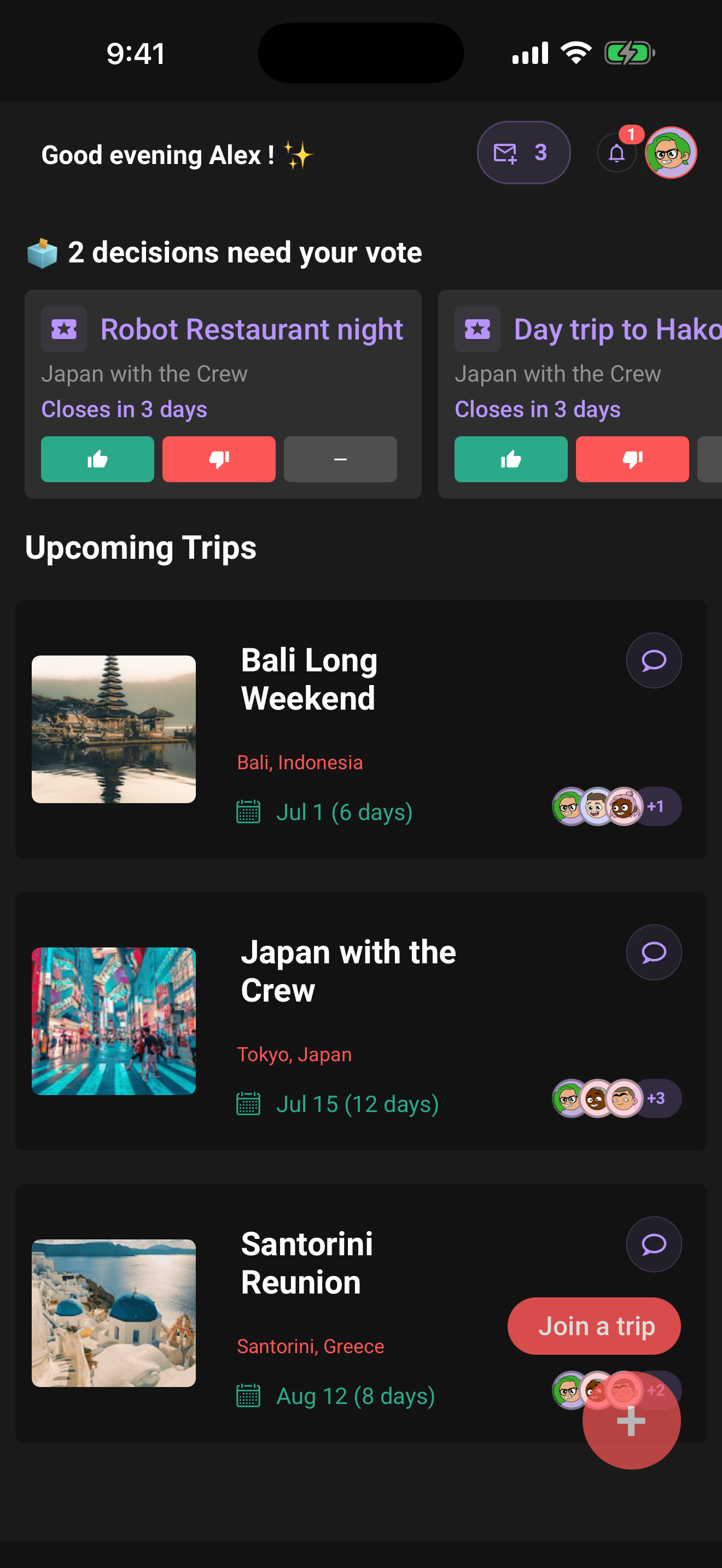
The bell sits in the top bar of the Home screen. A red badge shows your unread count and updates in real time as things happen on your trips. Tap the bell to open your inbox.
The inbox
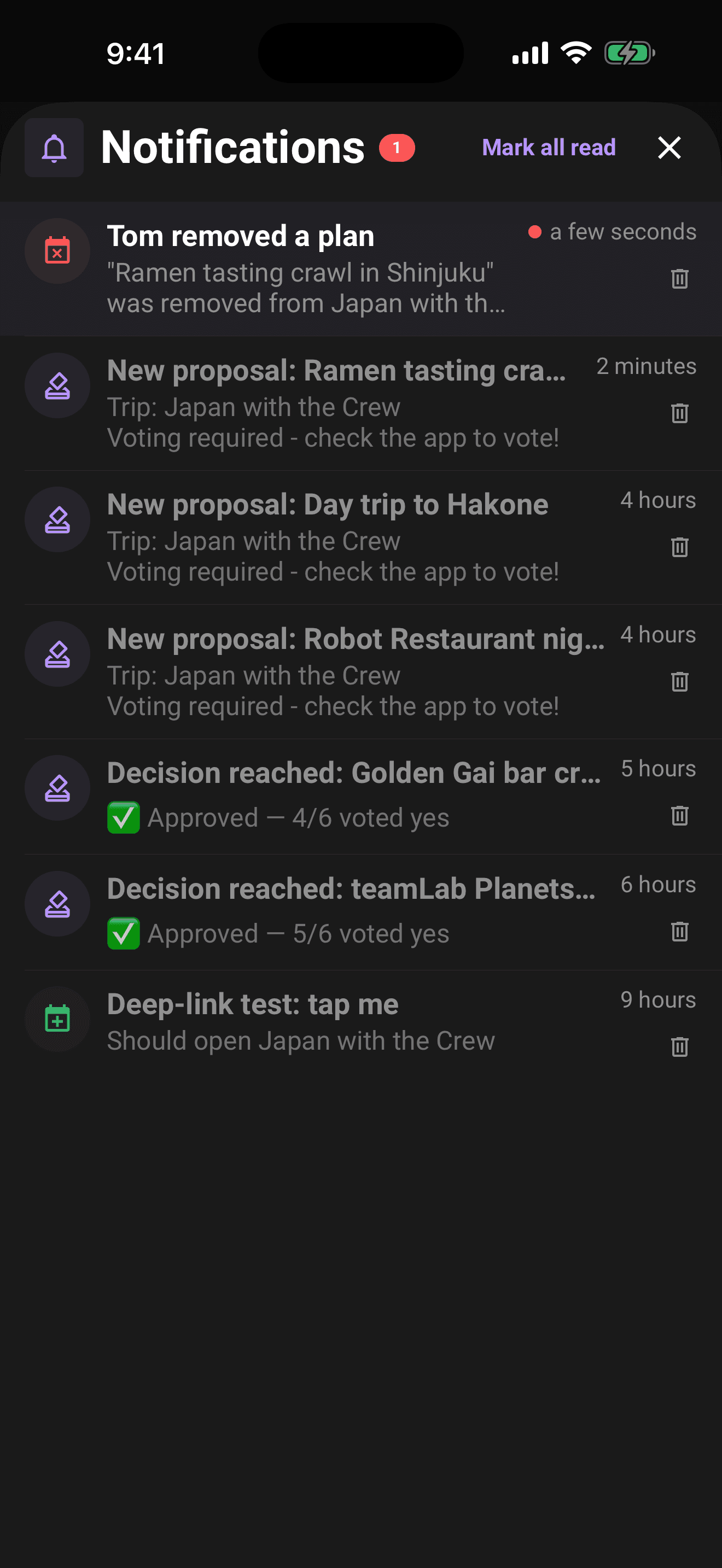
Each notification shows an icon for its type, a title, a short description, how long ago it arrived, and a red dot if it's unread.
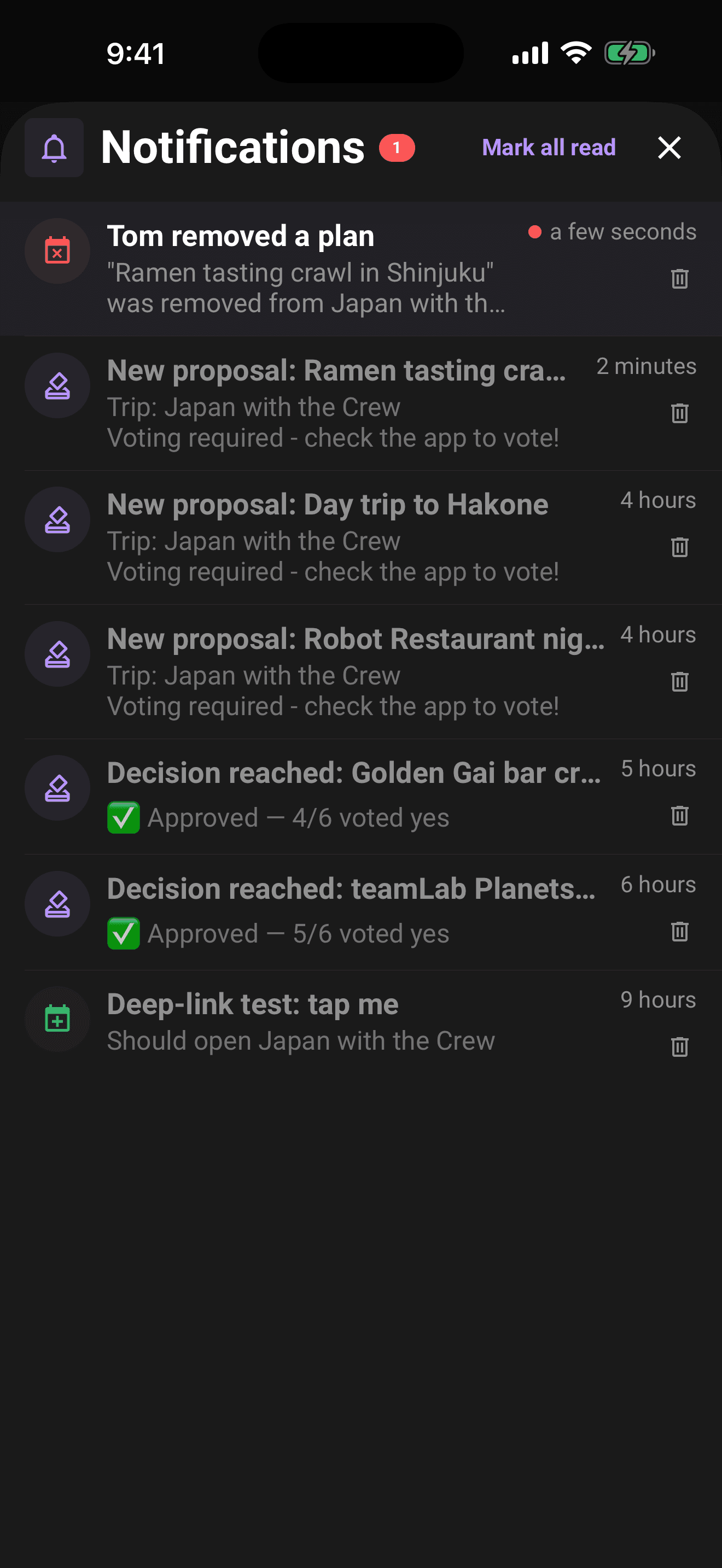
Tapping a notification marks it read and takes you straight to the right place:
| Notification | Where tapping takes you |
|---|---|
| Voting started, voting reminders, voting results | The trip's voting dashboard |
| New chat messages | The trip chat |
| Plan added, edited, or deleted · trip dates changed · crew joined or left | The trip, opening the specific plan when there is one |
| A Checklist task assigned to you | The trip, where its Checklist list lives |
| Trip archived or deleted · you were removed from a trip | Nowhere: the trip is gone, so you stay in the inbox |
Keeping the inbox tidy:
- 1Tap a notification to mark it read and jump to its destination.
- 2Tap Mark all read in the header to clear every unread dot at once.
- 3Tap the trash icon on a row to delete that notification.
- 4Pull down to refresh, and keep scrolling to load older notifications.
When nothing's waiting, the inbox shows "You're all caught up."
In a browser, notifications stay in one full-width column, including on wide screens. Use Refresh above the list to check for new activity. You can use Tab to reach a notification, its separate delete button, or the inbox controls, then press Enter or Space. Close notifications returns to the previous screen, or to Home if you opened the inbox directly.
Choose what you're notified about
On Home, tap your avatar to open Account, then tap Notification Settings.
At the top are two master switches: Push notifications and Email notifications. Turning one off silences that channel everywhere, no matter what the per-type toggles say. In-app notifications have no master switch; you control them per type.
Below the masters is the matrix. Each notification type shows the Push, Email, and In-app channels it supports, grouped into six sections:
| Section | Types |
|---|---|
| Plans | Plan created · plan edited · plan deleted |
| Voting | New proposal to vote on · Voting deadline approaching · Decision reached |
| Trip & Crew | Added as crew · crew joined · crew left · crew removed · crew invite declined · trip dates changed · trip archived or deleted |
| Flights & Tasks | Trip responsibility assigned to you |
| Checklist | Checklist item assigned to you |
| Chat | New messages |
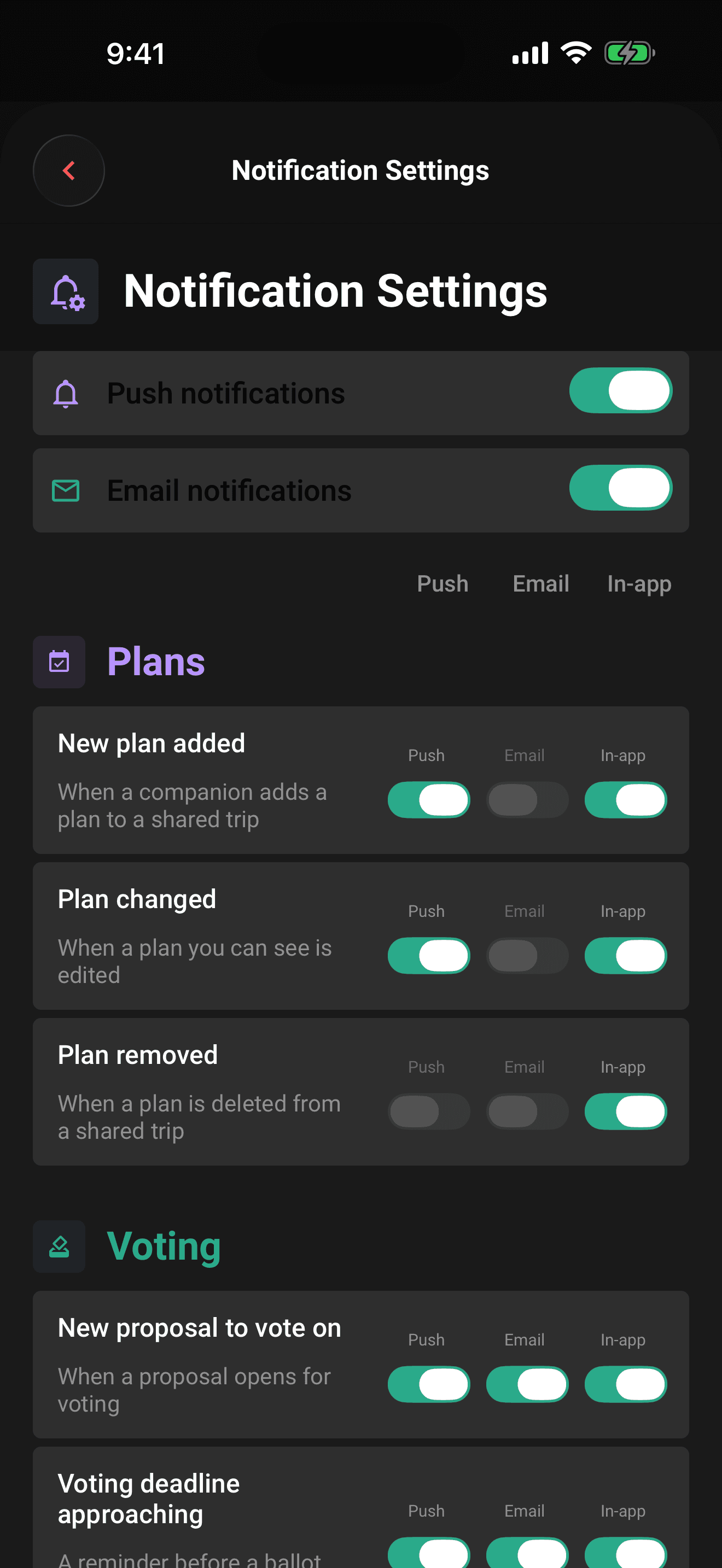
A toggle appears greyed out when its master switch is off. A dash means that channel is not available for the notification type.
Changes save automatically. The switches pause briefly while saving so another change cannot overlap it. If saving fails, your previous choice is restored and an error appears. Leaving this screen or switching accounts prevents an older save from changing the new screen's controls.
The two voting rows worth knowing
Two rows in the Voting section carry a ballot from start to finish:
- Voting deadline approaching: the last-call reminder. If a ballot is about to close and you still haven't voted, Limbo nudges you to weigh in. It's a do-something alert, so it only goes to push and in-app, never email, so it can't get buried in your inbox while the clock runs out.
- Decision reached: the result. When a ballot resolves and the reveal is ready, this one fires. It's the single voting row that emails you by default, so you catch the verdict even if the app is closed. Push and in-app are on too.
Tip
If you leave one thing on, leave Voting deadline approaching on push. A reminder you never see is a vote you never cast, and a ballot can resolve without you.
Allow push notifications
In a browser
Open Notification Settings → This browser. Where browser notifications are available, choose Enable browser notifications, then allow the browser prompt. Limbo does not request browser permission just because you opened this screen. The account's Push notifications switch and per-type choices still apply.
If notifications are blocked, change this site's permission in your browser settings and return to Limbo. On iPhone or iPad, add Limbo to your Home Screen and open it there. If browser delivery is unavailable, you can still use the inbox inside Limbo.
Turn off for this browser stops delivery to this browser without changing your phone's permission. Signing out also stops this browser session's notifications; enable them again after signing in. On wider windows, the settings groups appear in two columns.
In the mobile app
Limbo only asks your device for push permission once the Push notifications master switch is on, and simply visiting the settings screen never triggers the prompt. (The app intro no longer offers this, so switching it on here is how you turn reminders on.)
- 1On Home, tap your avatar, then open Notification Settings.
- 2Turn on Push notifications.
- 3Tap Allow on the system prompt.
If you declined the prompt in the past, your device won't ask again, so you need to allow notifications in your device settings instead:
Open the Settings app, find Limbo, tap Notifications, and turn on Allow Notifications. Then return to Limbo and make sure the Push notifications master switch is on.
Tip
Note
Related articles
Trip chat basics
Message your crew, react, run polls, turn chat ideas into plans, share photos, and vote on ballots without leaving the conversation.
Organizers and your crew
What owners and co-organizers can do, how to promote or demote organizers, and how the crew list in Settings works.
Flights
Look up a flight by number, book multi-leg routes, enter complete journey details, refresh saved flight information for free, or enable live alerts.