Flights
Look up a flight by number, book multi-leg routes, enter complete journey details, refresh saved flight information for free, or enable live alerts with Pro.
Enter an airline, a flight number, and a date, and Limbo finds the flight and fills in the airports and times. After saving, anyone with edit access can request a free, rate-limited refresh.
Adding flights requires edit access to the trip: organizers and crew members the owner has given edit permission. organizer Anyone on the trip can open a flight's details sheet and see its saved status and journey details.
Add a flight by number
- 1Add a plan and choose Flight as the type.
- 2Pick the departure date.
- 3Pick the airline from the list. The flight number field unlocks once an airline is chosen.
- 4Type the flight number (digits only, the airline code is added in front for you).
- 5Wait for "Searching for flight details…". The lookup starts on its own once date, airline, and number are all in, whatever order you filled them.
- 6Check the airports and times Limbo found, then tap the checkmark in the form header.
Note
The flight lookup needs a connection. If Limbo can't find the flight (a charter, a very new schedule, or you're offline), Limbo explains that the lookup failed before showing the manual fields so you can type the details yourself.
Multi-leg routes and codeshares
If more than one flight matches your number (connecting routes, or a codeshare sold under several numbers) Limbo opens a picker instead of guessing.
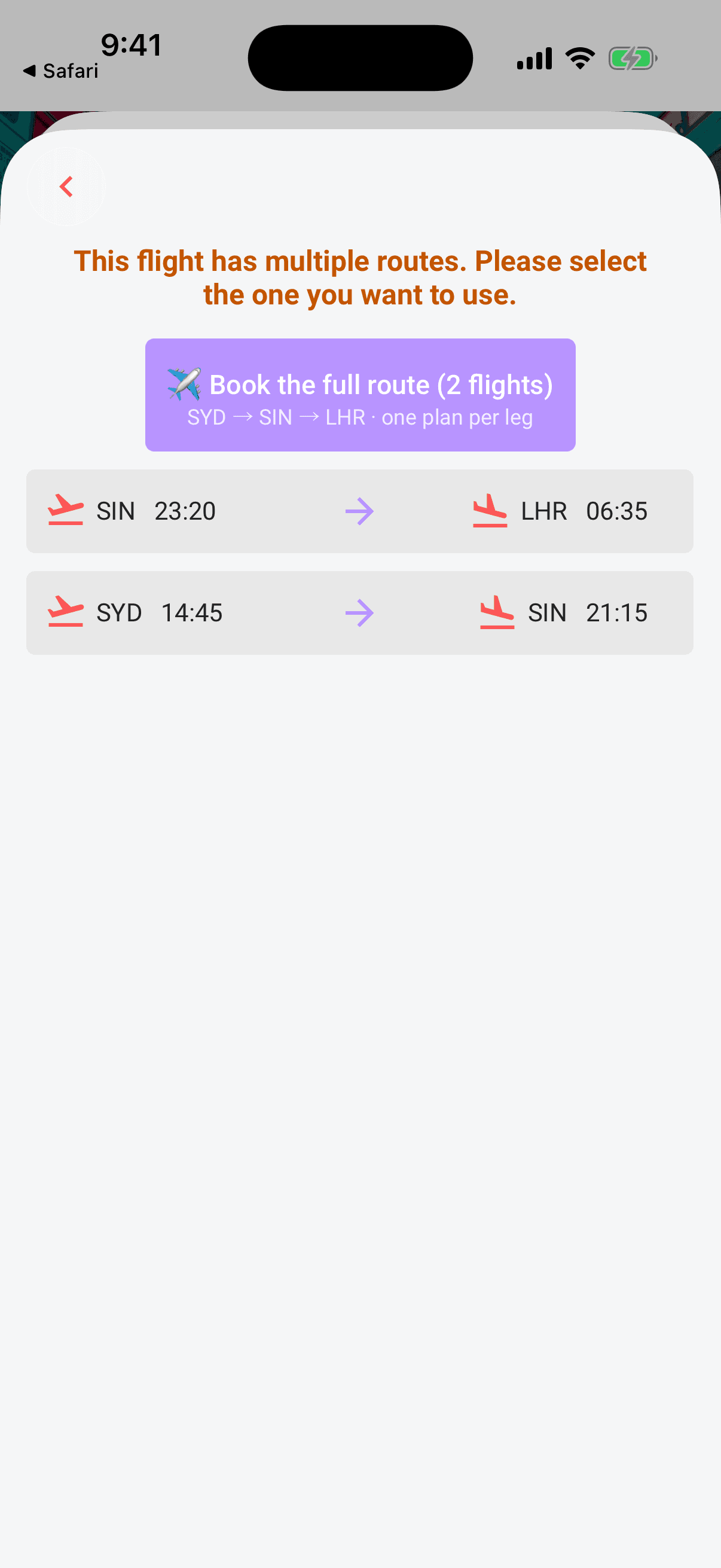
- Pick a single leg from the list (each row shows the departure and arrival airports and times).
- Book the full route: when the matches chain into one journey, a button at the top offers the whole route, like "✈ Book the full route (2 flights)". Limbo creates one plan per leg with the right times on each; the cost (and the ballot, on voting trips) rides on the first leg.
When a flight is operated by a partner airline, the details sheet shows an "Operated as" line with the operating flight number and airline, so you know which desk to queue at.
Manual entry
Untick Auto update flight details on the form to enter a flight by hand. You get separate departure and arrival date-time pickers (each with its own timezone), airport-code fields, terminals and gates, seat, aircraft type, codeshare flight, and passengers. Limbo keeps the arrival at or after the departure. Leave the box ticked to use Limbo's provider lookup for the flight details.
Whichever way the flight goes in, you can also add a seat, a confirmation number, notes, a cost (it rolls into Expenses), and flip Mark as booked to get the green Booked chip on the Plans timeline.
Passengers and seats
Flight lookup includes a single Seat field. Manual entry also lets you add a passenger list, with a name and seat for each traveller, before the flight is saved. After saving either kind of flight, crew with edit access can change the same passenger list:
- 1Open the saved flight and tap the pencil to edit it.
- 2Scroll to Passengers and tap Add passenger for a new row.
- 3Enter the passenger name and seat, or tap the red ✕ to remove a row.
- 4Tap the checkmark in the form header to save.
Tip
Flights forwarded from a booking email arrive with the passenger list already filled in: names and seats parsed straight from the confirmation. See Plans from your email.
The saved flight editor keeps the complete route available: airline and flight number, departure and arrival date-times, timezones, airports, terminals and gates, aircraft type, codeshare flight, seat, confirmation, notes, passengers, booking status, cost, and currency. Existing historical flights can still have their dates corrected. Switching Auto update flight details on or off while editing does not discard those saved details.
Saved status and manual refresh
The details sheet shows the latest flight information Limbo has saved:
| On the details sheet | What it tells you |
|---|---|
| Status | Scheduled, Departed, landed, or cancelled |
| Departure / Arrival blocks | Local calendar date and time, airport, terminal, and gate, with the flight duration between them |
| Delay warning banner | "Delays reported at departure airport" when the airport is backed up |
| Aircraft | The aircraft name and type, e.g. Boeing 787-9 |
| Operated as | The codeshare partner actually flying the route |
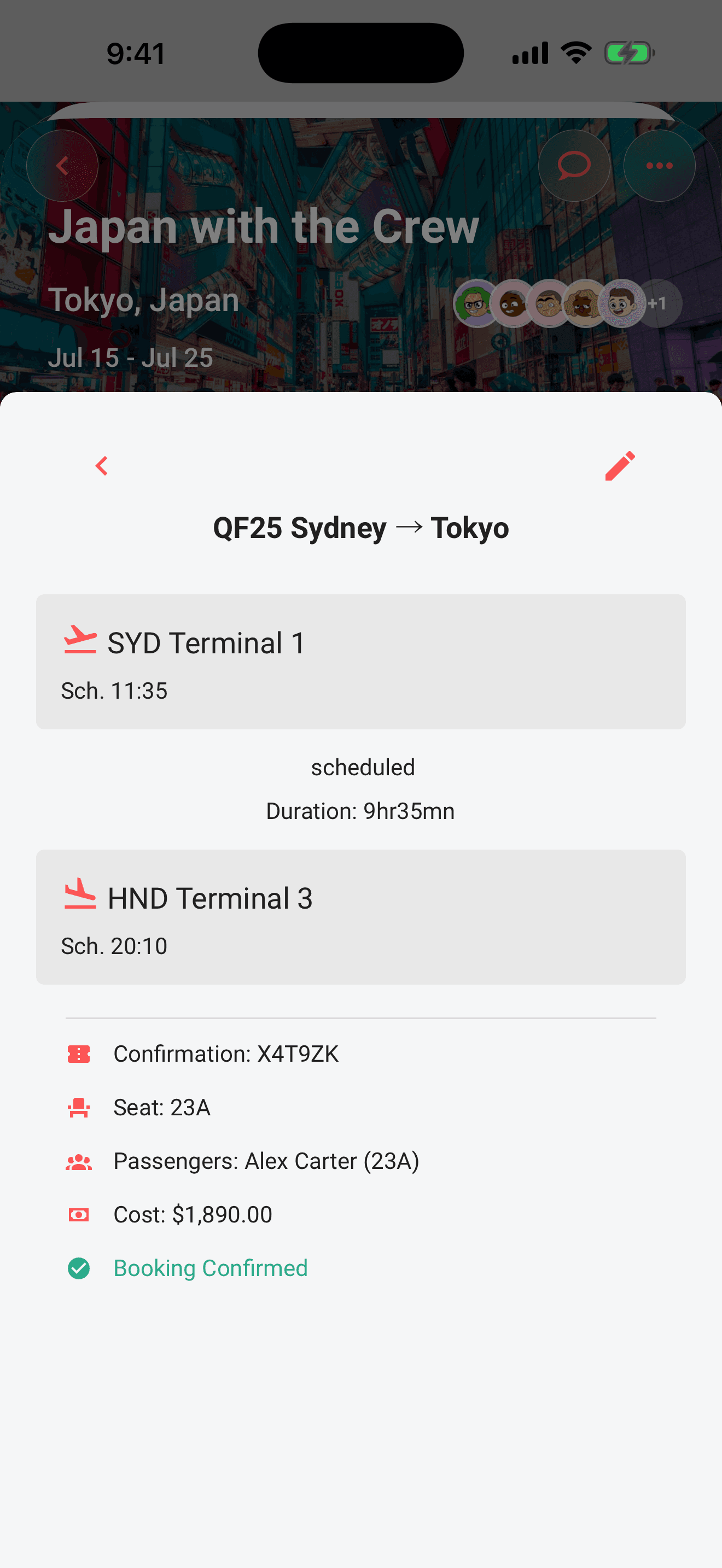
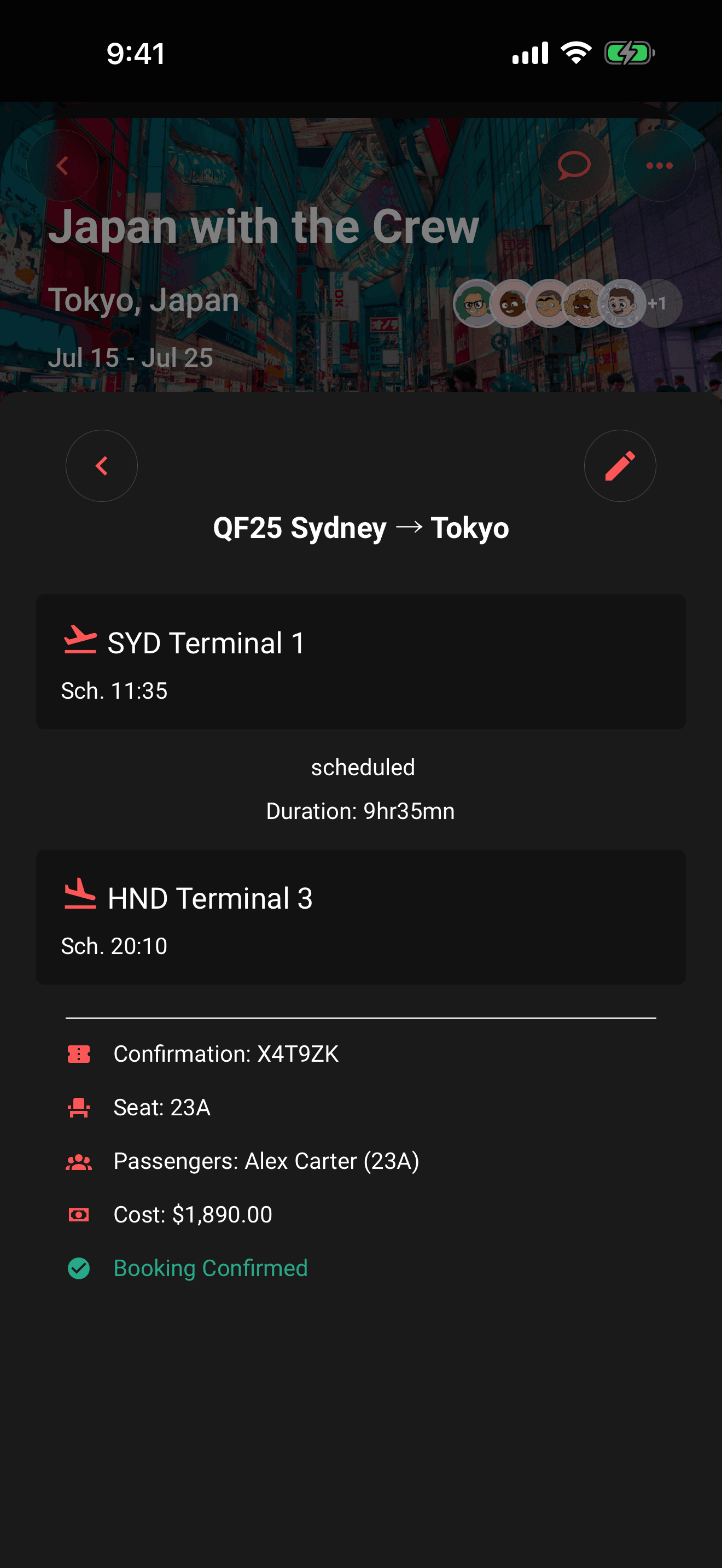
Editors can tap Refresh flight details for a free, rate-limited check of a looked-up flight. Flights entered completely by hand cannot use this refresh because they have no provider flight identity.
Live flight alerts with Limbo Pro
Where available in your app, Pro members with edit access can turn on Live flight alerts for a looked-up flight. Alerts cover schedule changes, delays, gates, landing, and baggage information when the flight provider supplies them. Looking up or manually refreshing a flight does not turn alerts on by itself.
- 1Open a saved flight while connected to the internet.
- 2Find Live flight alerts and tap Enable. On a free account, the Pro button opens the subscription offer.
- 3Check the row for Live alerts are pending or Live flight alerts are on. When available, Last checked shows the latest update time.
You can also select Live flight alerts while adding a flight. Limbo saves the flight first, then enables alerts. If you save offline, reconnect and enable alerts from the saved flight later. Flights entered completely by hand need automatic flight details before alerts can start.
If the row says Live alerts need attention, check the flight details and your connection, then use Retry when offered. Tap Turn off to stop monitoring. Live alerts complete means monitoring ended after the flight reached its final state.
The alerts row is hidden when the feature is unavailable or you do not have edit access. For alerts on your lock screen, also check Limbo's notification settings and your phone's notification permission. Airline and airport information remains the place to check for time-critical changes.
Permissions
- Add flights and edit passengers: trip organizers and crew with edit access to the trip. organizer
- View flight details, status, and passengers: every crew member on the trip. member
From ChatGPT or Claude
You can ask your Limbo connector to refresh a saved flight’s available status, times, gates and terminals. Provider limits apply; this does not change airline tickets or move your other plans. See flight refresh in chat.
Related articles
Add a plan
Create activities, food stops, stays, flights, transport, tours, cruises, and notes from the map-first trip hub.
Plans from your email
Forward booking confirmations to Limbo, review the parsed plans, and add them to the right trip in one tap.
Plan details
Open a plan from the timeline or map to review its details and files, reveal the trip map, export it to your calendar, or edit it.
Manage your plans
Edit every plan type, manage plan attachments, mark plans as booked, filter the timeline, or act on several plans at once.