Trip chat basics
Message your crew, react, run polls, turn chat ideas into plans, share photos, and vote on ballots without leaving the conversation.
Every Limbo trip has a group chat where your crew talks through the plan, shares photos, runs quick polls, and even votes on ballots right in the conversation.
Everyone on the trip can use chat: sending, replying, reacting, photos, and polls are open to all joined crew members, not just organizers. Chat switches on once a trip has at least two crew members (children don't count toward that). You can only edit or delete your own messages, and only a poll's creator can close it.
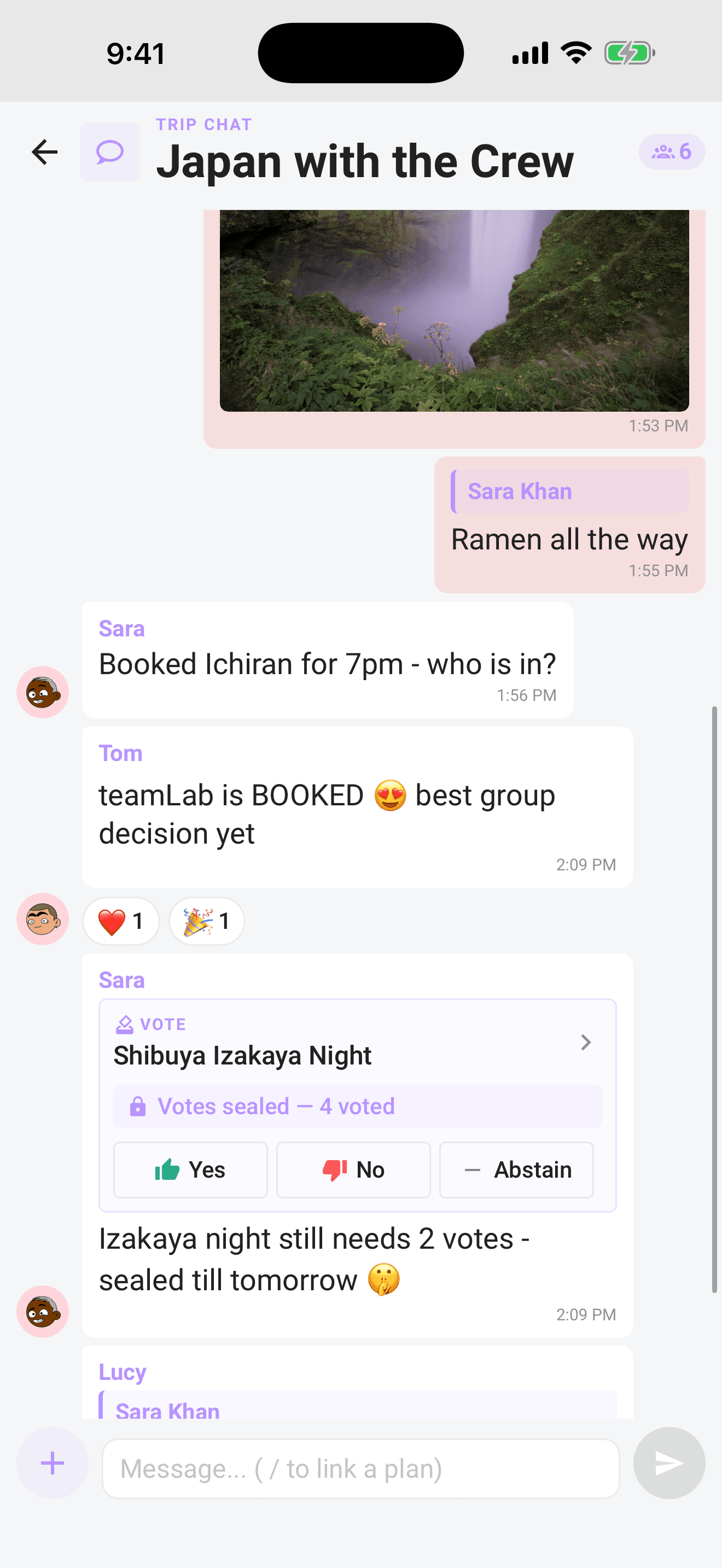
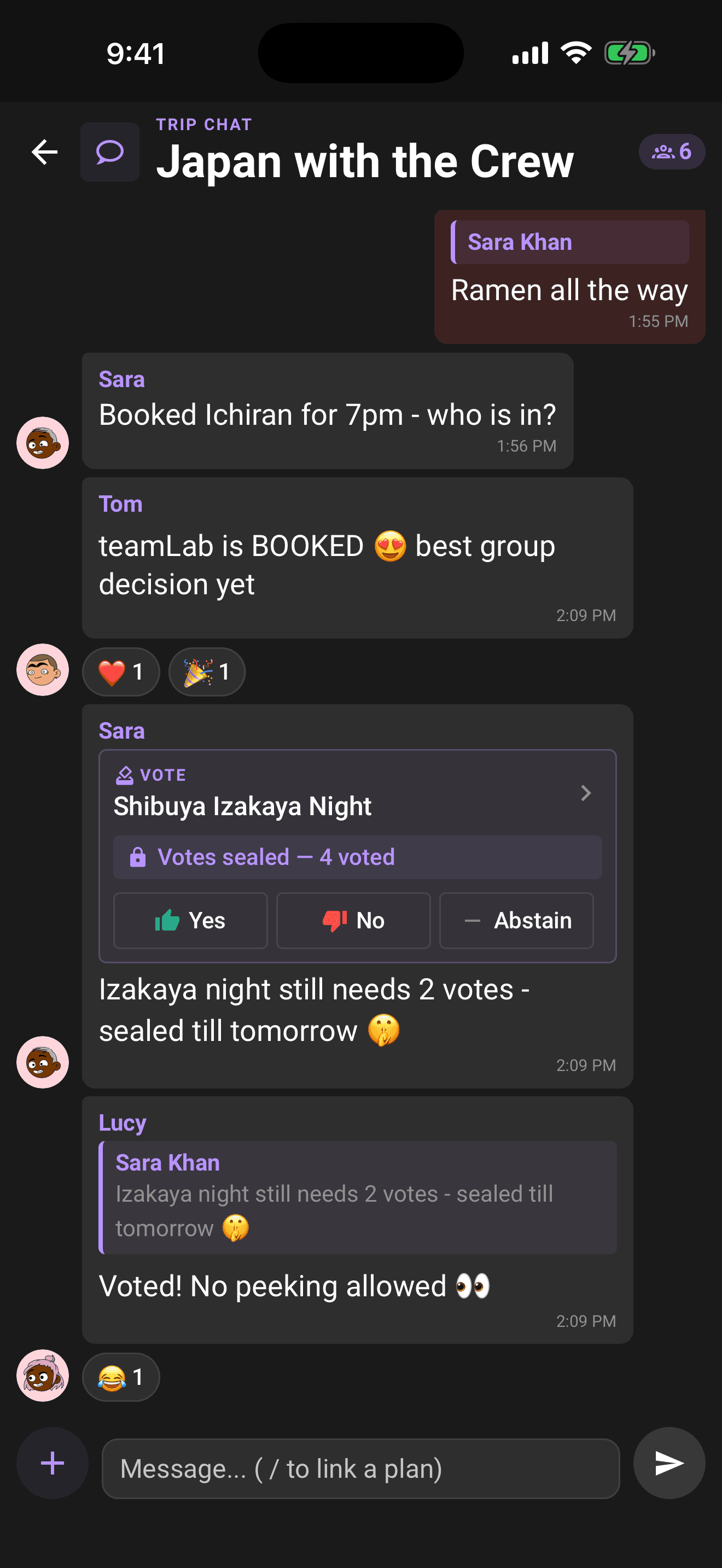
Open chat
- 1From Home, tap the chat bubble on a trip card. A red badge on the bubble shows how many messages you haven't read.
- 2Or open the trip and tap the pinned Chat circle beside the crew avatar at the top of the Hub.
Opening the chat marks its messages as read, so the badge clears.
If your connection drops while chat is open, Limbo catches up with the conversation when it reconnects. Messages stay unread while you are viewing another screen. A message marked Not sent still needs its Retry button.
If chat temporarily asks you to reconnect to verify offline access, leave the screen open. Your unsent text, reply and linked plan return when access is restored, including an edit you were working on. These drafts stay only in the current chat session; closing the screen, reloading, or switching accounts does not save them for later.
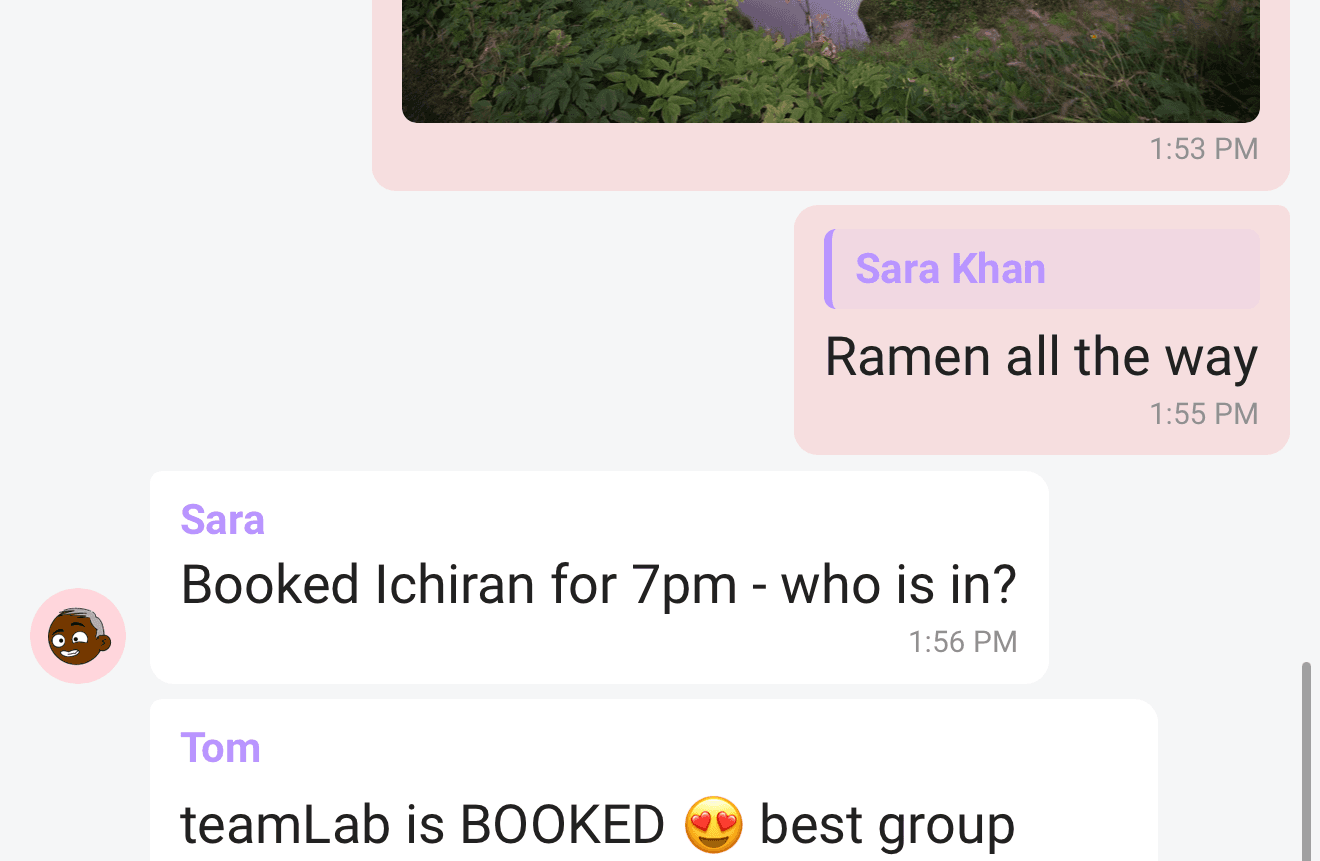
Send, reply, and react
- 1Type your message and tap send.
- 2To reply to something specific, long-press the message and choose Reply. A "Reply to…" strip appears above the composer, tap its X if you change your mind.
- 3To react, long-press a message and tap an emoji. Reactions show as small chips under the bubble; tap a chip to add or remove your own reaction.
In a browser, click a text message to open its actions, or focus it with the keyboard and press Enter. The same actions let you reply, react, and edit or delete your own messages. Click a poll's question to open its actions.
If a send cannot start, your text and any reply stay in the composer. If the message already appeared in the conversation but Limbo cannot confirm delivery, it is marked Not sent with a Retry button. The composer clears because your message is kept in that bubble. Reconnect, then tap Retry; Limbo checks the same message instead of adding another copy. Retryable bubbles are kept for the current app session, so resolve them before closing the app.
Edit or delete your own messages
You can only edit or delete messages you sent.
- 1Long-press one of your messages.
- 2Tap Edit to load the text back into the composer. Make your change, then tap the checkmark to save (an edited note appears beside the timestamp) or the X to cancel.
- 3Tap Delete and confirm to remove the message.
Heads up
Share photos
- 1Tap + next to the composer and choose Photo.
- 2Allow photo access if your device asks, then pick an image. A "Sending photo…" chip shows while it uploads.
- 3Tap any photo in the chat to view it full screen.
If an upload fails, keep the chat open and use Retry beside Photo ready to retry. The selected photo stays available in that chat session; the close button discards it. Closing the chat, reloading the browser or switching accounts does not save an unsent photo for later. If the photo already appeared as a message marked Not sent, use that message's Retry instead.
Run a poll
Anyone on the trip can create a poll, handy for quick calls that don't need a formal ballot.
- 1Tap + and choose Poll.
- 2Type your question and at least two options. Tap Add option for more (up to six).
- 3Turn on Allow multiple answers if people can pick more than one option.
- 4Tap Create poll to post the poll into the chat.
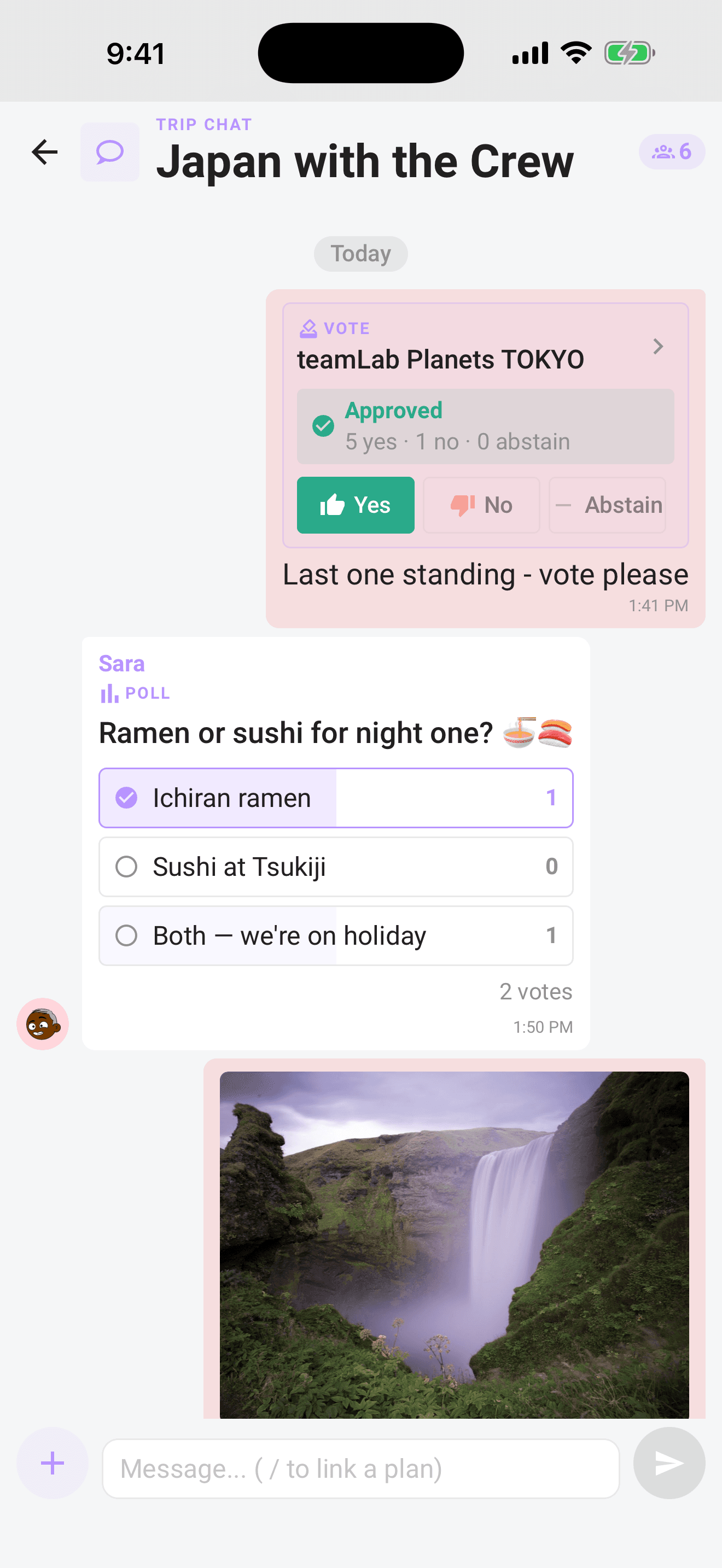
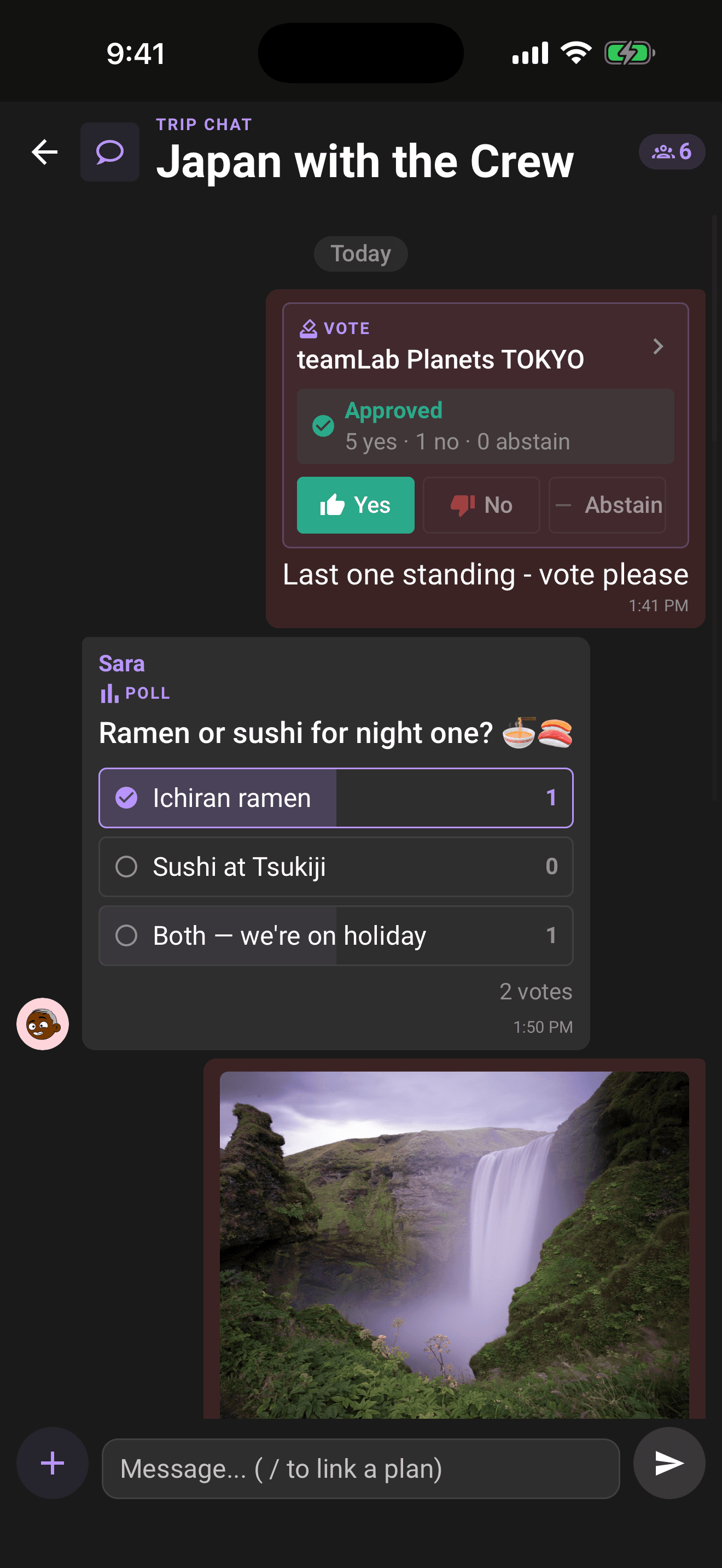
To vote, tap an option; tap it again to take your vote back. Results update live for everyone. When you're done collecting answers, tap the poll's question or long-press the poll and choose Close poll, then confirm. The bars freeze as final results. Only the person who created the poll can close it.
For availability questions, tap Availability poll in the poll sheet. It fills in a "Which dates work best?" question with suggested dates and turns on multiple answers so everyone can pick all the dates that work.
Turn a chat idea into a plan
If a message, link, or photo should become part of the itinerary, the trip owner, co-organizers and crew with edit permission can long-press it and choose Propose as plan. Limbo opens the add-plan flow with the message text or photo link prefilled as a note, so you can clean it up and save it as a real plan.
Link a plan into the conversation
- 1Type / as the first character of a message. A plan picker pops up and filters as you keep typing.
- 2Tap a plan to attach it, or use + → Link a plan instead. The plan shows as a chip on the composer; tap its X to remove it.
- 3Send the message. The plan appears as a card in the chat.
- 4Tap the card to open the plan's details right there, without leaving the conversation.
Vote on ballots in chat
When a linked plan is up for a vote, it appears as a ballot card instead of a plain plan card. Joined adult crew members can vote; child crew and pending invites cannot. Voting is not organizer-only.
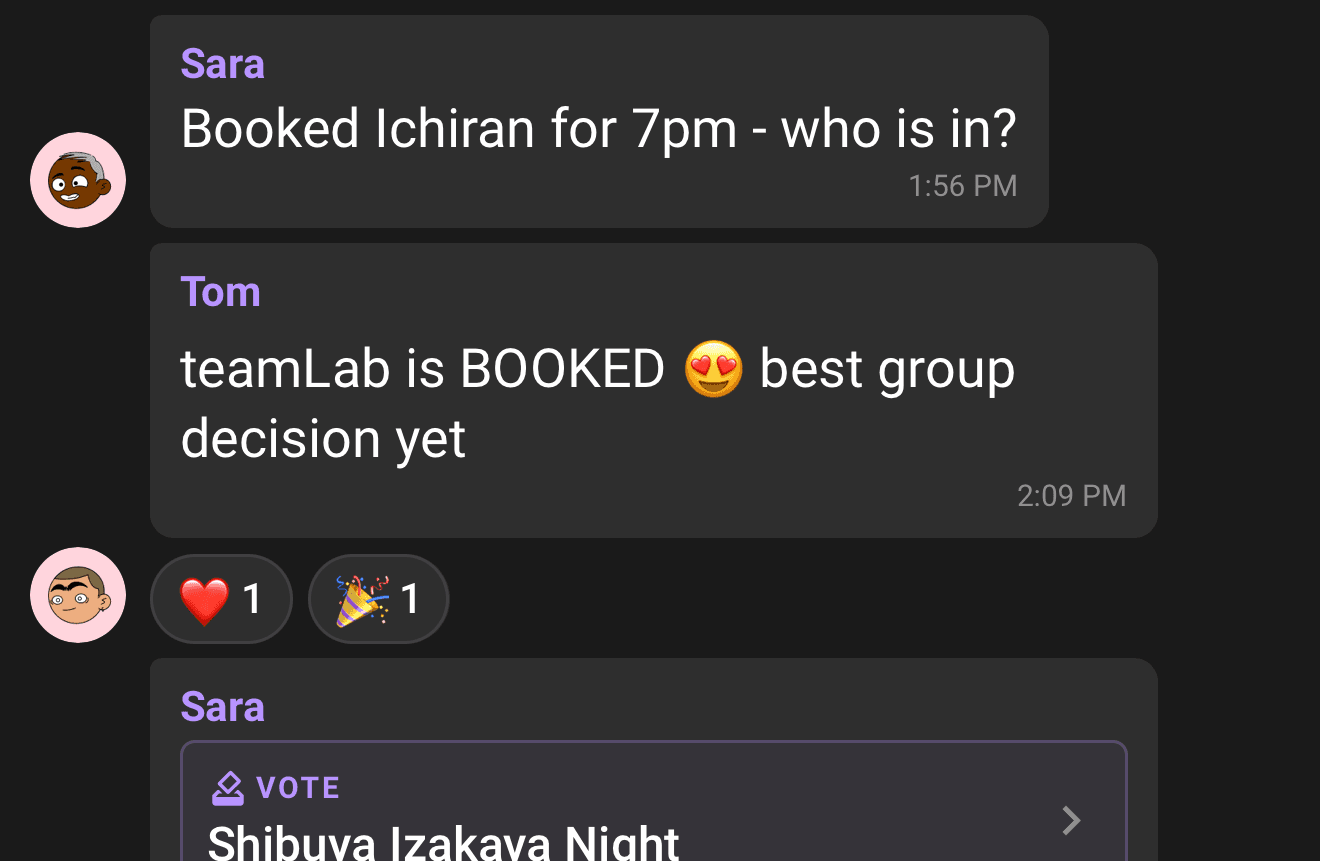
- Tap Yes, No, or Abstain to cast your vote. Tap a different choice to change it while the ballot is open, or tap your selected choice again and confirm to remove your vote. A removed vote makes the ballot actionable again, so it returns to your Decisions inbox on Home.
- On open ballots you see the running tally and an approval bar. On sealed ballots the tally stays hidden until the reveal, you only see who has voted so far and your own choice.
- When the ballot resolves, the card flips to a compact Approved or Rejected result with the final tally. Open the Voting dashboard for the full reveal, including voter rows and who did not vote.
See who's in the chat
Tap the crew pill in the header to open the crew sheet: everyone on the trip, with an "Organizer" chip next to organizers. Organizer changes happen only from the Edit Trip crew sheet; see Organizers and your crew for details.
Unread badges and typing
- Trip cards on Home show a red unread count on the chat bubble, so you can see at a glance where the conversation moved.
- While someone is writing, a typing indicator with animated dots appears above the composer and fades a few seconds after they stop.
From ChatGPT or Claude
With chat permission, ask your connected assistant to summarize recent trip messages or draft a reply. Sending requires your explicit instruction for the exact text and trip. See crew chat through your connector.
Related articles
Link plans and vote in chat
Drop a plan into the conversation with "/", turn chat ideas into proposed plans, open details without leaving chat, and vote on live ballots in the stream.
Organizers and your crew
What owners and co-organizers can do, how to promote or demote organizers, and how the crew list in Settings works.
Notifications: the bell, the inbox, and your settings
Where notifications land, where tapping one takes you, and how to control push, email, and in-app alerts per type.