Photos and polls
Share photos from your library, view them full screen, and run quick polls, including date polls, then vote, allow multiple answers, and close for final results.
Two of the chat's best tools live behind the + button next to the composer: photos for showing the crew what you found, and polls for settling the small stuff that doesn't need a formal ballot.
Who can do what: everyone on the trip can send photos, create polls, and vote in them. Only a poll's creator can close it, and you can only delete messages you sent.
Send a photo
- 1Tap + next to the composer and choose Photo.
- 2The first time, your device asks for photo access, allow it.
- 3Pick an image from your library. A "Sending photo…" chip shows in the composer while it uploads.
- 4The photo lands in the chat as a rounded image in your bubble.
If you previously denied photo access, Limbo shows an alert with a Settings shortcut, tap it to grant access, then try again.
If the upload fails, patchy hotel wifi, usually, you'll see a Couldn't send photo alert. Limbo keeps your selected image above the composer as Photo ready to retry, so you do not need to find and select it again. Reconnect and tap Retry to upload and send it, or tap the X to discard it.
If the upload finishes but chat cannot confirm the send, the same retry row keeps the uploaded photo ready. Tapping Retry sends that copy without asking you to select it again.
Tip
Photos work with replies: long-press a message, choose Reply, then send a photo, it posts quoting that message.
View and react to photos
- Tap a photo to open it full screen on a black background. Tap the X in the top corner to close.
- Long-press a photo to react with an emoji or reply, and to delete it, if it's yours. Deleting removes it for the whole crew.


Create a poll
- 1Tap + and choose Poll.
- 2Type your question (up to 300 characters).
- 3Fill in at least two options (up to 100 characters each). Tap Add option for more, six is the max, or the X beside an option to remove it.
- 4Turn on Allow multiple answers if people can pick more than one.
- 5Tap Create poll. It posts straight into the chat.
The button stays disabled until you have a question and at least two filled options.
If the poll cannot be sent, the sheet stays open with your question and options intact. Reconnect, then tap Create poll again.
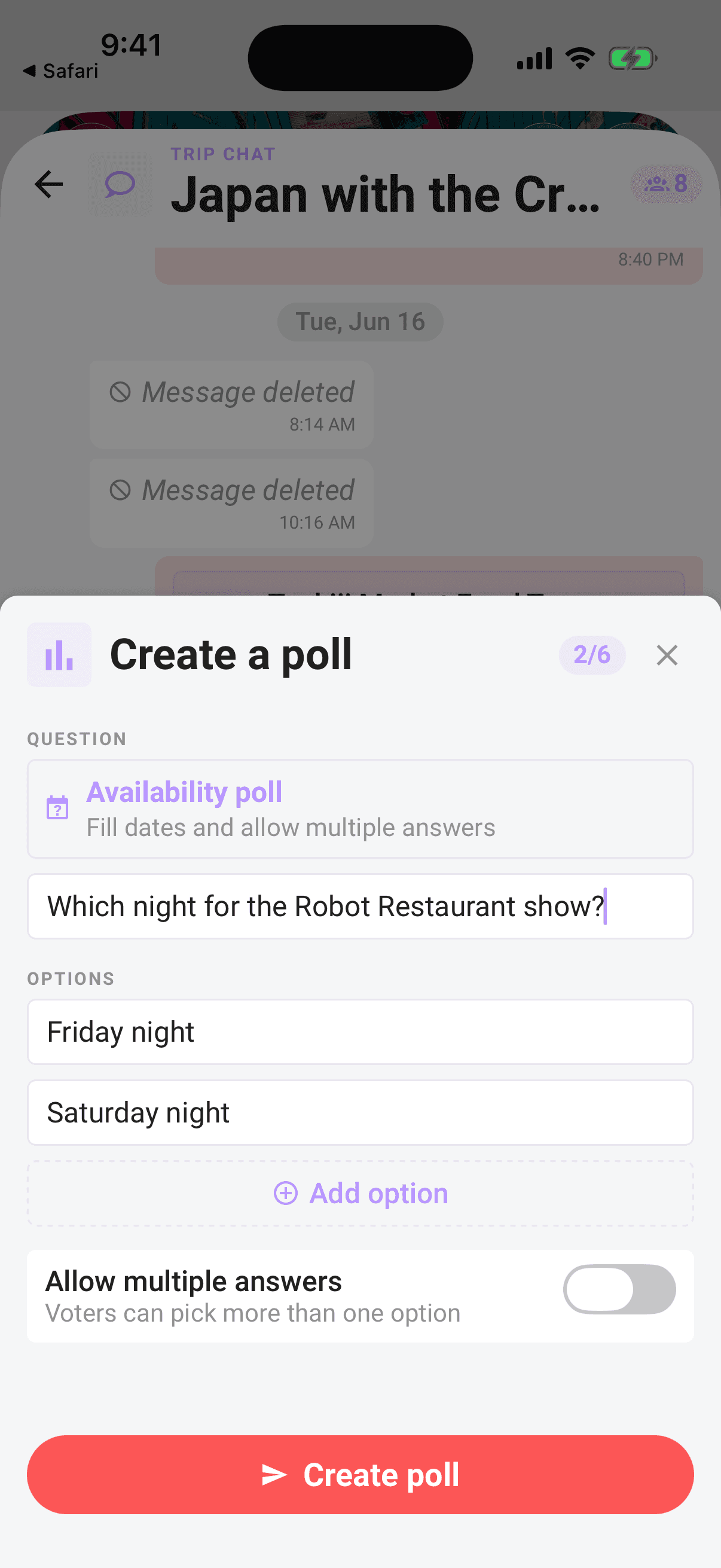
Create a date poll
For "which weekend works?" decisions, use the date-poll preset instead of typing every option from scratch.
- 1Tap + and choose Poll.
- 2Tap Availability poll in the poll sheet.
- 3Limbo fills in a "Which dates work best?" question and suggested date options from the trip dates or upcoming weekends.
- 4Leave Allow multiple answers on so people can pick every date they can make, then tap Create poll.
Heads up
A poll's question and options can't be edited after it's posted. If you made a typo, delete the poll (long-press → Delete) and post a fresh one.
Vote in a poll
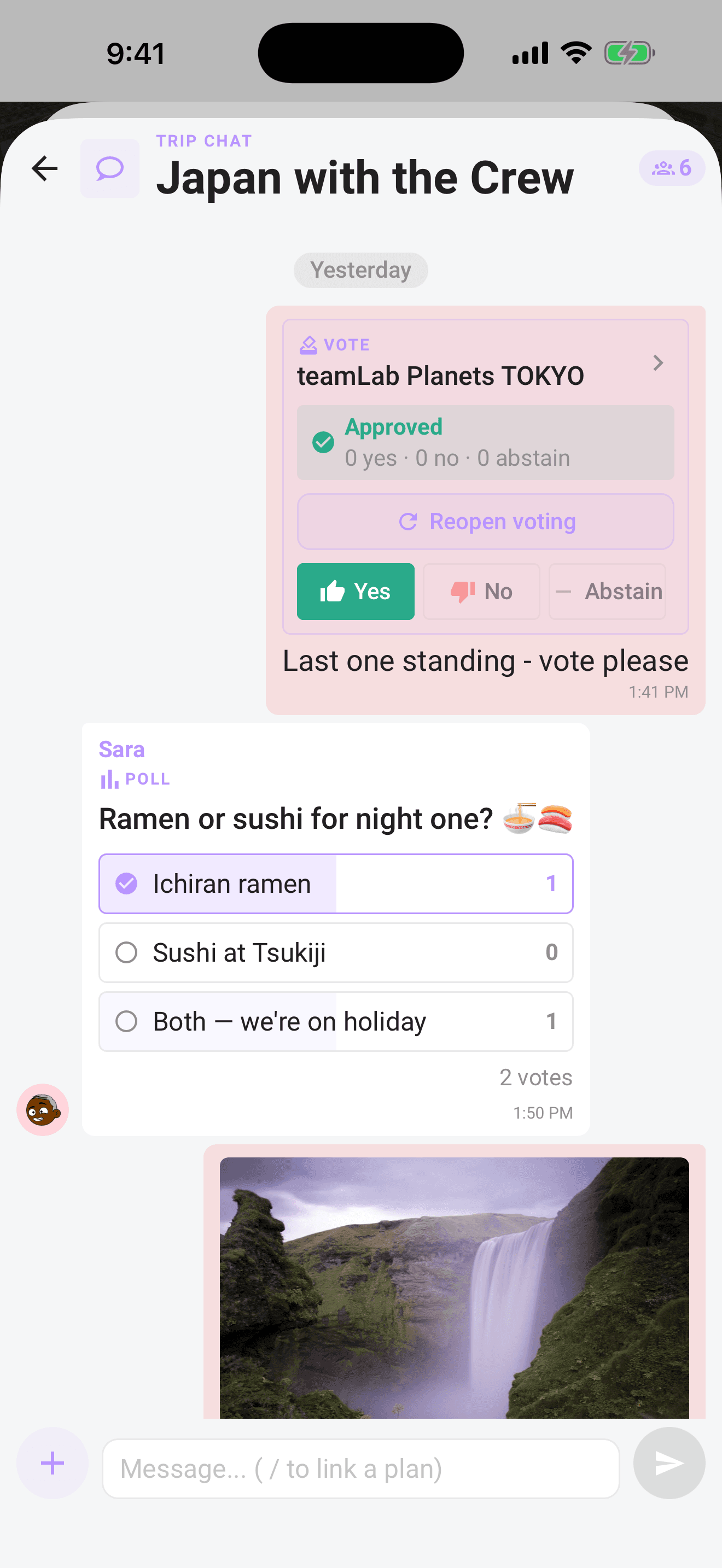
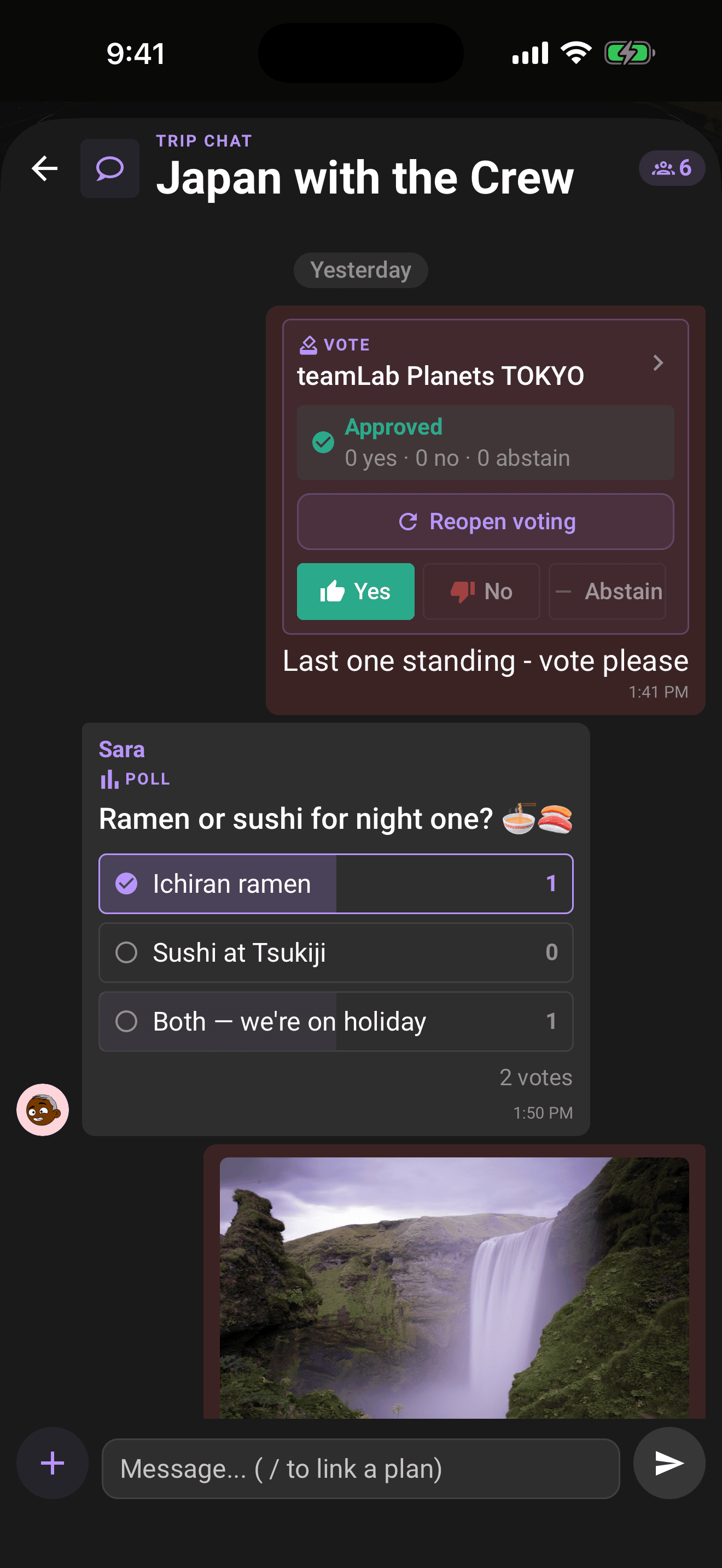
- Tap an option to vote. Your pick gets a check mark and a highlighted border.
- Tap your pick again to take the vote back.
- If the poll allows multiple answers (you'll see a "Select one or more" hint), tap as many options as apply.
Results update live for everyone: each option shows a fill bar and its vote count, with the total number of voters at the bottom right.
Close a poll
When you've heard enough, freeze the results, only the person who created the poll can do this.
- 1Long-press your poll.
- 2Choose Close poll from the menu.
- 3Confirm, voting ends and the final results are shown to everyone.
The option bars lock in place and the poll gets a Final results badge. Nobody can vote after that.
Note
Polls are for quick, informal calls: where to grab breakfast, aisle or window. For decisions that should follow the trip's voting rules, deadlines, and reveal, link a plan and put it on a real ballot instead, see Link plans and vote in chat.
Related articles
Trip chat basics
Message your crew, react, run polls, turn chat ideas into plans, share photos, and vote on ballots without leaving the conversation.
Link plans and vote in chat
Drop a plan into the conversation with "/", turn chat ideas into proposed plans, open details without leaving chat, and vote on live ballots in the stream.