Divvy up the work
Checklist is your trip's shared to-do list, add the big jobs, sort them into groups or start from a template, and watch every task move from up-for-grabs to done.
Checklist is your trip's shared to-do list of the big planning jobs ("Book the Airbnb", "Rent the car", "Plan dinner Friday") so it's not all on one person. Any crew member grabs a task with a single tap, the header keeps a running "X of N claimed" tally, and every task moves through three plain states: up for grabs, claimed, and done.
Everyone on the trip can see the list and claim an open task for themselves. member A task's assignee can mark their own work done or reopen it. Adding tasks, assigning work to someone else, and deleting or managing other people's tasks need edit access.
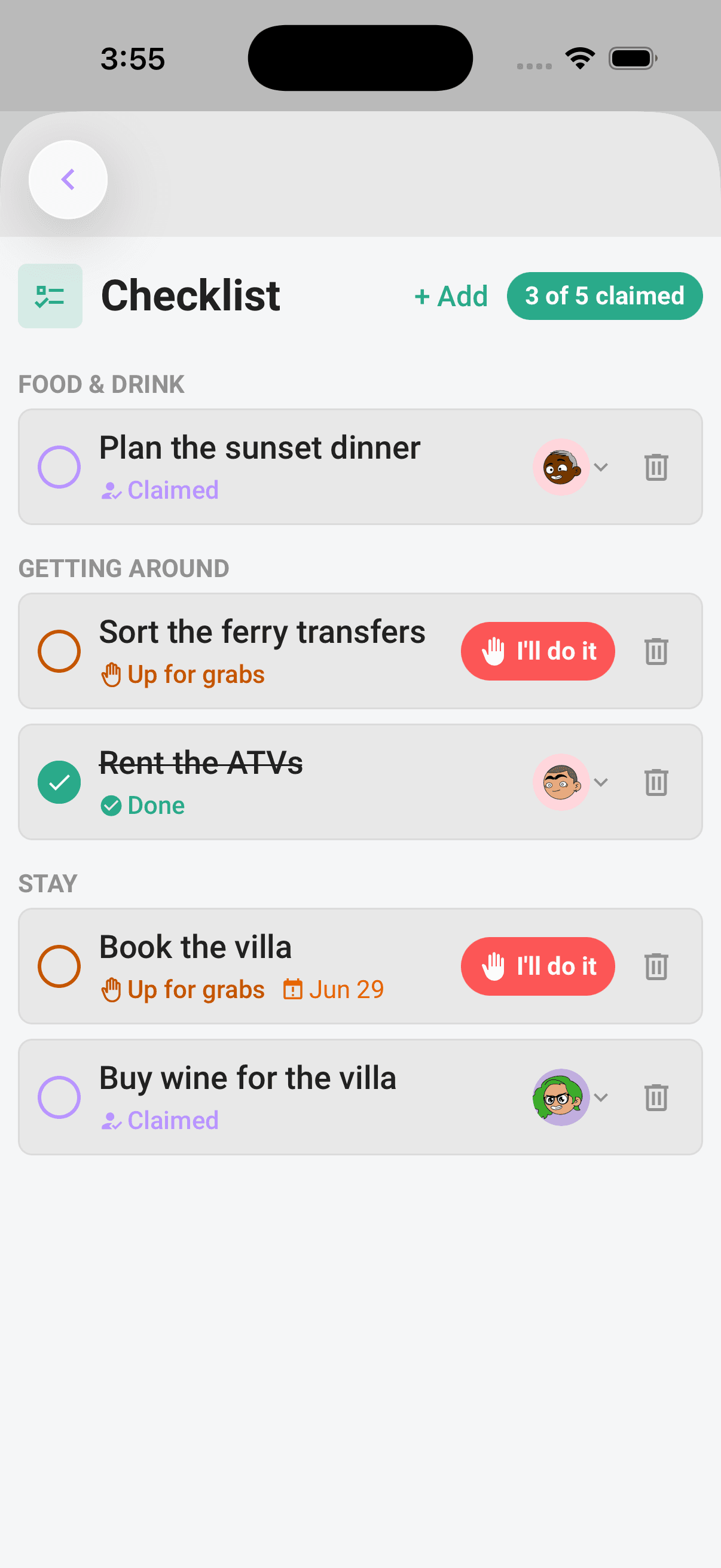
Opening the list
Checklist lives in the trip's shared workspace sheet.
- 1Open the trip.
- 2Tap the Checklist circle in the pinned quick actions, or tap the Checklist tile.
- 3The full Checklist workspace opens, showing every task on the trip.
If another workspace is already open, tap the Checklist pill to switch to the same list. The Checklist tile previews how many tasks are finished as X/N, with "N to do" and "N completed" underneath.
The "X of N claimed" progress
The section header carries a progress pill that reads "X of N claimed", where N is the total number of tasks and X is how many have been claimed or finished. So a task that's done still counts toward the claimed total, what the pill really tracks is "how many jobs have an owner". The pill only appears once there's at least one task on the list.
Who can do what
Adding and managing tasks needs edit access. organizer
- Every joined crew member can tap I'll do it on an open task. They can mark a task assigned to them done and reopen it later.
- Organizers, the owner, and crew with edit access can add tasks, assign or reassign them, put them back up for grabs, update any task's status, and delete them.
- Crew without edit access do not see + Add, reassignment, unassignment, or delete controls, and cannot change another person's task.
Adding tasks
If you have edit access, there are two ways in:
- 1On a list that already has tasks, tap the italic + Add link in the section header.
- 2On an empty list, tap the Add a task button instead.
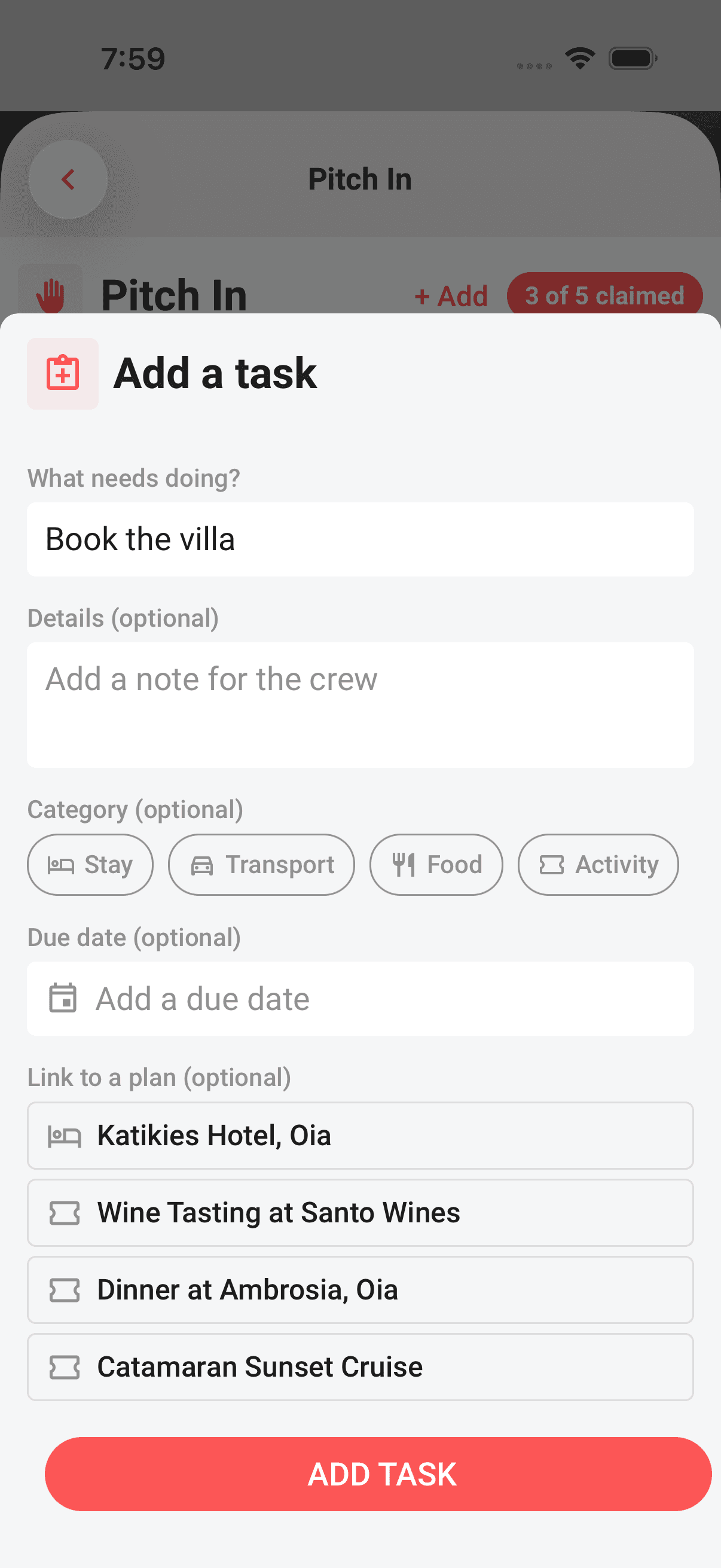
- 3The Add a task sheet slides up.
In the sheet, the only required field is the title under What needs doing? (it shows the example placeholder "Book the Airbnb"). Everything else is optional:
- A note for the crew: a longer description that sits under the title.
- Due date: tap the row, pick a date, and it rides along as a date chip on the task.
- Group (optional): files the task under a heading of your own, covered in the next section.
- Category chips: Stay, Transport, Food, or Activity.
- Link to a plan (optional): ties the task to an existing plan as a display-only chip. This picker only appears once the trip has plans, and deleting the task never deletes the linked plan.
Tap the Add task button to save it. The button stays disabled until you've entered a title.
Edit a task
If you have edit access, open a task's edit action to change the same fields after it has been added: title, note, due date, category, group, linked plan, and assignee. Editing works while the task is Up for grabs, Claimed, or Done; it does not force the task back to another status. Clear an optional field when it no longer applies, then save the sheet.
Changing or clearing a linked plan only changes the Checklist task. It never edits or deletes the plan itself.
Grouping tasks
Once a list runs past a handful of jobs, groups keep it readable. Every task can carry an optional group label of your own, like Bags or Essentials, so one long list reads as a few short ones.
In the Add a task sheet, look under Group (optional):
- A No group chip, which leaves the task ungrouped. That's the starting state.
- A chip for every group already in use on this trip, so you can reuse a name with one tap.
- A free-text box (placeholder "e.g. Packing") for a new group name, up to 40 characters. Typing in it clears whichever chip you'd picked.
Back on the list, tasks that share a group sit together under an uppercase heading, and the groups run alphabetically. Ungrouped tasks fall to the bottom under Other tasks. If nothing on the trip has a group, no headings appear and the list stays flat.
Groups are there for reading, not for permissions. They don't change who can claim a task, and the "X of N claimed" pill still counts the whole list.
Start from template
If you're looking at an empty list and don't want to type out the obvious jobs, the bottom of the Add a task sheet has Start from template. Tapping one adds every task in it at once, each already filed under its group, and closes the sheet.
| Template | Tasks | What it covers |
|---|---|---|
| Packing | 4 | Passport and wallet, chargers and adapters, clothes for the forecast, toiletries and medicines, split across Essentials and Bags |
| Documents | 3 | Passport expiry, travel insurance details, and downloaded booking confirmations, under Documents and Bookings |
| Pre-departure | 3 | Checking in for flights, sharing the itinerary with someone, and setting an out-of-office reply, under Travel day, Safety, and Before leaving |
A template is a starting point, not a lock-in. Everything it adds behaves like a task you typed yourself, so you can claim it, hand it to someone, give it a due date, rename its group, or delete it.
Where the server-controlled Pro offline-access capability is enabled, active Pro with recent verification can start a template in airplane mode. The tasks appear straight away; Limbo keeps track of what it still owes the server and finishes the job the next time you're online.
The lifecycle at a glance
Every task wears one of three status labels, with a matching dot and accent colour:
| Status | Label | What you see on the row |
|---|---|---|
| Open | Up for grabs (amber) | The red I'll do it button on the right |
| Claimed | Claimed (indigo) | The owner's avatar chip with a down-chevron |
| Done | Done (green) | A filled green check in the status dot and a struck-through title |
Two optional chips ride along on any row: a due-date chip (a calendar icon that flips to a red alert calendar when it's overdue and not yet done) and a linked-plan chip (a red link icon showing the plan's name). A task that's mid-sync or just created renders dimmed until its save completes.
When the list is empty you get a friendly nudge instead: a people-with-a-plus icon, the heading "Build your trip checklist", and the line "Add the big jobs so the crew knows what needs doing before you go.", plus the Add a task button for editors.
Tip
Where the server-controlled Pro offline-access capability is enabled, active Pro with recent verification can use every Checklist action their role allows without a connection, including claiming a task and marking it done. Changes save on the phone and sync after reconnecting. If two people claim the same task while disconnected, Limbo refreshes the list after sync and shows who got there first. See Mark tasks done and reopen for the offline story.
From here, Claim, assign, and reassign covers grabbing a task and handing it around, and Mark tasks done and reopen covers finishing them off.
Permissions
- View the list and everyone's tasks: every crew member on the trip. member
- Claim an open task and complete or reopen your own assignment: every joined crew member. member
- Add tasks, start a template, assign, reassign, unassign, manage, and delete tasks: organizers and crew with edit permission. organizer
- Grant another crew member edit access: the trip owner. owner
Manage tasks from ChatGPT or Claude
With active Limbo Pro, you can also add, list, edit, assign, complete, group, or remove these tasks through Limbo’s chat connector. Name the trip and describe the task. The same trip permissions apply, and tasks saved from chat appear in this Checklist. Open or refresh the trip to see changes.
From ChatGPT or Claude
The Limbo connector can also create tasks in batches, apply reusable templates, rename groups and restore removed tasks. Compatible chat clients show task checkboxes and claim controls. See Checklist tasks in chat.
Related articles
Claim, assign, and reassign
Every crew member can grab an open task with "I'll do it"; editors can assign, reassign, or put work back up for grabs.
Mark tasks done and reopen
Assignees can finish and reopen their own tasks; editors can manage every task and remove work the crew no longer needs.
Track trip costs
Add a cost, cost split, and payer to a plan, then follow it in the trip's Expenses and Balances panels.