Track trip costs
Add a cost, cost split, and payer to a plan, then follow it in the trip's Expenses and Balances panels.
In Limbo 2.3, expenses start on plans. Add a Cost to a hotel, flight, meal, activity, transport, tour, cruise, or other plan and it appears automatically in the trip's Expenses panel. For a cost-only item, editors can also use Add expense in the Expenses panel.
Everyone on the trip can see costs. Adding or changing one requires being the trip owner, an organizer, or crew with edit access to the trip. organizer
Add a cost to a plan
- 1Open the trip and tap the pinned + quick action, or tap the Plans tile and then its + button.
- 2To change an existing cost, open the plan from Plans or Expense Activity, then tap the pencil when available.
- 3Find Cost, choose the currency, and enter the amount.
- 4If cost splitting is enabled for the trip, review Cost split and choose Paid by.
- 5Save the plan.
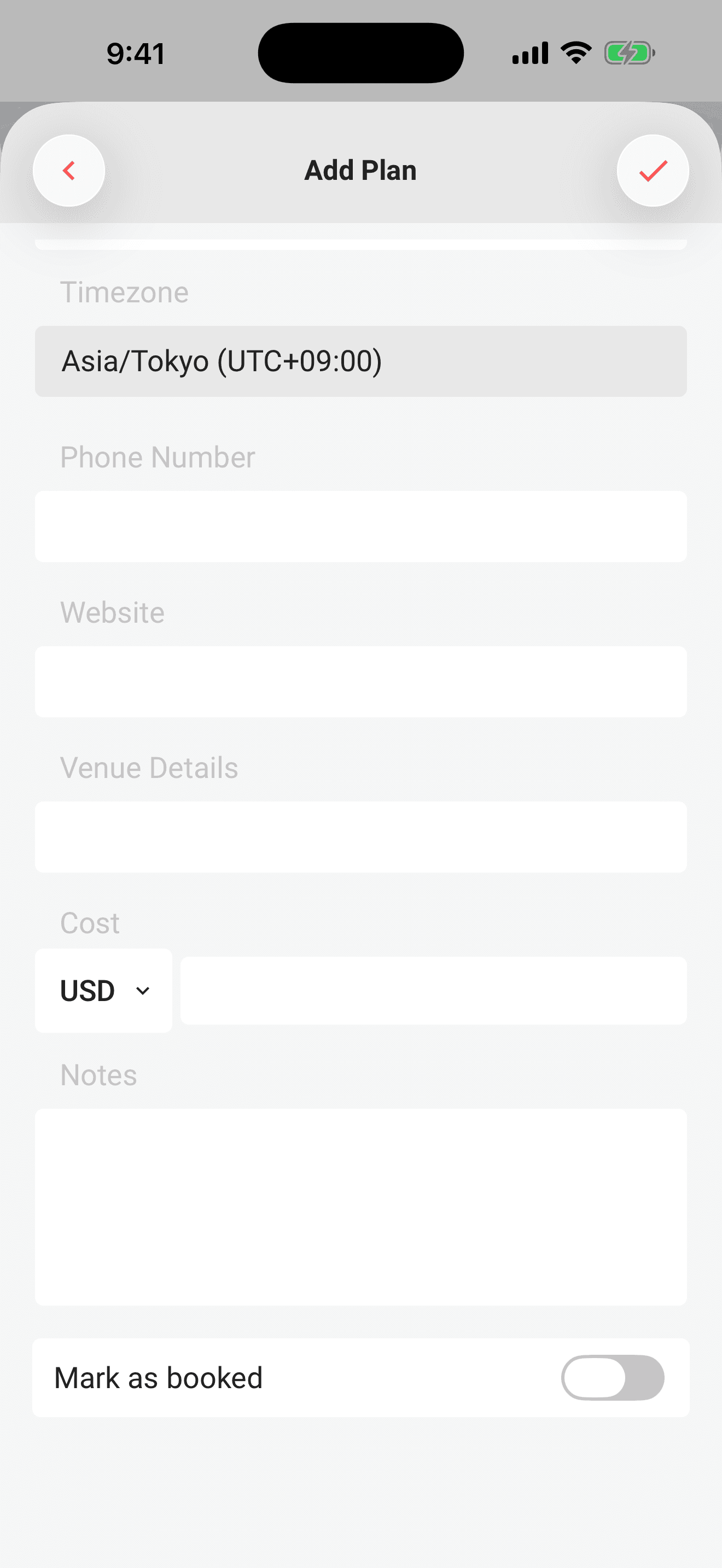
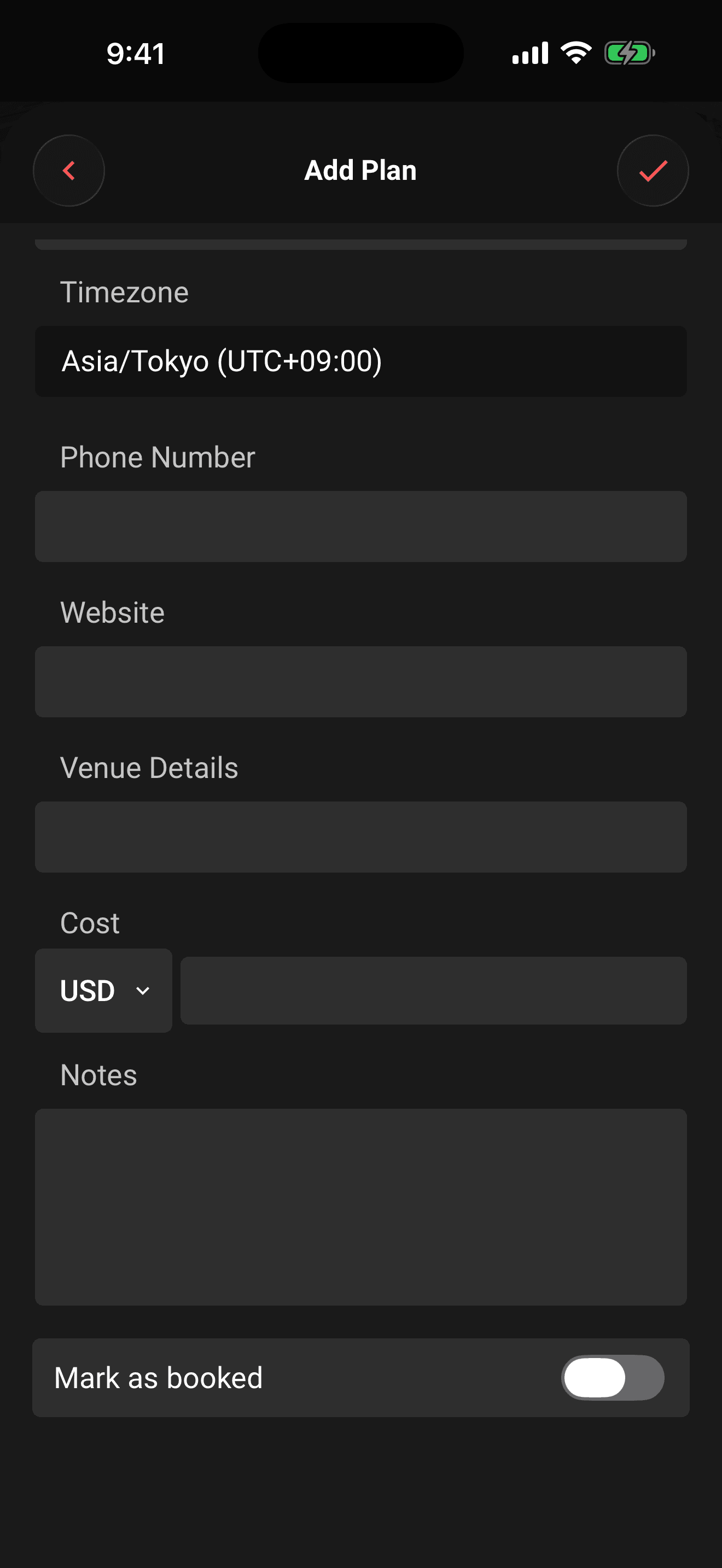
The plan now appears in Expense Activity. Tap its row there whenever you need to reopen its details.
Add a daily expense
For a cost-only item, open Expenses → Add expense, enter the amount, and choose or add a label under For. Turn on Recurring daily to choose a start and end date; the range initially follows the trip dates. Enter the amount for one day. The projected cost includes both the start and end days—for example, $12.50 over four days totals $50. Review Paid by and the split before saving.
How the three money fields work
| Field | What it records |
|---|---|
| Cost | The planned amount and currency shown in Expenses |
| Cost split | How that amount should be shared across the crew |
| Paid by | Who fronted the cost, which lets Balances calculate repayments |
A cost by itself contributes to the Expenses total. A split determines each person's share. A recorded payer on a confirmed expense is what brings that expense into Balances.
Note
Limbo records costs and repayments; it never moves money. Paid by currently supports one payer per expense. Choosing someone else replaces the existing payer.
Find and review your expenses
Open the trip and tap the Expenses tile. If another workspace is already open, tap the Expenses pill. The panel shows:
- The trip total and, when splitting is on, each person's expense share.
- Total Payments Made once confirmed expenses have a payer.
- Collapsible Statistics grouped by currency.
- Expense Activity, ordered upcoming first, then undated, then past.
See Expenses and balances for a complete tour.
Edit or remove a cost
Tap the item in Expense Activity to open its plan details, then use the pencil to edit it. Change the amount, currency, split, or payer and save. For normal plans, clear the cost and save to remove it from Expenses. Legacy standalone budget items require a cost and must be deleted instead.
Offline notes
You can add or change a cost, split, or Paid by value on a new or existing plan without a connection. After you save, the change enters the sync queue. When you reconnect, check the sync banner and retry anything still waiting.
Permissions
- View Expenses and Balances: every crew member on the trip. member
- Add or edit a cost, split, or payer: the trip owner, organizers, and crew with edit access to the trip. organizer
- Set the trip's default currency or trip-wide split: anyone who can edit the trip.
Related articles
Expenses and balances
Read the Expenses total, shares, payments, statistics, and activity, then open Balances to see who owes whom.
Split costs
Set an equal or custom crew split for the trip, override it on one plan, and see each person's share in Expenses.
Record who paid
Set Paid by on a costed plan so Expenses shows the payment and Balances can calculate repayments.
Understand who owes whom
Use Balances to see your position, a simplified repayment list, every person's net balance, and recorded settlements.
Add a plan
Create activities, food stops, stays, flights, transport, tours, cruises, and notes from the map-first trip hub.
Create a trip
Describe a trip in your own words, check the details, and discover places picked for your crew.