Split costs
Set an equal or custom crew split for the trip, override it on one plan, and see each person's share in Expenses.
Cost splitting tells Limbo how each expense should be shared across the crew. Once it is enabled, Expenses shows the total and each person's share; Balances combines those shares with who actually paid.
The trip-wide split is managed by the trip owner or a co-organizer. organizer Children are excluded from cost splits.
Turn on cost splitting
- 1Open the trip's menu and edit the trip, or set this up while creating it.
- 2Tap Participants to open the crew sheet.
- 3Scroll to Cost splitting and turn on Split costs among the crew.
- 4Choose Equal or Custom.
- 5Tap the check to close the crew sheet, then save the trip.
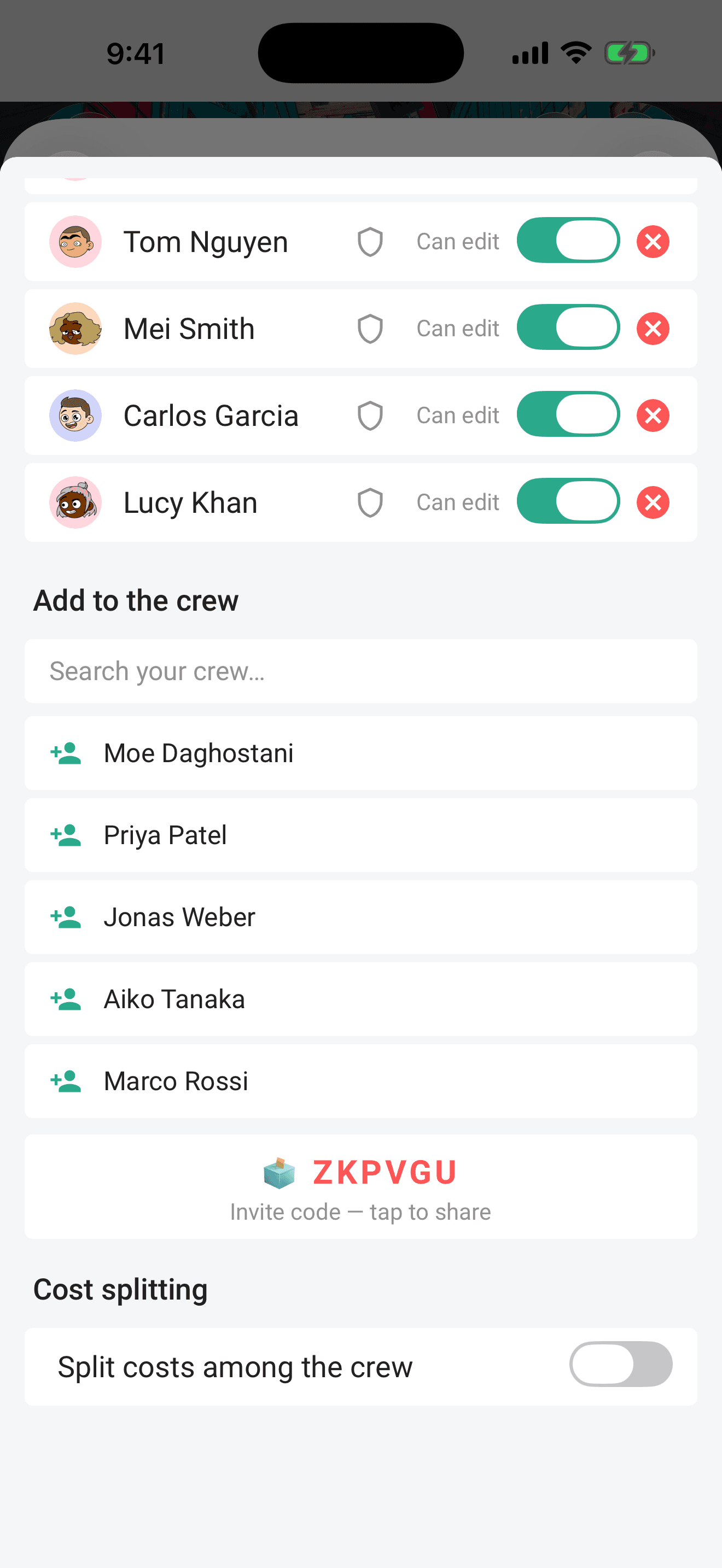
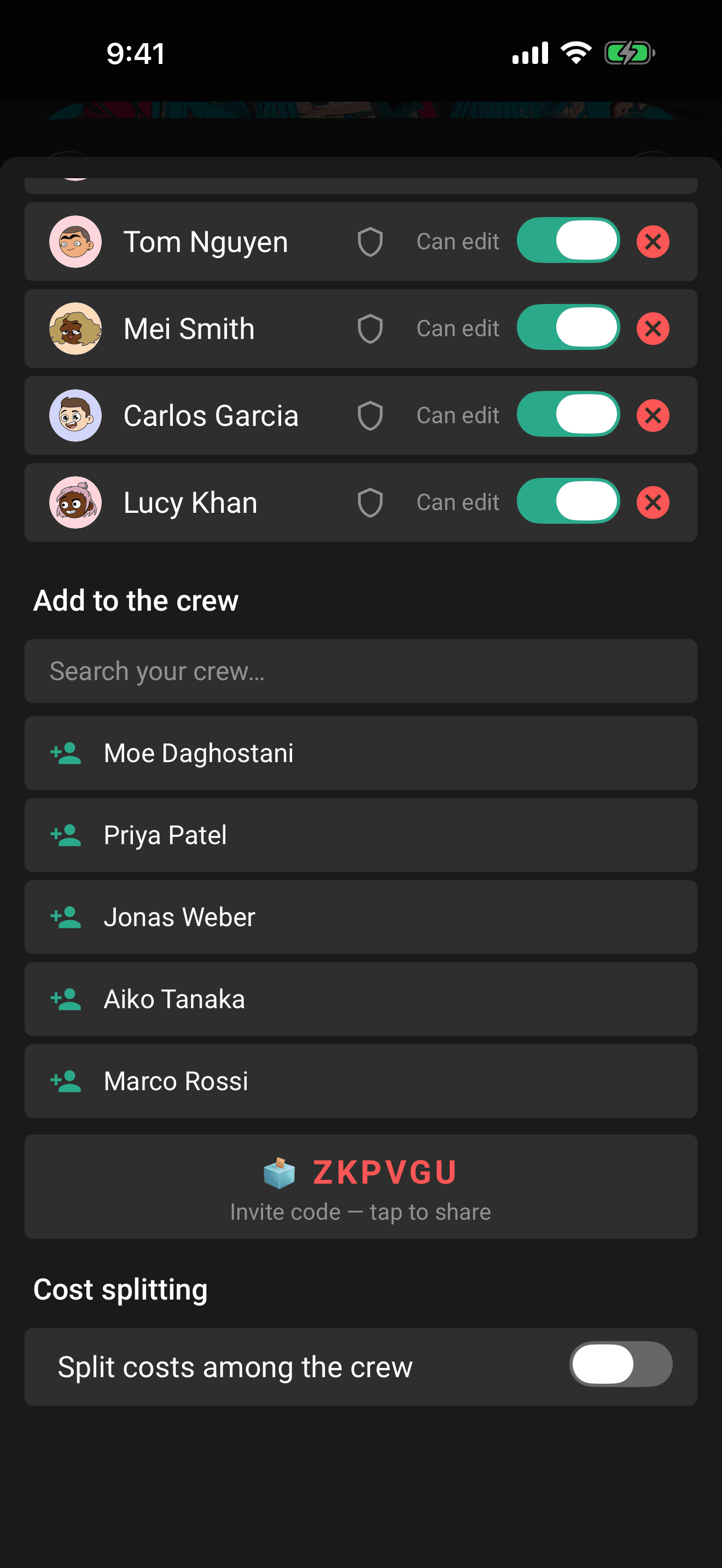
Equal and custom splits
Equal divides costs evenly across the adults in the trip. Saving Equal clears the earlier custom percentages. If you switch back to Custom, enter the percentages again or use Reset to equal split to fill them evenly.
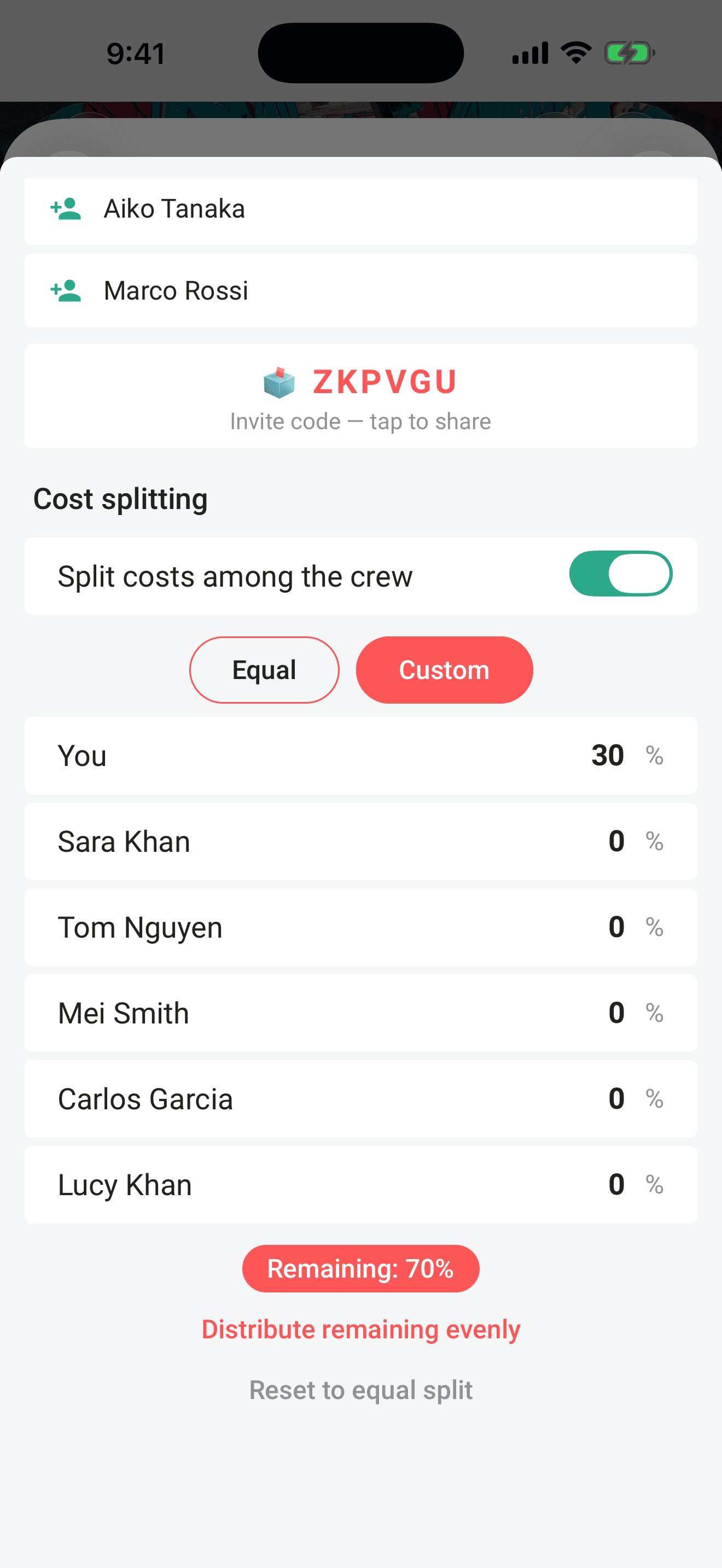
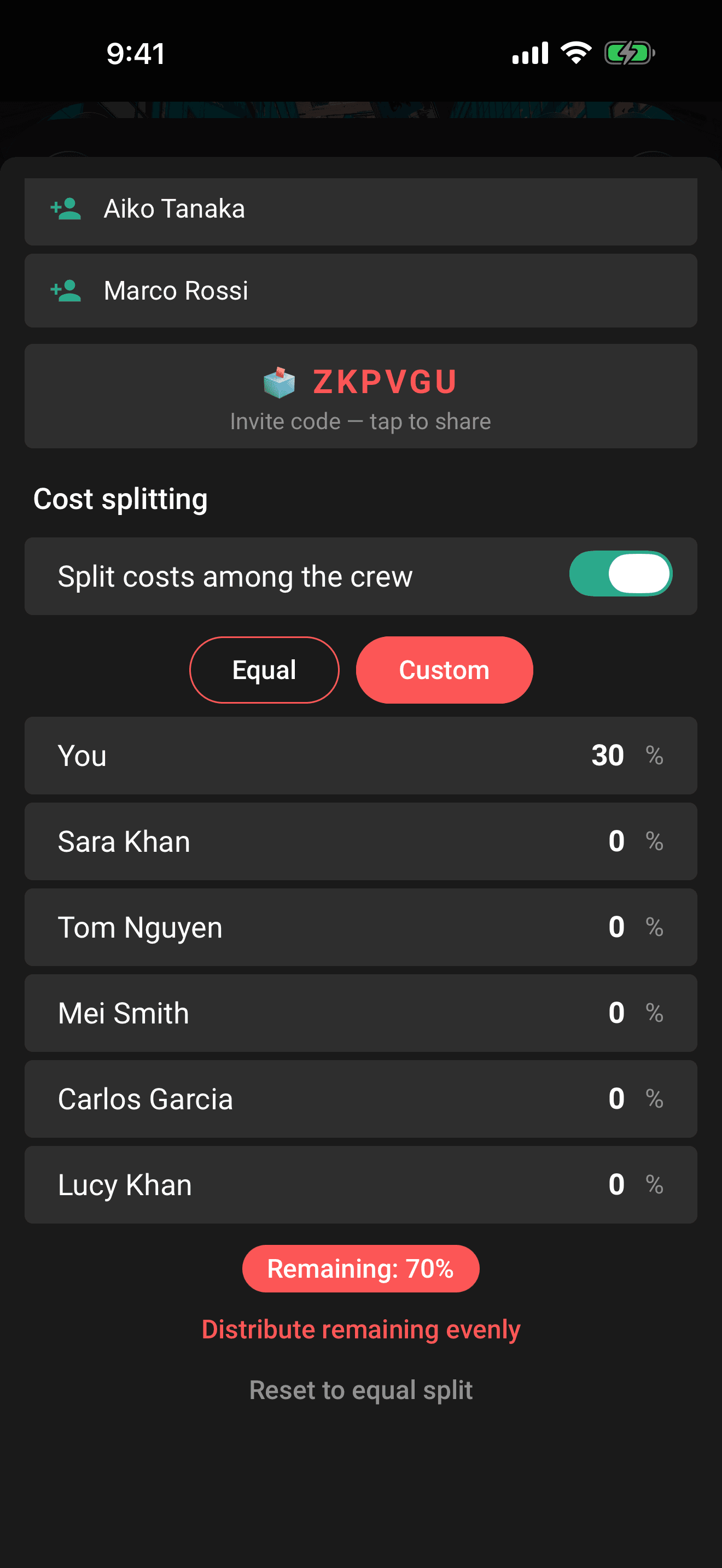
Custom gives each adult a percentage field. The status pill tells you whether the split is complete:
- Remaining: 15% means more still needs to be allocated.
- Over by 5% means the total is too high.
- ✓ Adds up to 100% means the split is ready.
Use Distribute remaining evenly to spread the unallocated amount, or Reset to equal split to start over.
Heads up
A custom split must add up to 100% before you can confirm the crew sheet.
When the crew changes
- With a clean equal split, shares follow the current adult crew.
- With a custom split, a new adult starts at 0%; reopen the crew sheet and allocate their share.
- If someone leaves, Limbo redistributes their share across the remaining participants and keeps the total at 100%.
Override one expense
Use an item-level override when one cost should not follow the trip-wide rule.
- 1Open the plan from Plans or Expense Activity, then tap the pencil.
- 2Make sure the plan has a Cost.
- 3Under Cost split, turn on Custom split for this item.
- 4Choose Equal or Custom and review the percentages.
- 5Save the plan.
If the override is off, the expense uses the trip-wide split.
For a custom item split, each percentage must be between 0 and 100, and the shares must add up to 100%. Limbo keeps you in the form if the split needs correcting, including when you are offline. In the browser, each percentage field is labelled with the person whose share you are editing.
Changing the expense's cost preserves its custom percentages and selected payer. The recorded payment amount follows the new cost; the shares and balances update accordingly.
Where the split appears
In Expenses, the total card lists Expense Shares, and each activity row can show Your share. In Balances, a confirmed expense enters the repayment calculation only after someone is recorded in Paid by.
See Record who paid and Understand who owes whom for the next steps.
Permissions
- Turn cost splitting on or off and edit the trip-wide percentages: the trip owner or a co-organizer. organizer
- Override the split on a plan: the trip owner, organizers, and crew with edit access to the trip. organizer
- See expense shares and balances: every crew member on the trip. member
Related articles
Track trip costs
Add a cost, cost split, and payer to a plan, then follow it in the trip's Expenses and Balances panels.
Expenses and balances
Read the Expenses total, shares, payments, statistics, and activity, then open Balances to see who owes whom.
Understand who owes whom
Use Balances to see your position, a simplified repayment list, every person's net balance, and recorded settlements.
Organizers and your crew
What owners and co-organizers can do, how to promote or demote organizers, and how the crew list in Settings works.
Edit a trip
Change a trip's name, destination, dates, timezone, currency, and crew: who can edit, and how changes save and sync.