Preflight
See your personal trip-readiness score, check off essential and recommended tasks, and restore anything you removed.
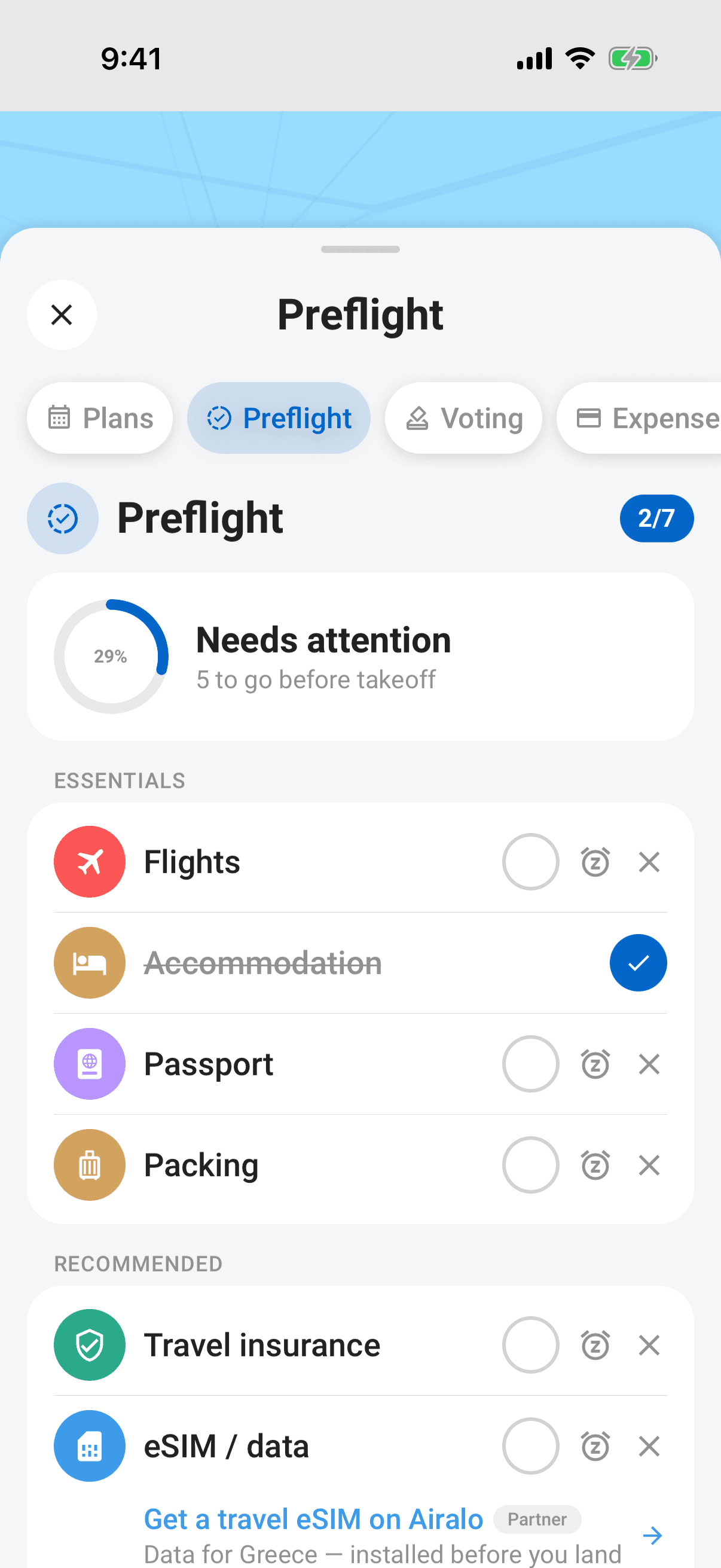
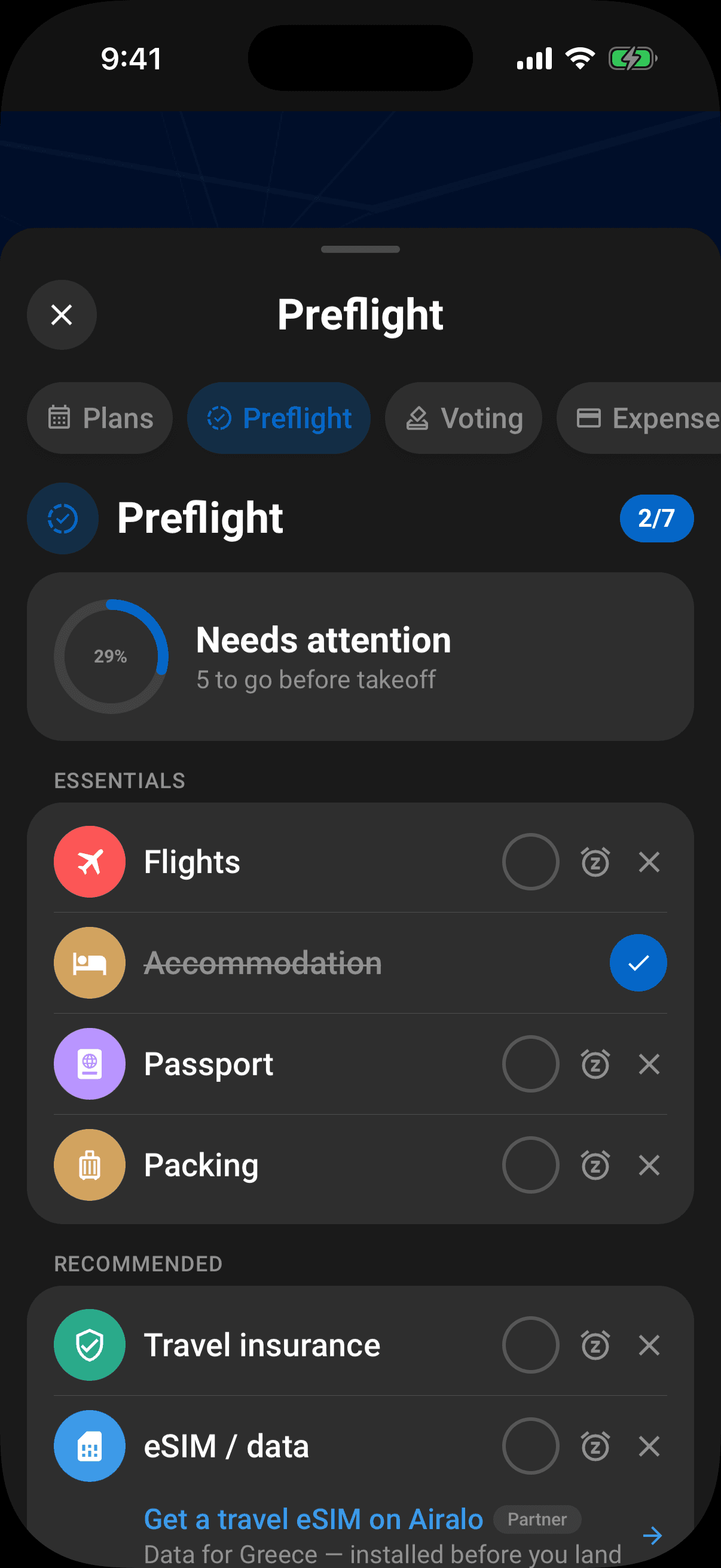
Preflight turns your trip's destination, dates, and confirmed plans into a personal preparation list. Its score is yours: checking off or removing a task does not change another crew member's Preflight.
Open Preflight
- 1Open the trip.
- 2Tap the Preflight tile in the hub.
- 3If another workspace is already open, you can tap the Preflight pill instead.
The hub tile gives you the quick version: a percentage ring, a status such as Needs attention or Mostly ready, and the number still to go. The full workspace groups tasks into Essentials, Recommended, and Optional.
Note
Preflight is generated from the information on the trip. If your trip has no dates, tap Add trip dates, choose a future start and end date, then tap the checkmark. Preflight refreshes as soon as you return and shows the tasks that apply. The first load needs a connection; after that, the latest list is available from the device cache when Pro offline access is enabled and recently verified.
On a wide browser window, the priority groups appear side by side. They return to a single column on smaller screens; your task status stays the same.
Work through a task
Each row has its own type icon and controls:
- Tap the circle to complete the task. Tap the checked circle again to reopen it.
- Tap ✕ to remove a task that does not apply to you.
Removed tasks are not lost. Scroll to Removed and tap Add back whenever you want one returned to its section.
In the browser, you can reach the remove and add-back buttons with Tab and activate them with Enter or Space. Screen readers announce the task name with each action.
On a wide browser screen, choose Preflight from the trip's top menu. If the list is still being fetched, the tab shows Loading Preflight… and opens when it is ready. You can choose another section while it loads. If loading fails, check your connection and select Preflight again to retry.
Some items update automatically from confirmed plans. For example, a confirmed flight or accommodation can satisfy the matching Preflight task. An open or rejected proposal does not count as a booking.
Scores and statuses
The ring shows how much of the applicable list is complete. Removed and not-required items do not hold the percentage down. The text next to the ring moves through these states as you progress:
- Not started
- Needs attention
- Getting ready
- Mostly ready
- Cleared for takeoff
Optional partner links
Some recommended tasks may include an optional partner link when that provider is available: matching Experience tasks can open Viator, Accommodation tasks can compare Stay22 rates, and eSIM tasks can open Airalo. Every link is labelled Partner and carries a commission disclosure. Using a partner is never required to complete or remove the task.
Offline and permissions
Every trip member manages their own Preflight; trip edit permission is not required. Where the server-controlled Pro offline-access capability is enabled, active Pro with recent verification can complete, reopen, or remove a Preflight task without a connection. Limbo updates immediately, queues the change, and syncs it when your connection returns. member
From ChatGPT or Claude
With Limbo Pro, you can also ask your connected assistant for your personal Preflight and update your own items. See Preflight in chat.
Related articles
The trip screen
A tour of the map-first trip screen: the draggable hub, day-coloured map, quick actions, tiles, workspaces, and trip settings.
Add a plan
Create activities, food stops, stays, flights, transport, tours, cruises, and notes from the map-first trip hub.
Divvy up the work
Checklist is your trip's shared to-do list, add the big jobs, sort them into groups or start from a template, and watch every task move from up-for-grabs to done.
Working offline
Use Limbo Pro trip content in airplane mode, understand how maps behave without a connection, and see how queued changes sync after reconnecting.