Invite your crew
Share the owner-only invite link, add crew members through the crew sheet, what the invitee sees, and how children work.
There are two ways to get people onto a trip: share the invite link and let them join themselves, or add them as crew members from the crew sheet. Use the link for anyone with the app; use crew members when you're organizing on someone's behalf, including kids.
Note
Joining and participating are free. Crew members do not need Limbo Pro to view the trip, vote, chat, use shared planning tools, or make changes their role allows.
Invite by link
The fastest way. Only the trip owner can share the link. The menu item is hidden for everyone else, and the server enforces it. owner
- 1Open the trip and tap the gear beside the trip name.
- 2Tap Invite by link (it's also behind the share button in the crew sheet).
- 3The share sheet opens with the trip's join link and 6-character code, send it anywhere.
Anyone who taps the link (or types the code) sees a preview of the trip and joins with one tap, the whole flow is in Join a trip. Joining twice is harmless; people stay a single crew member.
Note
Sharing again re-sends the same active code, so links you sent earlier keep working. A code only stops working if it's rotated or revoked, then everyone needs the new one. Creating a link requires an internet connection.
Add crew members from the crew sheet
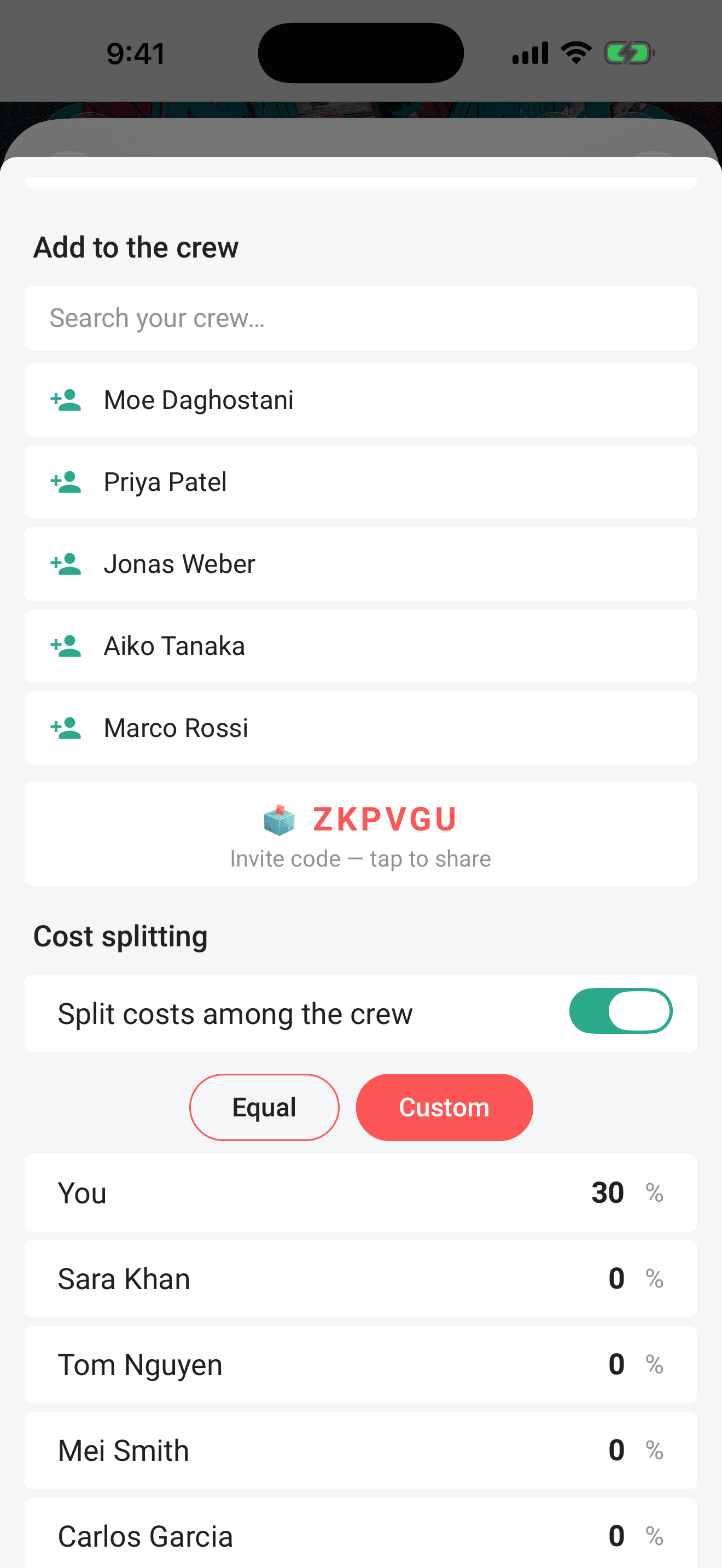
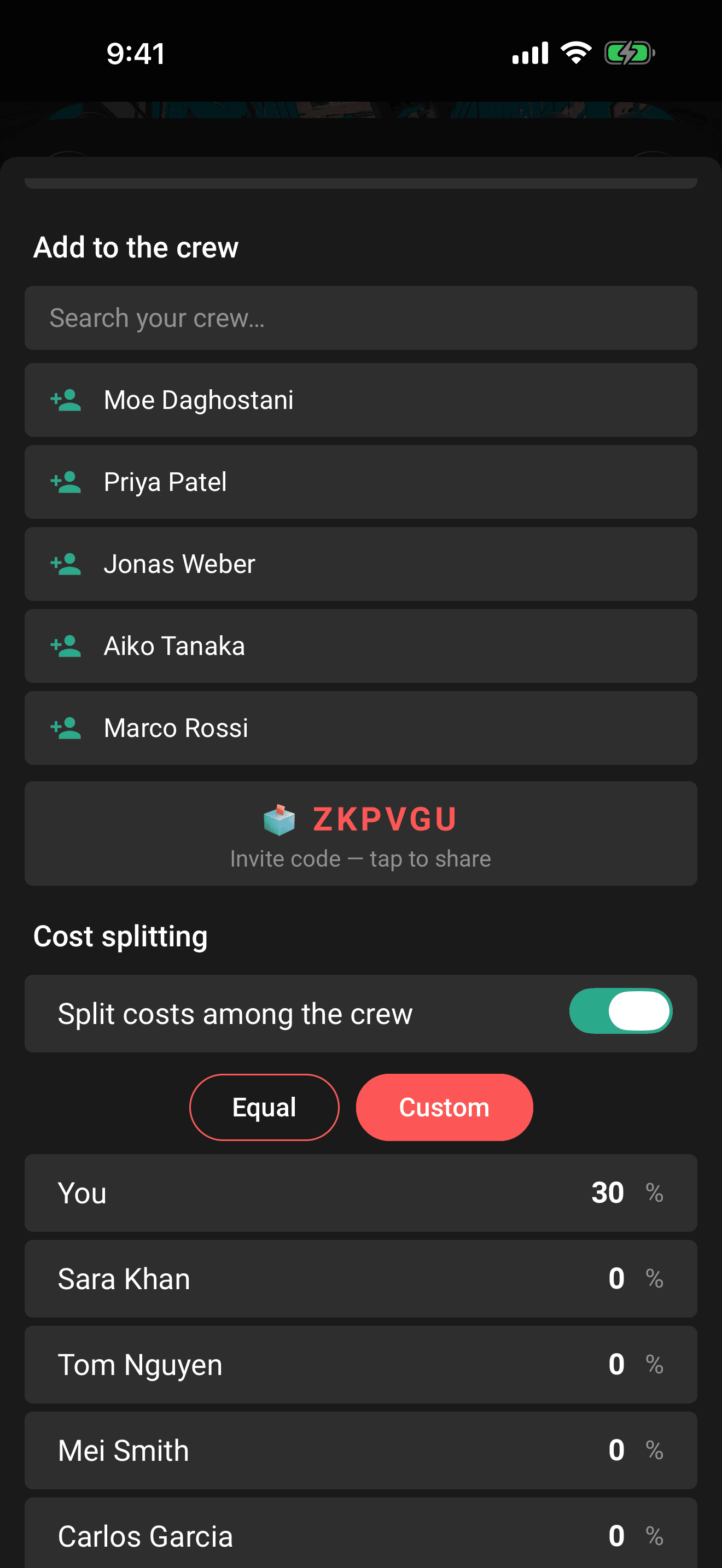
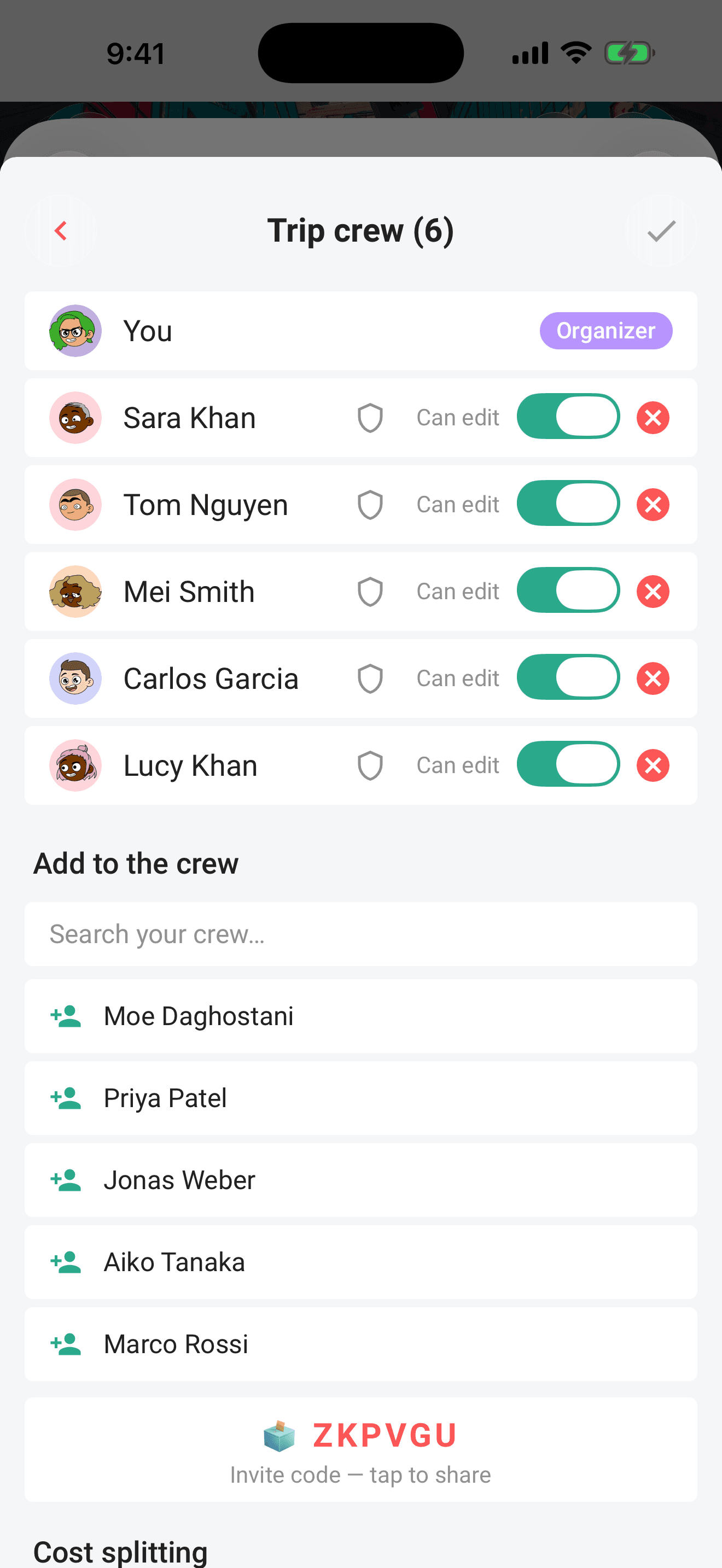
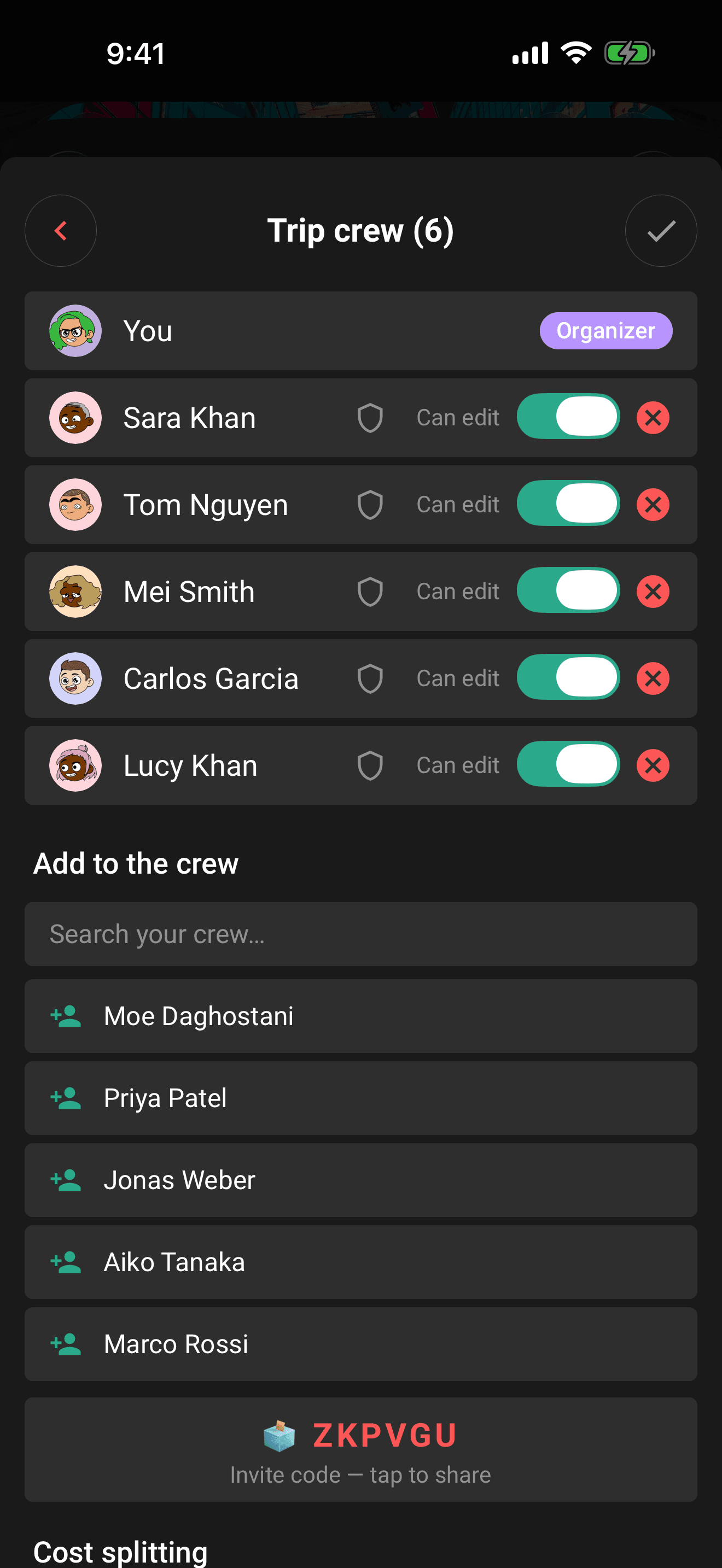
Crew members are your reusable address book of travel people: add someone once, then put them on any trip. Adding crew members to a trip happens in the trip form's crew sheet, so it needs edit access (owner, organizer, or Edit permission). organizer
- 1Open the trip, tap gear → Edit, then tap the Participants row.
- 2Search your crew members and tap one to add them to the trip.
- 3Tick the small Edit checkbox next to a non-organizer to let them change the trip and its plans, owner only. A short confirmation appears ("… can now edit this trip's plans") so it's clear what the tick did; untick it and they're back to view-only. Organizers stay checked and locked, tapping their box just explains that edit access already comes with being an organizer.
- 4Tap the X on a row to take someone off the trip (their share of any cost split is redistributed).
- 5Tap the check to close the sheet, then save the trip.
Need someone who isn't in your crew yet? Add them from Settings → Crew → Invite: name is required, email is optional. With an email, Limbo sends them an invite; if that email already has a Limbo account, they're linked and notified right away.
What the invitee sees
- An email invite, if you entered their email, plus an in-app notification when their account is already on Limbo.
- The trip appears for them once they're on the crew, and your row shows in their Settings → Crew list with an Accept invite button.
- Until they accept, their row shows a neutral placeholder instead of their profile photo, and they don't hold ballots on voting trips; pending invites never block a vote from resolving.
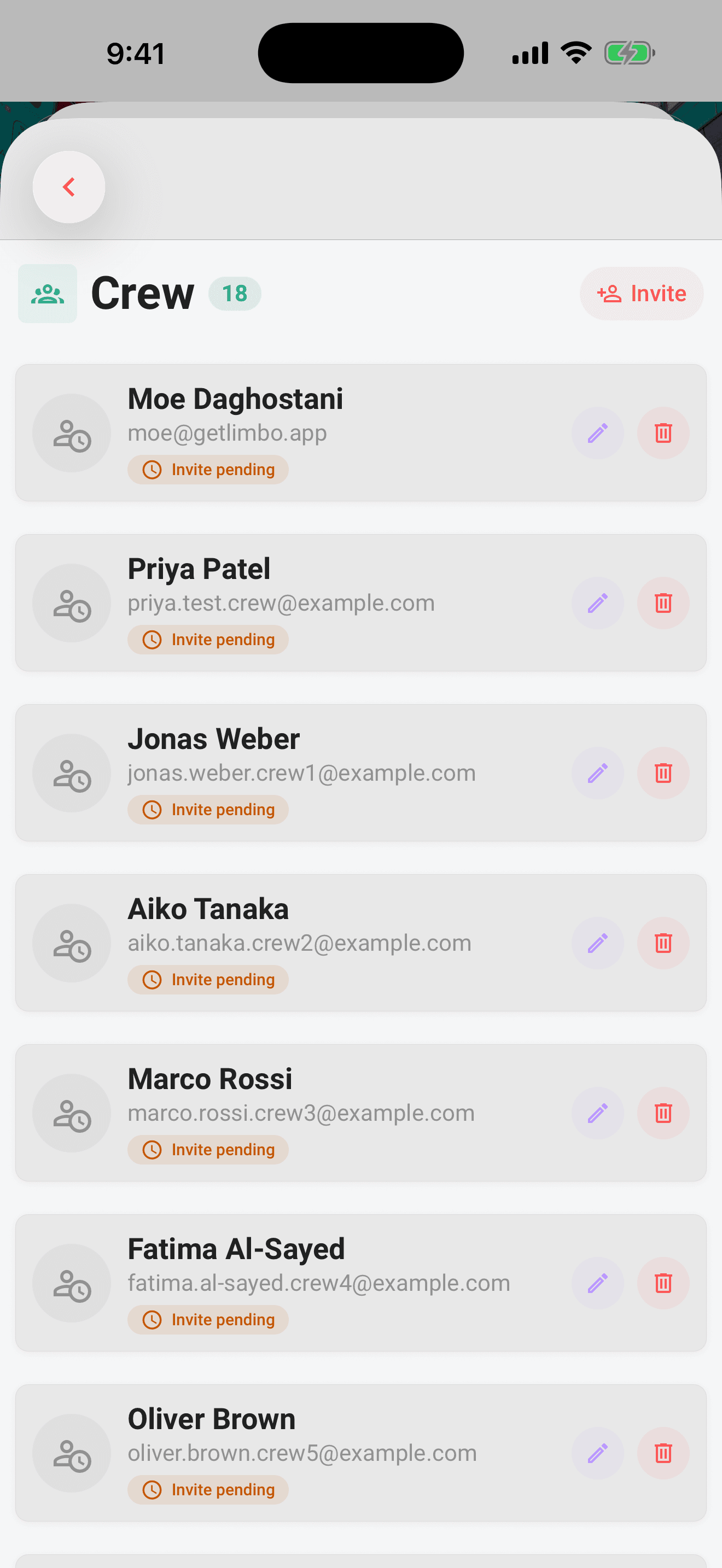
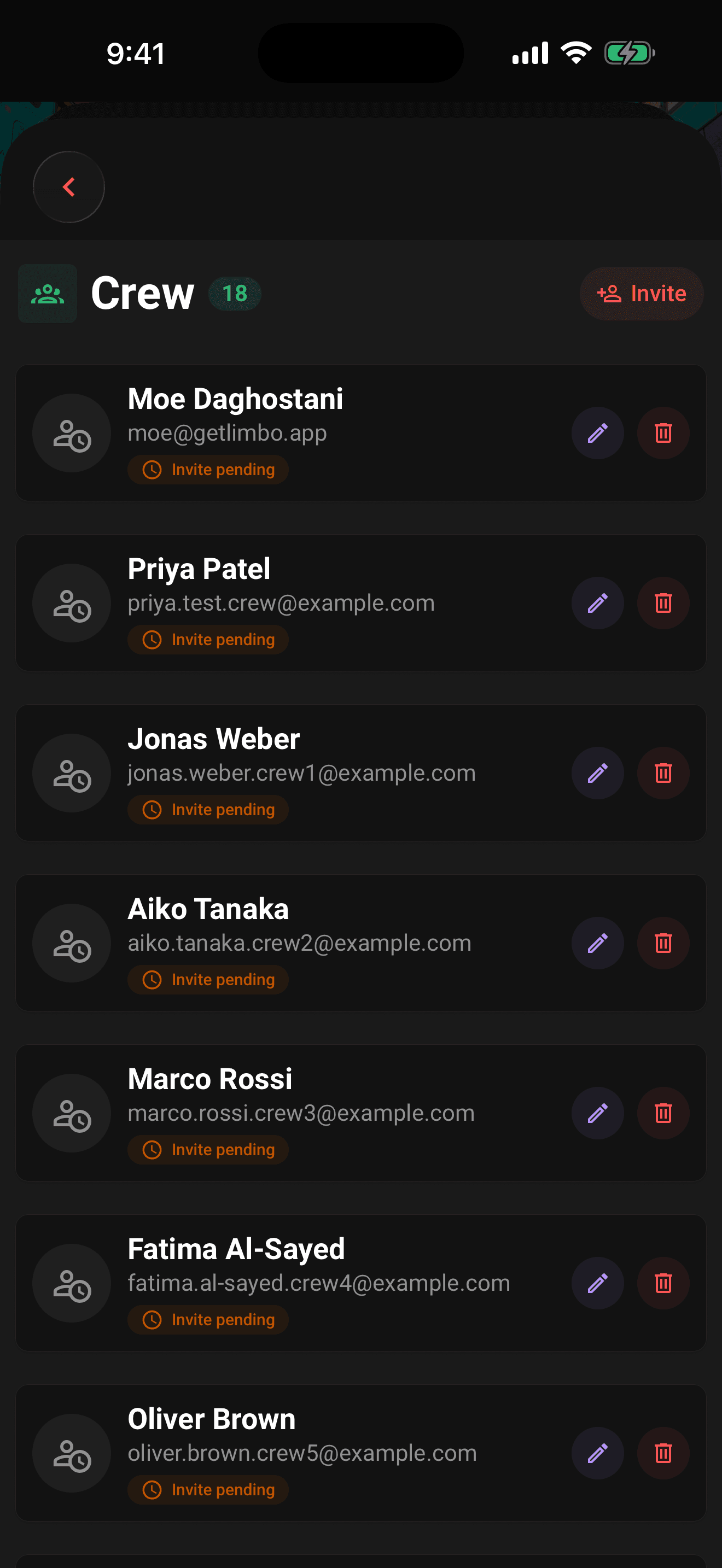
Accept straight from the email, no app needed
If the person you invited isn't on Limbo yet, their email includes an Accept button that works right in the browser. One tap and they're on the crew, no install, no account to set up.
Note
Accepting from the email doesn't strand anyone outside the app. If they install Limbo later and sign in with the same email, it's the same person: their spot on the trip and everything they've done carry straight over.
Already a Limbo member? They skip the web page, they get an in-app notification and the Accept invite button in Settings → Crew instead.
Accepting an in-app invite requires an internet connection so Limbo can check every trip attached to it before adding the person. Removing someone from your reusable Settings → Crew list also requires a connection. Where the server-controlled Pro offline-access capability is enabled, active Pro with recent verification can edit saved crew details without a connection.
Weigh in without installing (guest links)
Once someone's accepted from the email, Limbo hands them a personal guest link to weigh in on the trip's decisions, right in their browser, still no app required:
- Vote on the ballots. They can vote Yes, No, or Abstain on open proposals and react with an emoji, and those votes are the real thing, counted exactly like an app member's.
- Ask to be emailed the reveal. They can drop in an address to get the result the moment a ballot closes.
- Everything else stays private. The link is just for the decisions, it never shows sealed tallies, other people's details, or anything to do with money.
Declining an invite
Not coming? Someone who hasn't accepted yet can Decline from their Settings → Crew list. Limbo double-checks first ("Decline the invite from …? You'll be removed from the trip and the organizer will be notified") then takes them off the trip and lets you know.
Leave a shared trip
Once you have joined and accepted a trip, open that trip, tap the gear, choose Leave trip, and confirm. This removes only that shared trip from your account; the person remains in your reusable Settings → Crew list. The trip owner cannot leave their own trip.
Children
Add a child as a crew member with the Child checkbox and pick their age. Children come along on the trip but stay out of the grown-up machinery:
- they don't count toward chat eligibility (a trip chat needs two non-child members),
- they don't vote on ballots,
- they're left out of cost splits.
Permissions
- Create and share the invite link: trip owner only. owner
- Add or remove trip crew members: owner and crew with edit permission. organizer
- Edit checkbox and organizer shield: owner only. owner
- Join via link, accept an invite: any Limbo member. member
- Leave a shared trip: a joined non-owner member. member
Related articles
Join a trip with an invite link or code
Tap an invite link or enter a 6-character code to preview a trip and join the crew.
Organizers and your crew
What owners and co-organizers can do, how to promote or demote organizers, and how the crew list in Settings works.
Edit a trip
Change a trip's name, destination, dates, timezone, currency, and crew: who can edit, and how changes save and sync.