The app intro and turning on reminders
What the draggable welcome hero and first-run intro show you, and how to turn reminders on later from Account.
On releases with the cockatoo app icon, a short bird-and-suitcase animation appears while Limbo opens. It finishes automatically; you do not need to tap it. With Reduce Motion enabled, the bird stays still and the app continues without the walking animation. This startup screen can appear on each fresh launch, separately from the one-time welcome and intro below. The first time you open Limbo you get two quick moments before you land on Home: a playful welcome hero, then a short intro carousel. The intro screens themselves do not ask you to fill in forms or turn on notifications.
On supported iPhone releases, a separate, optional tracking prompt can appear when you reach sign-in or Home. It helps Limbo measure which ads lead to installs and app opens. Declining does not change your access to any feature. See Ad measurement and your tracking choice.
Everything here is personal to your account, no organizer or owner powers are involved. Both screens show once, then never again.
The welcome hero
Before you sign in, Limbo opens on a floating glass bubble below your cockatoo companion, also named Limbo, with the hint Lift the bubble. Let it fly. Limbo’s outfit, background and animated surroundings follow the active season: clouds and stars for the standard look, spooky details at Halloween, and autumn leaves at Thanksgiving.
- Drag the bubble upward towards Limbo, then let go. It follows your touch, stretches with your movement, and springs into place when released. A short lift returns it to its starting point; a longer lift or upward flick launches it.
- Watch the welcome reveal: a ripple and a burst of destinations greet you as the bubble lands. The Get started and Log in buttons appear below it.
- Prefer tapping? Choose Or tap to release to play the reveal without dragging, or Skip intro to continue straight to sign-in.
- Tap Get started to begin, or Log in if you already have an account.
The bubble stays live after it lands: grab it again, move it around, and let go to watch it settle back beside Limbo. It's just there for fun; dragging doesn't change any trip or account settings. If your device has Reduce Motion enabled, the bubble follows your touch but settles without the animated flight or destination burst.
Note
The welcome hero shows once per install, before you log in. If you've already been through it on this device, you'll go straight to the login screen instead.
The intro carousel
The first time you reach Home on a brand-new account, Limbo runs a short, swipeable intro: five screens that show what the app actually does: the reveal when a ballot closes, a sealed ballot mid-vote, voting from a no-install web link, your trip itinerary, and shared expenses.
- 1Swipe left to move through the five screens, or tap Next.
- 2Tap Skip in the top corner any time, you won't miss anything you can't find later.
- 3On the last screen, tap Start your first trip to open the new-trip form and land on Home.
Note
The intro carousel only runs once, for new accounts. It doesn't ask for notification permission, a date format, or your email; those controls live on Account, which you can open whenever you like.
Turn reminders on later
Because the intro no longer includes a reminders step, notifications stay quiet until you switch them on. In a voting app that matters: a crew member who never sees the "ballot closing" nudge is a crew member who doesn't vote. If you do one bit of setup after your first trip, make it this.
Limbo only asks your device for push permission when the push master switch turns on. Opening the settings screen alone never triggers the prompt.
- 1Tap your avatar on Home to open Account.
- 2Tap Notification Settings.
- 3Turn on the Push notifications master switch and tap Allow on the system prompt.
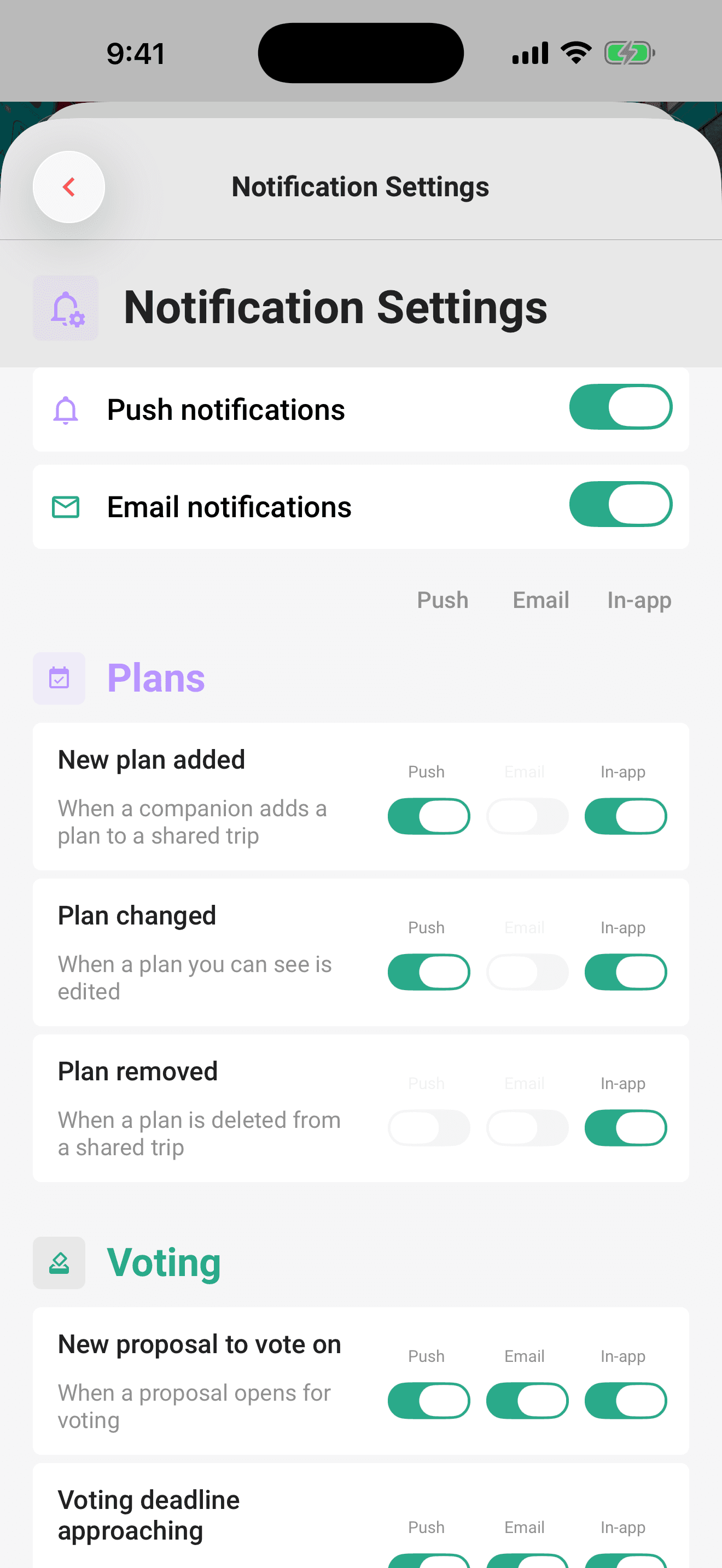
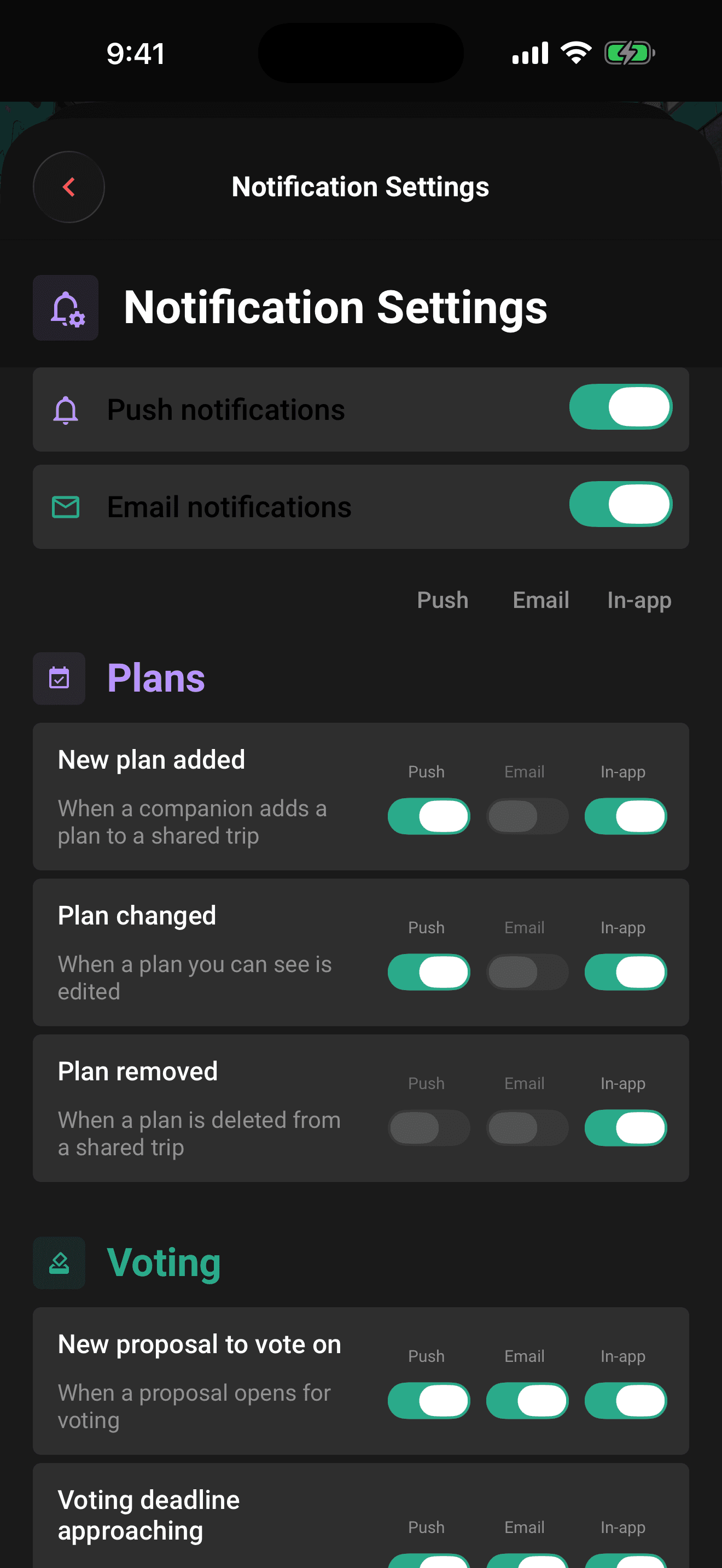
If you declined the system prompt in the past, your device won't show it again, you'll need to allow notifications in your device settings instead:
Open the Settings app, find Limbo, tap Notifications, and turn on Allow Notifications. Then return to Limbo and check the Push notifications master switch is on.
Note
The trip chat helps you out here too: if pushes are blocked at the device level, it shows an alert with a Settings shortcut that jumps straight to the right system screen.
For choosing exactly which events reach you on which channel, push, email, or in-app, per notification type, see Notifications.
After sign-up in the browser
The browser skips the mobile welcome slides and opens Home directly. Choose Create trip to start planning, or Join a trip to use an invite. This does not change the welcome slides shown by the mobile app.
Related articles
Create your account and log in
Sign up with email, Apple, or Google, sign in with a one-time email code, verify your email, plus password resets, logging out, and deleting your account.
Notifications: the bell, the inbox, and your settings
Where notifications land, where tapping one takes you, and how to control push, email, and in-app alerts per type.
Plan your first group trip
The full walkthrough: create your account, set up a trip, invite your crew, propose plans, and run your first sealed vote.