Record and undo a settlement
Record a repayment from Balances, add an optional method and note, and undo a mistaken entry from settlement history.
When someone repays part of the trip, record it in Balances. The settlement updates the crew's positions and is kept in history. Limbo records that the repayment happened; it does not send the money.
Every crew member can read settlement history. A verified account is required to record or undo a repayment; the action is available to its debtor, its creditor, or the trip owner. member
Record a repayment
- 1Open the trip, tap Expenses (or another Hub tile) to open the workspace sheet, then tap the Balances pill.
- 2Find the repayment row and check the direction: payer → recipient.
- 3Tap Record.
- 4In the inline Mark as settled form, review the prefilled amount.
- 5Optionally enter a payment Method and Note.
- 6Tap Record settlement.
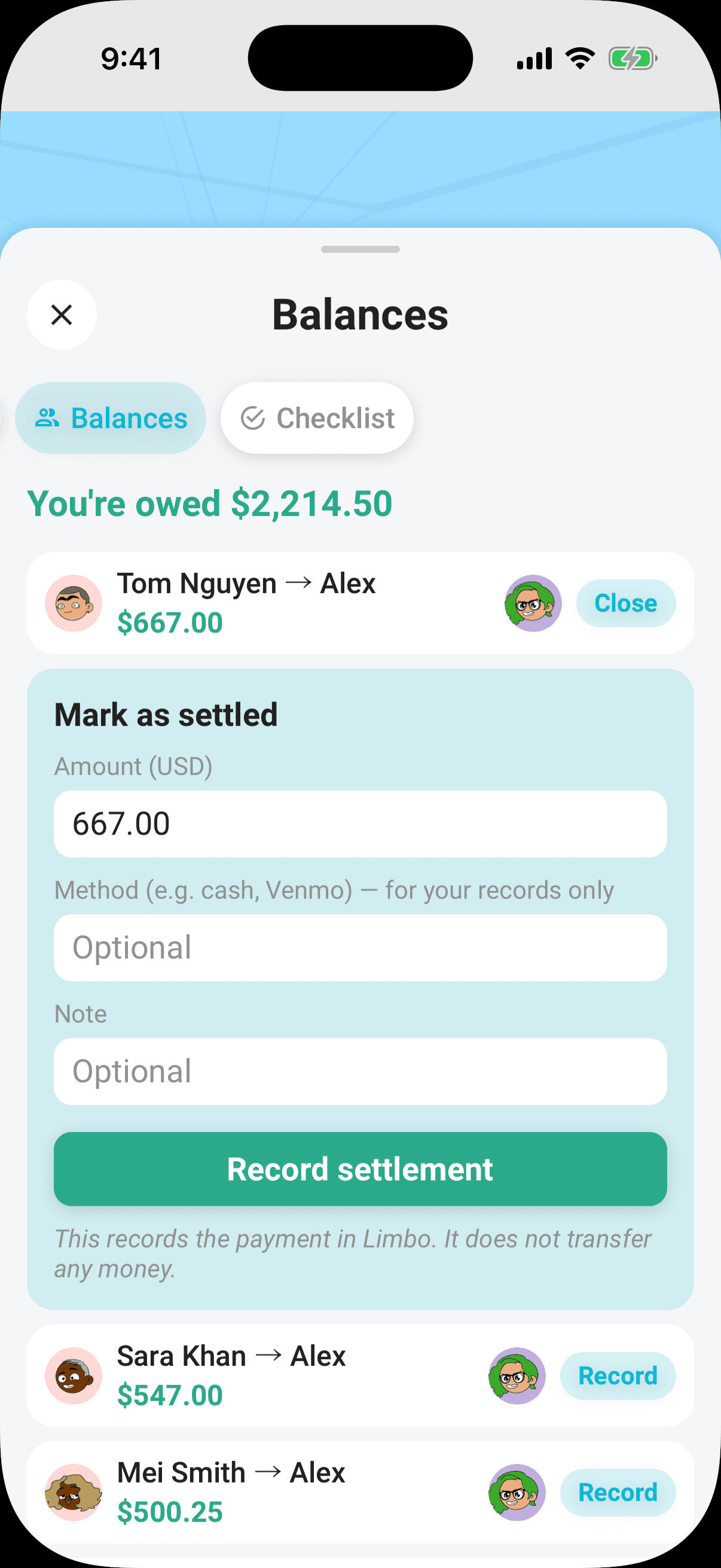
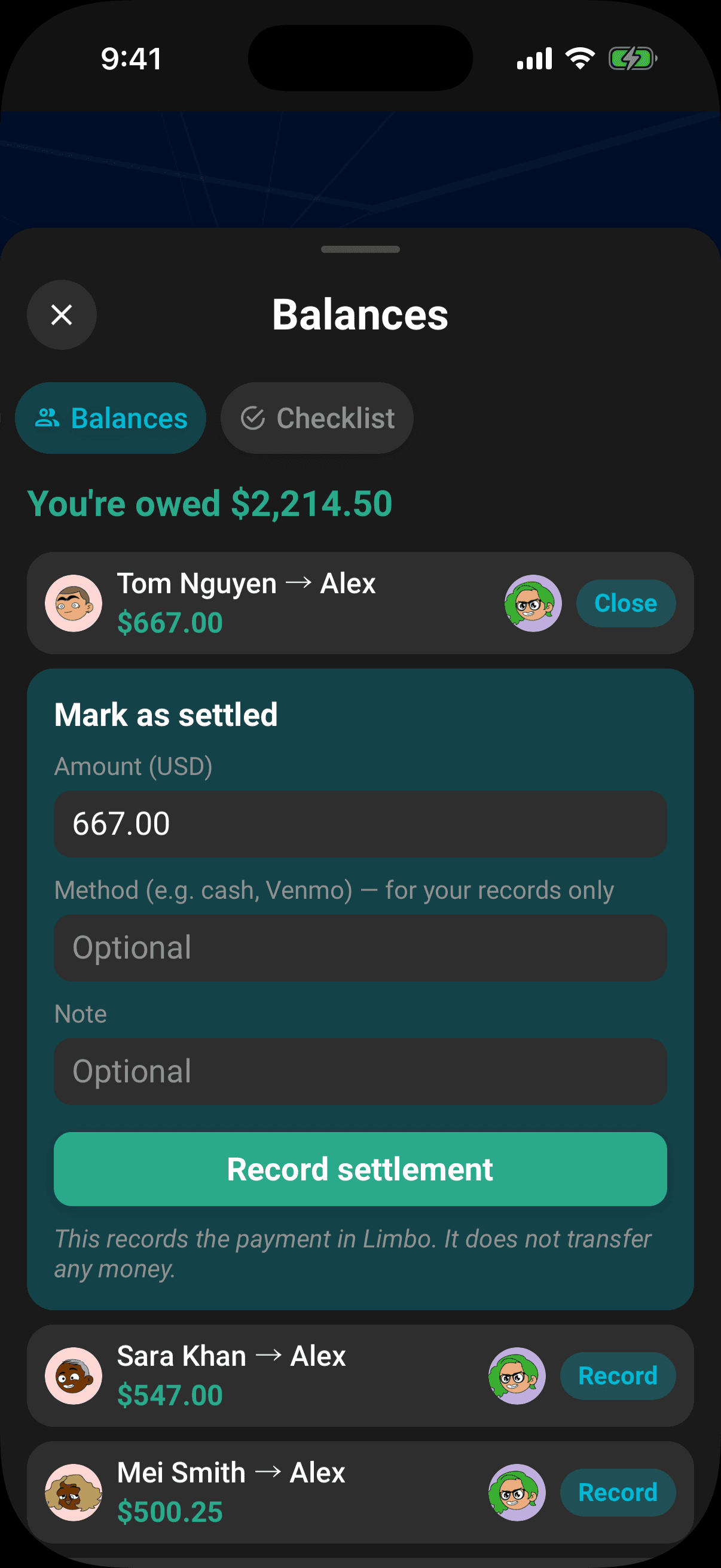
The amount can be adjusted before recording, which is useful for a partial repayment. Method and note are free-text records only; Limbo does not validate or act on them.
Heads up
Record settlement only updates Limbo's ledger. Send the cash or bank transfer separately.
Review settlement history
Scroll to SETTLED in Balances. Above the history, Limbo shows the number of active settlements and their combined total. Each history row includes:
- The direction of the payment.
- The date and any method or note.
- The amount.
- Undo, when you are allowed to reverse that record.
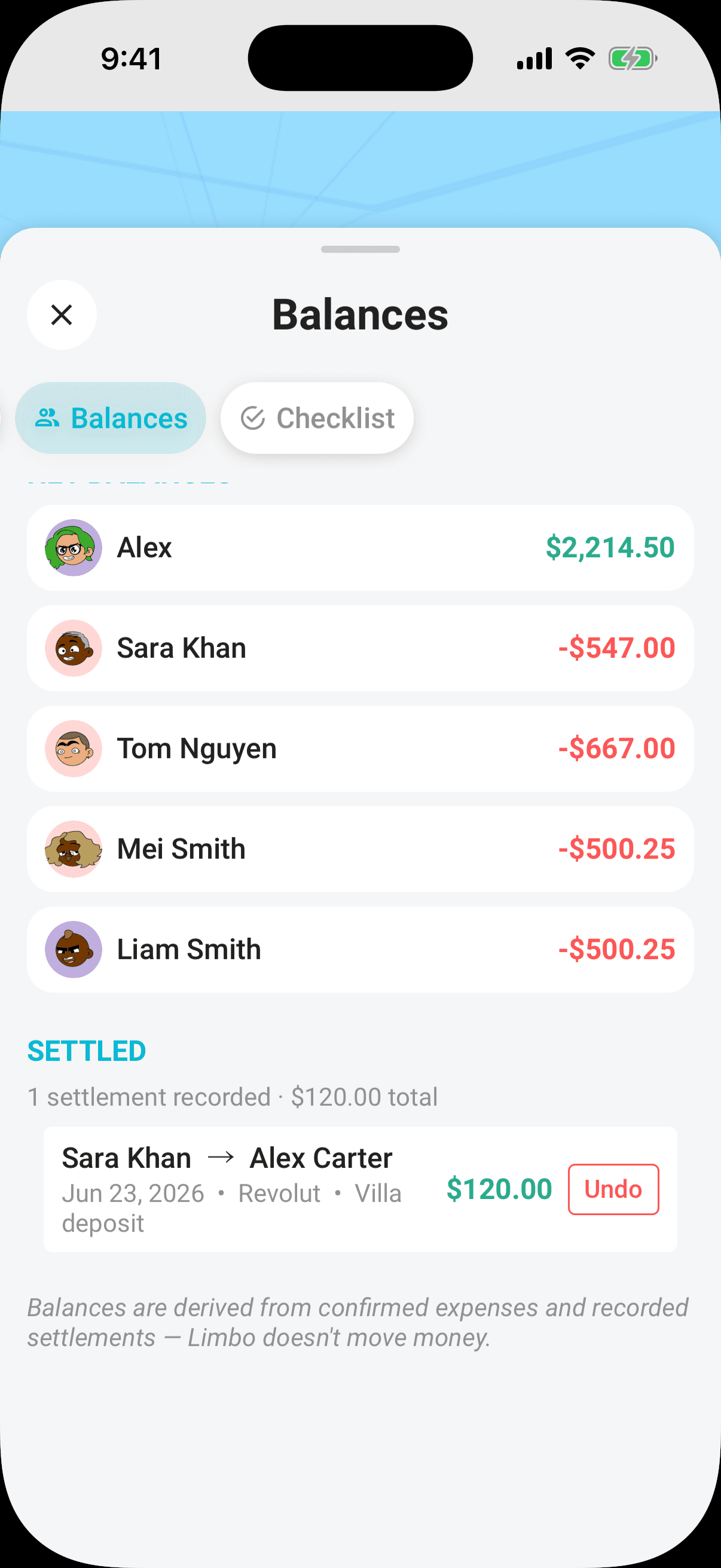
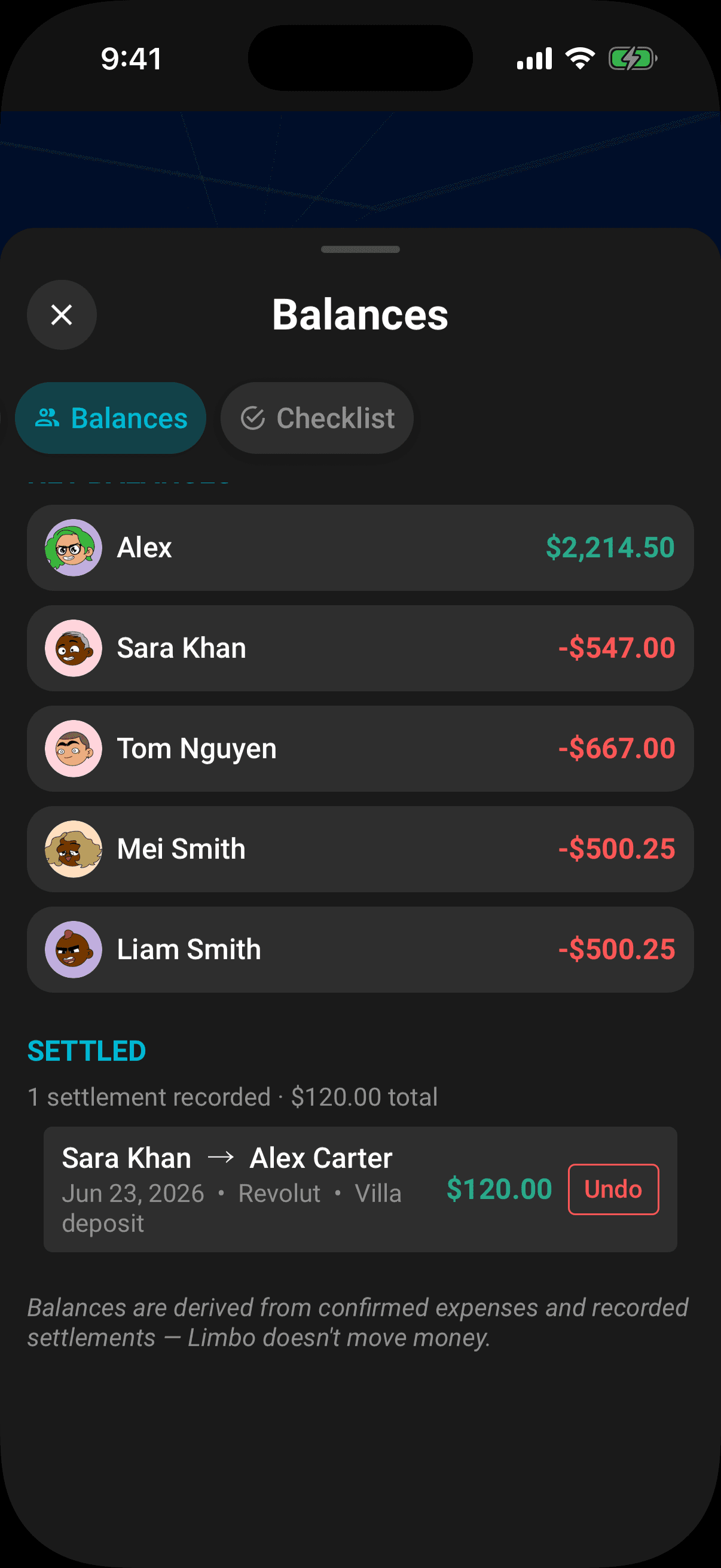
If no repayment has been recorded, this section says No settlements recorded yet.
Undo a mistake
- 1Find the entry under SETTLED.
- 2Tap Undo.
- 3In Undo this settlement?, confirm Undo.
The entry is removed from the active ledger and Balances recalculates immediately.
Note
Use Undo only when the record should not exist. New settlements can only be recorded from a repayment row currently suggested in Balances; there is no free-form settlement entry.
Offline notes
Where the server-controlled Pro offline-access capability is enabled, active Pro with recent verification lets you record or undo a settlement without a connection. The balance changes immediately and the action is queued; when you reconnect, check the sync banner and retry anything still waiting. If Limbo asks you to verify offline access, reconnect before changing the settlement.
Permissions
- Read settlement history: every crew member. member
- Record a repayment: a verified debtor, creditor, or trip owner. owner
- Undo a settlement: a verified participant in that settlement, or the verified trip owner. owner
Related articles
Understand who owes whom
Use Balances to see your position, a simplified repayment list, every person's net balance, and recorded settlements.
Record who paid
Set Paid by on a costed plan so Expenses shows the payment and Balances can calculate repayments.
Expenses and balances
Read the Expenses total, shares, payments, statistics, and activity, then open Balances to see who owes whom.
Split costs
Set an equal or custom crew split for the trip, override it on one plan, and see each person's share in Expenses.